What is Notion and How Can You Build an AI-Powered Workspace?
Notion is an AI-powered, all-in-one workspace that combines notes, tasks, wikis, and databases into a single, highly customizable interface. Originally designed as a flexible document editor, it has evolved by 2026 into an active "AI Agent" environment where users can build their own "Second Brain." Instead of using separate apps for project management, spreadsheets, and word processing, Notion allows you to connect all your data using relational databases and automate repetitive tasks using built-in artificial intelligence.
If you have spent any time trying to organize your digital life, you have likely encountered the problem of app fragmentation. Your tasks live in Trello, your notes are scattered across Evernote and Apple Notes, your budgets are in Google Sheets, and your team communication is buried in Slack. Finding a single piece of information requires opening four different tabs and hoping you remember where you saved it.
Notion was built to solve this exact problem. According to official platform data, over 100 million users now rely on the software to manage everything from personal grocery lists to enterprise-level engineering sprints. It is currently ranked as the #1 Knowledge Base on G2, largely because it refuses to force users into a rigid structure. Instead, it provides a set of digital building blocks.
However, the platform has undergone a massive transformation recently. It is no longer just a passive place to store text. With the introduction of custom AI Agents, advanced database mapping, and integrated email clients, Notion has become an active participant in your workflow. This article will break down exactly how the platform works, why you should rethink how you organize your files, and how to bypass the steep learning curve using targeted templates.
How Does the Notion Hierarchy Work?
To understand how to use this tool effectively, you must first understand its underlying architecture. Unlike traditional file explorers that use a rigid "Folder > Subfolder > Document" structure, Notion operates on a much more fluid three-tier hierarchy: Workspaces, Pages, and Blocks.
According to productivity experts and the Zapier framework for Notion, mastering this hierarchy is the key to preventing your digital workspace from becoming a chaotic mess.
The Three-Tier Structure
- Workspaces: This is the highest level of organization. Think of a workspace as a completely separate building. You might have one workspace for your company (shared with coworkers) and a completely separate workspace for your personal life. Data does not naturally flow between different workspaces.
- Pages: Inside your workspace, you create pages. A page can be a simple text document, a complex dashboard, or a full database. The magic of Notion is that pages can be nested inside other pages infinitely. You can have a "Marketing" page, and inside that, a "Q3 Campaigns" page, and inside that, a "Social Media Drafts" page.
- Blocks: This is the most important concept to grasp. In Notion, everything is a block. A paragraph of text is a block. An image is a block. A checkbox is a block. Even an entire database is just a block sitting on a page.
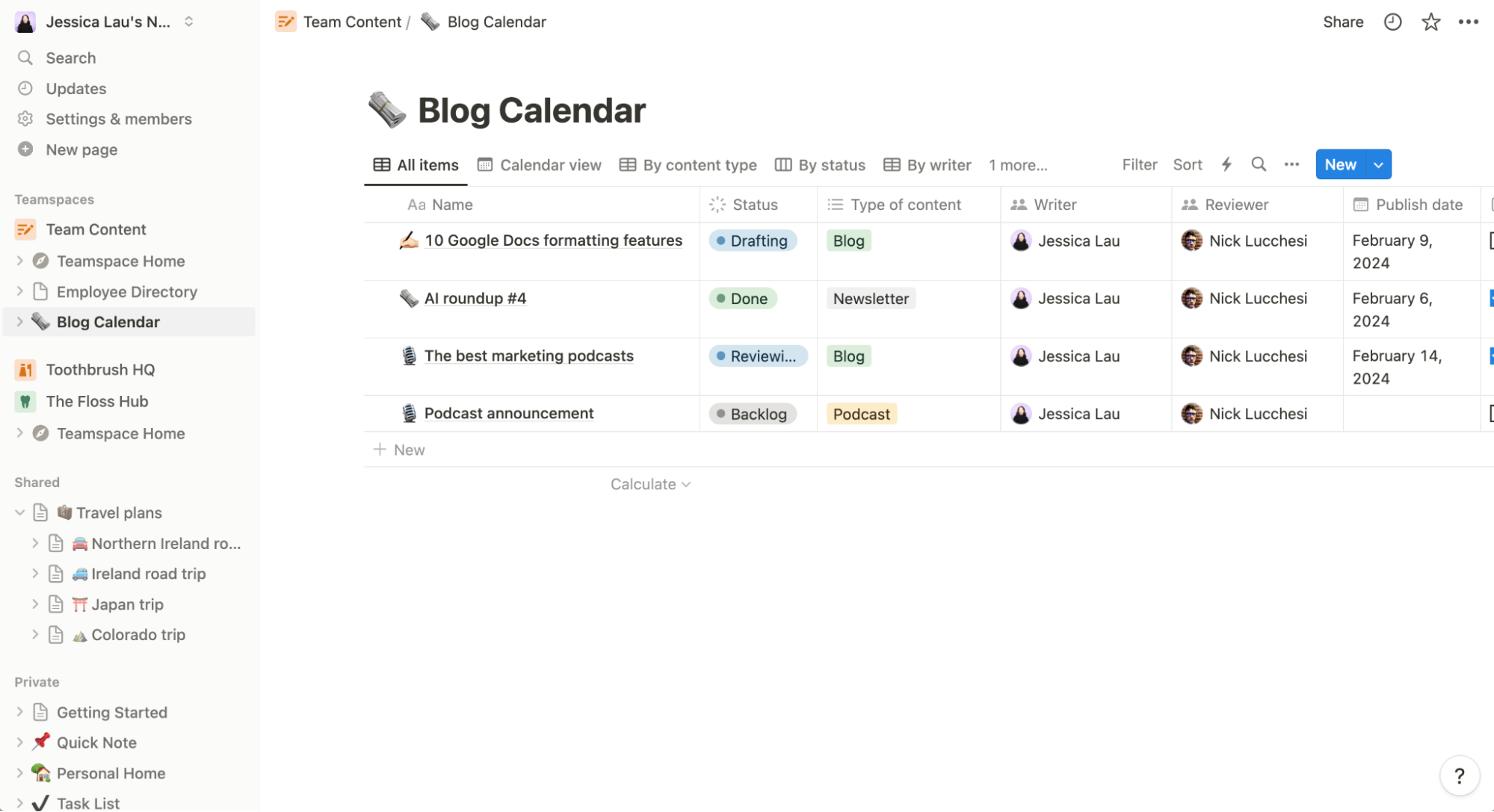
Image source: Zapier
The Power of the Block System
Because everything is a block, everything is modular. You can click and drag a bullet point and turn it into a toggle list. You can drag a paragraph next to an image to create columns. You can even take a block of text, drag it into a database, and it instantly becomes a new database entry.
This modularity is what makes the platform feel like a digital Lego kit. You aren't just writing a document; you are assembling a page using different functional pieces. If you decide later that a simple to-do list needs to become a complex project board, you can transform those text blocks into database items with a few clicks, without losing any of your original data.
Why You Should Choose Databases Over Simple Pages
When new users first open the app, their instinct is to use it like Microsoft Word or Google Docs. They create a page called "Meeting Notes," and every time they have a meeting, they type the date and write their notes. After six months, that page is an unreadable, endlessly scrolling wall of text.
To build a scalable system, you must adopt the "Databases over Pages" philosophy. Pioneered by certified consultants like William Nutt (creator of the Bulletproof framework), this approach dictates that you should almost never use standalone pages for recurring items. Instead, you should build databases.
The Scalability Argument
A database in Notion is not just a spreadsheet; it is a dynamic container for pages. If you create a "Meeting Notes" database, every single meeting becomes its own dedicated page within that database. You can tag each meeting with properties: the date, the attendees, the client name, and the project status.
Why does this matter? Because once your data is in a database, you can filter, sort, and view it in dozens of different ways. You can't do that with a static text document.
One Data Set, Multiple Views
The true power of databases lies in "Views." You can enter your data once, but look at it from multiple angles depending on what you need to accomplish that day:
- Table View: Best for raw data entry, bulk editing properties, and getting a high-level overview of all your information.
- Board (Kanban) View: Perfect for project management. You can drag tasks from "To Do" to "In Progress" to "Done."
- Calendar & Timeline Views: Essential for visualizing deadlines, planning content schedules, or mapping out multi-week engineering sprints.
- Maps View: A newer feature that allows you to visualize location-based data. If you have a database of clients, office locations, or travel itineraries with address properties, Notion can plot them directly onto an interactive map.
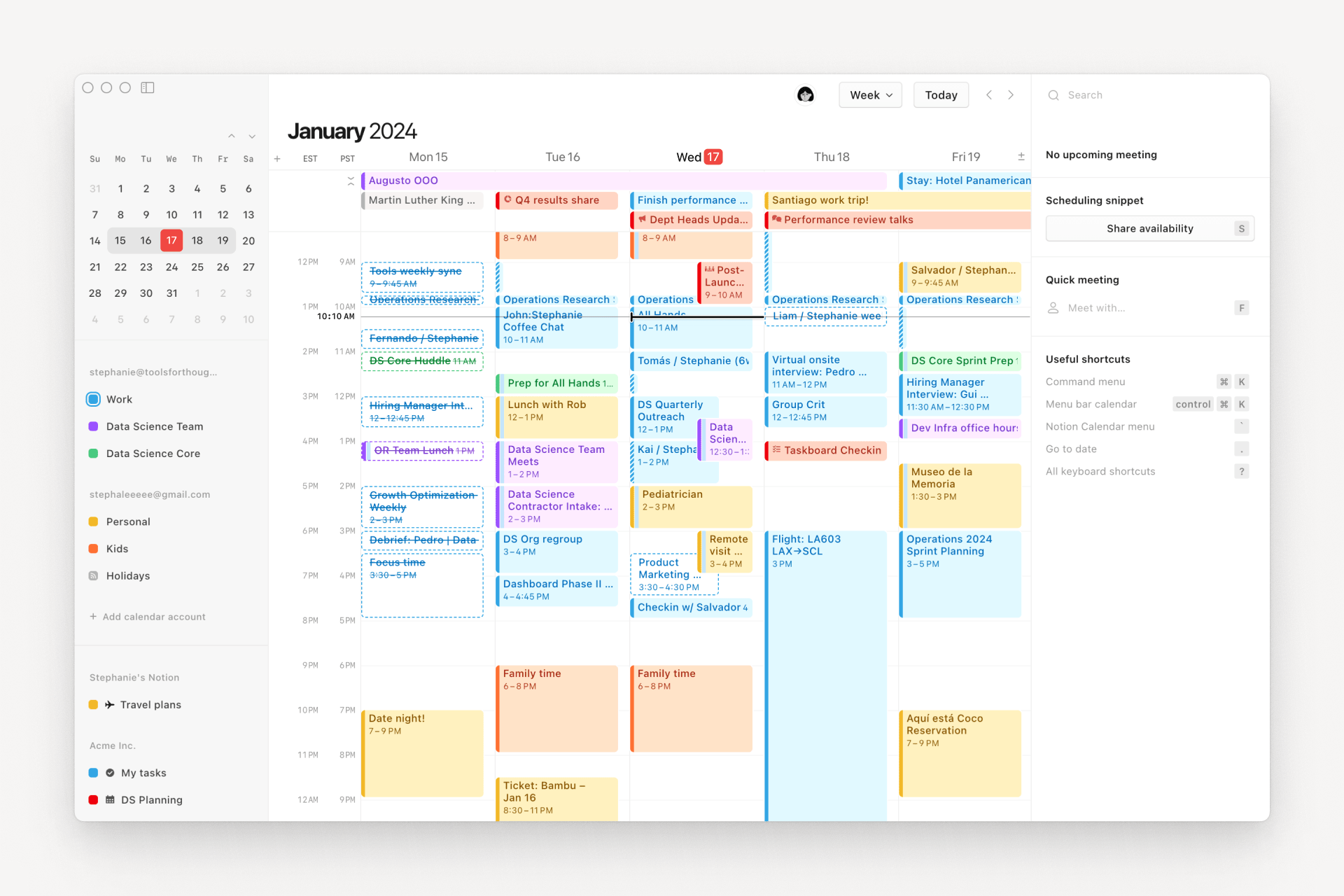
Image source: The Verge
Database Relations and Rollups
To truly unlock the platform's potential, you need to understand Relations. A Relation property allows you to link two completely separate databases together.
For example, imagine you have a "Clients" database and a "Projects" database. By creating a Relation between them, you can link the "Website Redesign" project directly to "Acme Corp." When you open the Acme Corp client page, you will automatically see all the projects associated with them.
Once databases are related, you can use "Rollups" to pull data across them. You could use a Rollup to look at all the tasks linked to a project, calculate how many are marked "Done," and automatically generate a progress bar. This is how users build complex, automated dashboards without writing a single line of traditional code.
How to Use Notion AI Agents to Automate Your Workflow
Artificial Intelligence in productivity software is no longer just about generating a polite email or summarizing a long document. The platform has shifted aggressively toward an "Automated Workspace" model, driven by custom AI Agents.
According to leadership at the company, the goal is to reduce the "work about work"—the manual data entry, the status updates, and the endless searching for information across different apps.
Beyond Simple Chatbots: Custom Agents
Instead of a generic chat window, you can now build Custom Agents tailored to specific databases. For example, you can create a "Support Ticket Agent." When a new customer complaint is logged into your database, the Agent can automatically read the complaint, categorize the urgency, tag the appropriate team member, and draft a preliminary response based on your company's past support tickets.
You can also use AI to automate meeting workflows. By integrating with transcription tools, Notion AI can take a raw transcript of a one-hour Zoom call, extract the key decisions, and automatically populate your "Tasks" database with action items assigned to the correct people, complete with deadlines.
One of the biggest fears with AI automation is "hallucinations"—the AI doing something wrong and messing up your data. Notion solves this with Plan Mode. Before an AI Agent executes a complex database update or formula change, it generates a read-only sandbox view. It shows you exactly what it plans to do. You can review the logic, approve it, or tweak the instructions before any actual data is altered.
Enterprise Search Across Your Stack
One of the most powerful AI features is its ability to break down silos between different applications. With Enterprise Search, Notion AI doesn't just look inside your Notion workspace. It can be connected to your Slack channels, your Google Drive, and your Gmail.
If you ask the AI, "What was the final budget approved for the Q4 marketing campaign?", it can scan a PDF in your Google Drive, read a conversation in a Slack thread, and synthesize an accurate answer, providing citations linking back to the original source documents.
Can You Use Notion for Personal Organization and ADHD?
While the platform is heavily adopted by Fortune 500 companies, it has an equally massive following among individuals using it for personal life management. Interestingly, it has become particularly popular within the neurodivergent community, specifically among users with ADHD.
According to analysis from The Good Trade, Notion serves as a highly effective tool for managing executive dysfunction because it allows users to build "System Spells"—customized environments that turn mundane chores into dopamine-engaging quests.
Reducing Cognitive Load with Linked Views
A common struggle with traditional to-do list apps is overwhelm. If you open an app and see 50 overdue tasks, the brain often shuts down, leading to task paralysis. Notion solves this through the use of "Linked Database Views."
You can have a master database containing hundreds of tasks for the year. However, on your daily dashboard, you can create a Linked View that is strictly filtered to show: "Tasks where the Due Date is Today AND Status is Not Complete."
By hiding everything else, you drastically reduce cognitive load. The system holds the complexity, but your daily view remains clean, simple, and actionable.
The Importance of Custom Aesthetics
For many users, the visual appeal of a workspace directly impacts their willingness to use it. If a tool feels sterile and corporate, it becomes a chore. Notion allows for deep aesthetic customization.
Users can add custom icons, animated cover images, and specific color-coded tags. The Reddit community frequently shares highly stylized dashboards—ranging from minimalist, monochrome setups to vibrant, "Trendy/Disco" aesthetics. This gamification and personalization create a sense of ownership, making users more likely to return to their digital planners daily.
How to Manage Your Inbox with the New Notion Mail
Context switching—the act of jumping between your email inbox, your task manager, and your document editor—is one of the biggest drains on daily productivity. To combat this, the platform introduced Notion Mail, a feature heavily championed by productivity experts like Tiago Forte, creator of the "Second Brain" methodology.
The Gmail Integration and the Single-App Workday
Notion Mail allows you to integrate your Gmail (and other providers) directly into your workspace. This is not just a widget that shows your recent emails; it is a fully functional email client built into the Notion interface.
The goal is to achieve a "Single-App Workday." By keeping your communication and your project management in the same window, you eliminate the friction of constantly switching tabs.
Turning Emails into Actionable Tasks
The true advantage of this integration is the interoperability with your databases. If a client emails you requesting a change to a project, you don't need to copy the text, open your task manager, create a new task, and paste the details.
With Notion Mail, you can click a single button to turn that email into a database item in your "Tasks" tracker. The email subject becomes the task name, the body of the email becomes the task description, and you can immediately assign a due date and tag the relevant project. The email is no longer just a message; it is integrated into your workflow.
What is the Reality of Using Notion Offline?
If there is one major point of contention within the user community, it is the platform's offline capabilities. While marketing materials and some enthusiastic reviews suggest you can work seamlessly without the internet, the reality—frequently discussed on community forums like Reddit—is much more nuanced.
How Offline Mode Actually Works
Notion is fundamentally a cloud-based, real-time syncing application. It does not store your entire workspace locally on your hard drive like a traditional Word document.
When you are offline, you can only access pages that have been recently cached (opened) by your browser or desktop app while you were still connected to the internet. If you know you are going on a flight, you must open the specific pages you want to work on before you lose your connection. Once offline, you can edit the text on those cached pages, and the app will store those changes locally.
Troubleshooting Sync Issues and Limitations
The limitations become apparent when you try to navigate. You cannot use the search function offline, you cannot open pages that weren't cached, and you cannot load complex database views that require pulling new data from the server.
How to prevent data loss: When you reconnect to the internet, Notion will attempt to push your local offline changes to the cloud. To avoid sync conflicts (especially if someone else edited the same page while you were offline), always ensure your app remains open and active for a few minutes after reconnecting to a stable network. Do not immediately close your laptop or force-quit the app, as this can interrupt the sync process and result in lost work.
5 Free Templates to Help You Start Without the Overwhelm
The absolute biggest hurdle for new users is the "Blank Page Problem." Because Notion can be anything, opening it for the first time and seeing a completely blank white screen is intimidating. Many users try to build complex, interconnected systems from scratch on day one, get overwhelmed, and quit.
The best way to learn the software is to reverse-engineer existing templates. Based on community demand, here are five specific persona-based setups you should look for in the Notion Template Gallery to get started immediately:
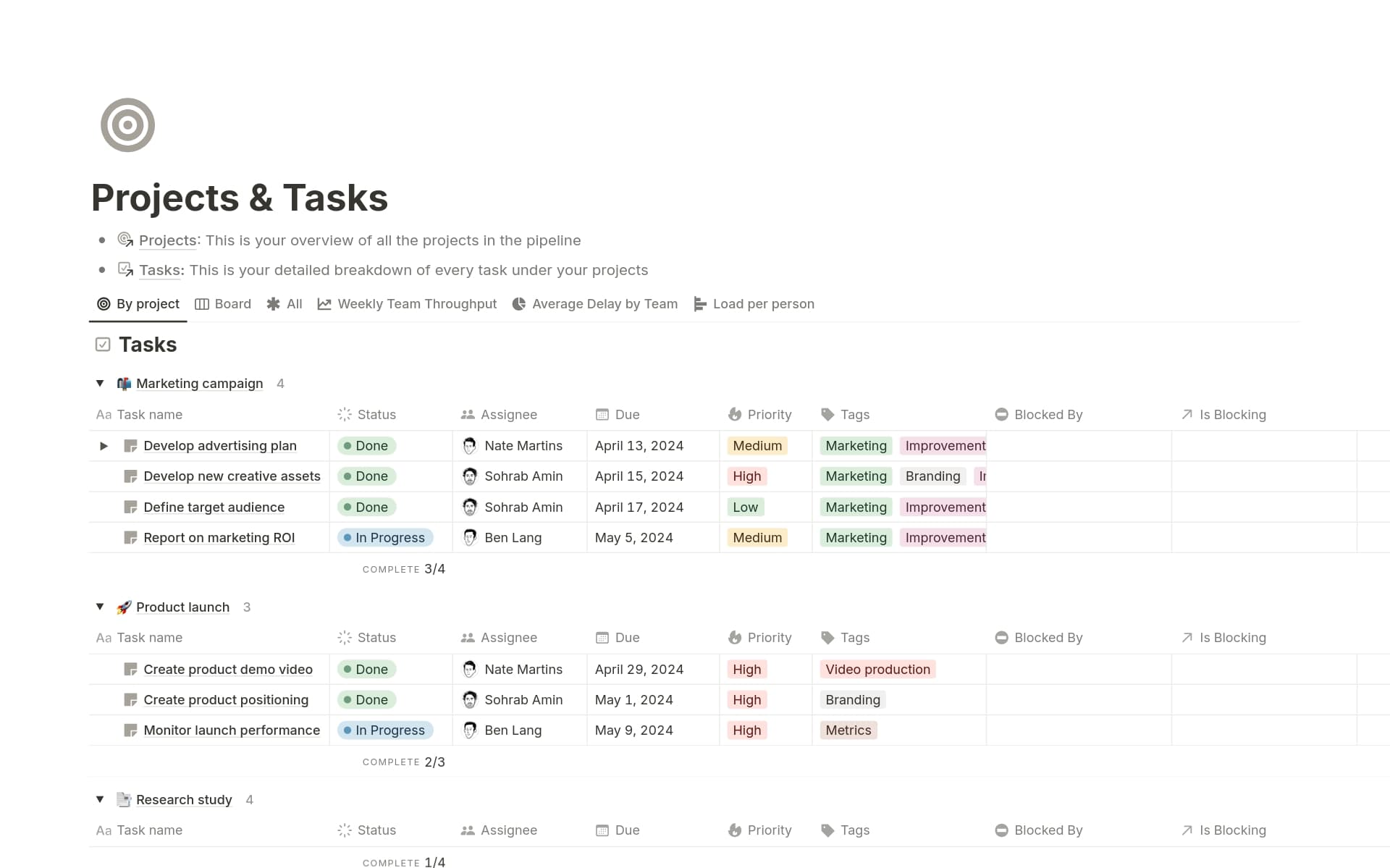
Image source: Notion
1. The Student OS
Designed for high school and university students, this template focuses on academic tracking. It typically includes a master database for all assignments, linked to a calendar view for due dates. It also features dedicated pages for each class, utilizing toggle lists for active recall studying and Cornell note-taking layouts.
2. The Logistics & Finance Analyst
For professionals managing numbers, this dashboard relies heavily on database rollups and formula properties. It allows you to track expenses, categorize them by department, and automatically generate Profit & Loss (P&L) summaries. It demonstrates how Notion can replace basic Excel spreadsheets for budget tracking.
3. The Creative Freelancer
This setup is built around client management. It features a CRM (Customer Relationship Management) database linked to a portfolio gallery. The most powerful feature is the "Client Portal"—a specific page you can share publicly with a client, allowing them to see project updates, view invoices, and leave comments, all while keeping the rest of your workspace private.
4. The "Second Brain" Starter
Based on Tiago Forte's PARA method, this template organizes your entire life into four distinct buckets: Projects (active goals), Areas (ongoing responsibilities like Health or Finances), Resources (saved articles and notes), and Archives (completed items). It is the best template for users who want to capture and organize web clippings and research.
5. The Trendy Social Dashboard
Highly popular on platforms like TikTok and Pinterest, this template focuses on aesthetics and personal life. It uses Gallery views to track reading lists, movie watchlists, and travel itineraries. It often incorporates embedded Spotify playlists, weather widgets, and custom GIF covers, making it a fun, collaborative space to share with friends.
Which Notion Plan is Right for You?
Notion operates on a freemium model. For the vast majority of individual users, the free version is more than enough, but teams and power users will need to upgrade to unlock specific features.
| Plan Tier | Target Audience | Key Features & Limitations |
|---|---|---|
| Free Plan | Individuals & Students | Unlimited blocks and pages for individuals. 5MB file upload limit. 7-day page history. (Note: If you add a second member to your workspace, you are capped at a limited number of blocks). |
| Plus Plan | Small Teams & Power Users | Unlimited file uploads (great for hosting videos/large PDFs). 30-day page history. Custom domains for shared pages. |
| Business Plan | Companies & Agencies | SAML SSO (Single Sign-On), private team spaces, advanced page analytics, and 90-day page history. |
| Enterprise Plan | Large Corporations | Advanced security controls, audit logs, dedicated success manager, and granular AI agent permissions. |
Note for Students: If you sign up using a valid university email address (.edu), Notion provides the features of the Plus plan for free, allowing you to bypass the 5MB file upload limit for your assignments and projects.
Frequently Asked Questions
/). Typing / brings up the block menu, allowing you to instantly add headings, images, or databases without touching your mouse. Other vital shortcuts include Cmd/Ctrl + P to search your entire workspace, Cmd/Ctrl + Shift + M to add a comment, and using markdown like # followed by a space to instantly create a Heading 1.Final Thoughts
Notion has evolved far beyond a simple note-taking application. By combining modular blocks, relational databases, and advanced AI agents, it functions as a highly customizable operating system for both personal productivity and enterprise workflow management.
- Build with blocks, not documents: Understand that every element on a page is a modular block that can be moved, transformed, and nested infinitely.
- Prioritize databases over static pages: To ensure your workspace scales over time without becoming cluttered, use databases to store information and utilize different views (Table, Calendar, Map) to interact with that data.
- Leverage AI for automation: Use Custom AI Agents and Plan Mode to automate repetitive tasks, summarize meetings, and search across your integrated apps like Slack and Google Drive safely.
- Manage cognitive load: Utilize Linked Database Views to filter out future tasks, showing only what is relevant today to prevent overwhelm and task paralysis.
- Start with templates: Avoid the "blank page problem" by downloading a persona-specific template (like a Student OS or Freelancer CRM) and reverse-engineering how it was built.
- Understand offline limits: Remember that offline mode only works for recently cached pages; always allow the app time to sync when reconnecting to the internet to prevent data loss.