How to Use OneNote Templates for Work to Organize Your Professional Life
To effectively use OneNote templates for work, professionals must move beyond the basic native options. By creating a cross-platform "Template Master" section, integrating Kanban boards, and utilizing internal wiki-linking, you can transform OneNote from a simple digital notepad into a centralized project management hub. This guide covers installation workarounds for Mac/Web, top framework recommendations, and advanced Outlook integrations.
Microsoft OneNote is widely regarded as a highly capable digital notebook, but out of the box, it often feels like a blank canvas. For professionals managing complex projects, endless meetings, and daily task lists, staring at a blank white screen can induce decision fatigue. This is where implementing structured OneNote templates for work becomes essential.
However, setting up a professional system is not always straightforward. Many users discover that the built-in templates are heavily skewed toward academic or decorative uses, and cross-platform compatibility issues frequently frustrate Mac and iPad users. In this comprehensive 2026 guide, we will explore how to access native layouts, bypass platform restrictions, and implement advanced frameworks like Kanban boards and the Eisenhower Matrix to optimize your daily workflow.
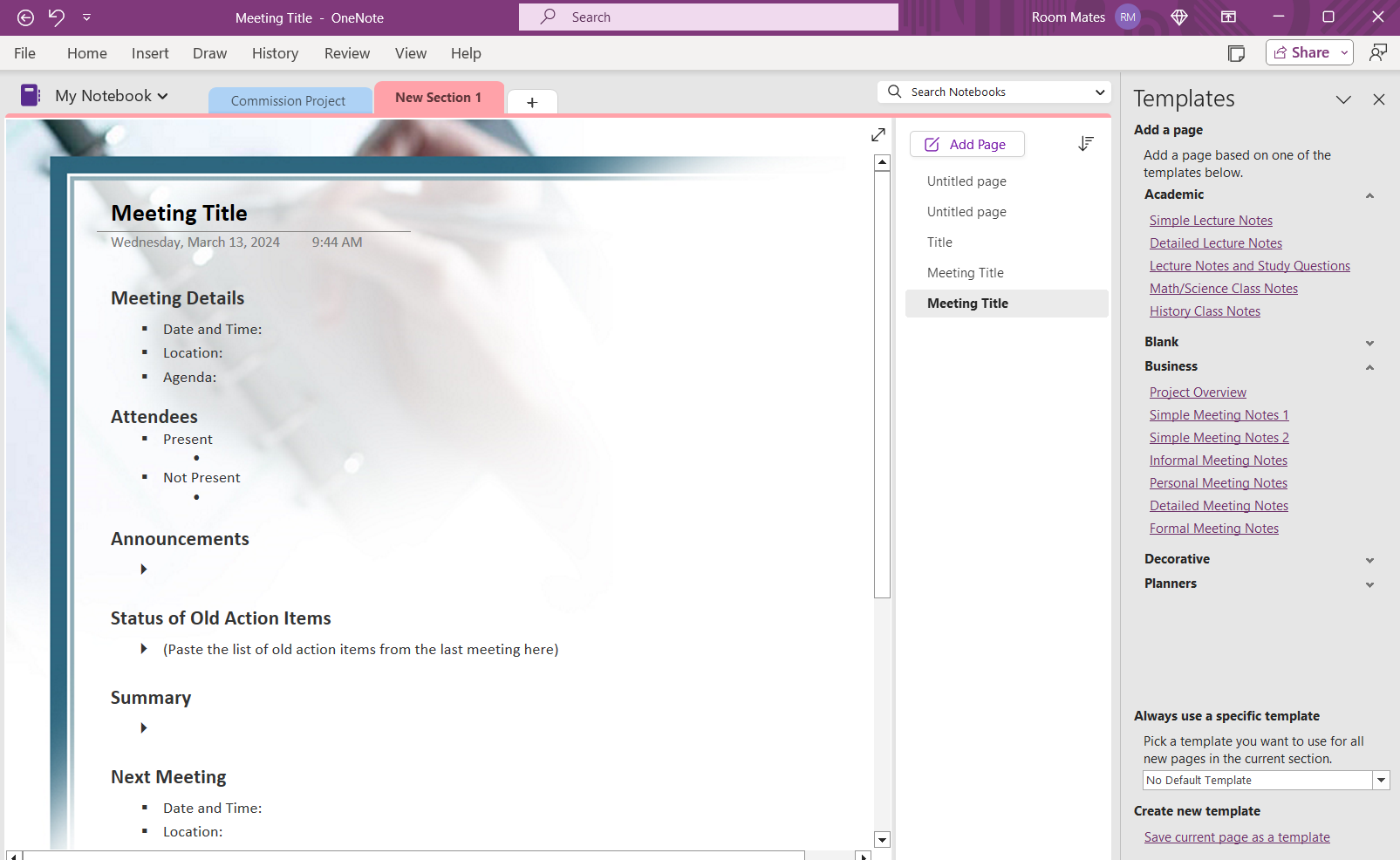
Image source: Zapier
Where to Find the Built-In OneNote Templates for Business
Before exploring third-party solutions, it is important to understand what Microsoft provides natively. The desktop version of OneNote includes a hidden library of pre-formatted pages designed to establish a consistent layout across your notebooks.
Accessing the Native Library
If you are using the standard Windows desktop application (formerly known as OneNote 2016, now simply "OneNote"), accessing the template library requires navigating through the ribbon menu:
- Open your desired notebook and navigate to the section where you want to add a new page.
- Click on the Insert tab in the top ribbon.
- Click the Page Templates button (often located toward the right side of the ribbon).
- A task pane will open on the right side of your screen, displaying categories such as Academic, Blank, Business, Decorative, and Planners.
Under the Business category, you will find standard layouts for meeting minutes, project overviews, and formal client notes. While these provide a functional starting point, users frequently find built-in Microsoft OneNote templates limited for advanced professional needs, noting a lack of modern agile frameworks or complex task matrices.
The "New Page" Limitation You Need to Know
A critical constraint of OneNote's native template system is that templates can only be applied to new, blank pages. You cannot retroactively apply a template to a page that already contains text, images, or formatting.
If you have existing meeting notes that you want to format into a new template structure, you must use a specific migration workflow:
- Create a new page using your desired template via the Insert menu.
- Navigate back to your old, unformatted page.
- Select all content (Ctrl+A) and copy it (Ctrl+C).
- Paste the content (Ctrl+V) into the designated text containers of your newly templated page.
- Delete the old page to prevent version confusion.
Pro Tip: Setting a Default Template. If your team uses the same meeting minutes format every week, you can automate the process. At the bottom of the Page Templates pane, look for the "Always use a specific template" dropdown. Select your preferred layout, and every new page created in that specific section will automatically load with that design.
How to Install OneNote Templates on Mac and Web Versions
One of the most common points of friction for professionals is the lack of feature parity across Microsoft's ecosystem. If you are using OneNote for Mac, OneNote for iPad, or OneNote on the Web, you will quickly notice that the Insert > Page Templates button is completely missing.
Because these versions do not support the native template pane or `.onepkg` installation files directly, users must rely on a structural workaround to maintain a consistent layout system.
The "Template Master" Workaround
To bypass the missing button, you can create a dedicated section that acts as your personal template library. This method ensures your layouts sync across all devices, including iOS and macOS.
In your primary work notebook, create a new section and name it "Template Master" or "Layout Library." To prevent accidental edits, you can right-click the section tab and assign it a distinct color (e.g., dark gray).
Create a new page within this section. Manually design your ideal layout using tables, note containers, and highlighting. Alternatively, if you purchased a template, paste the layout onto this page. Name the page clearly (e.g., "TEMPLATE: Weekly 1-on-1").
Whenever you need to use this layout, do not type directly on the master page. Instead, right-click the page name in the navigation pane and select Copy Page To.... Select your active project section as the destination. You now have a fresh, templated page ready for use.
This method is highly effective because it relies on OneNote's core syncing engine rather than desktop-specific add-ins, making it a reliable solution for hybrid teams using mixed operating systems.
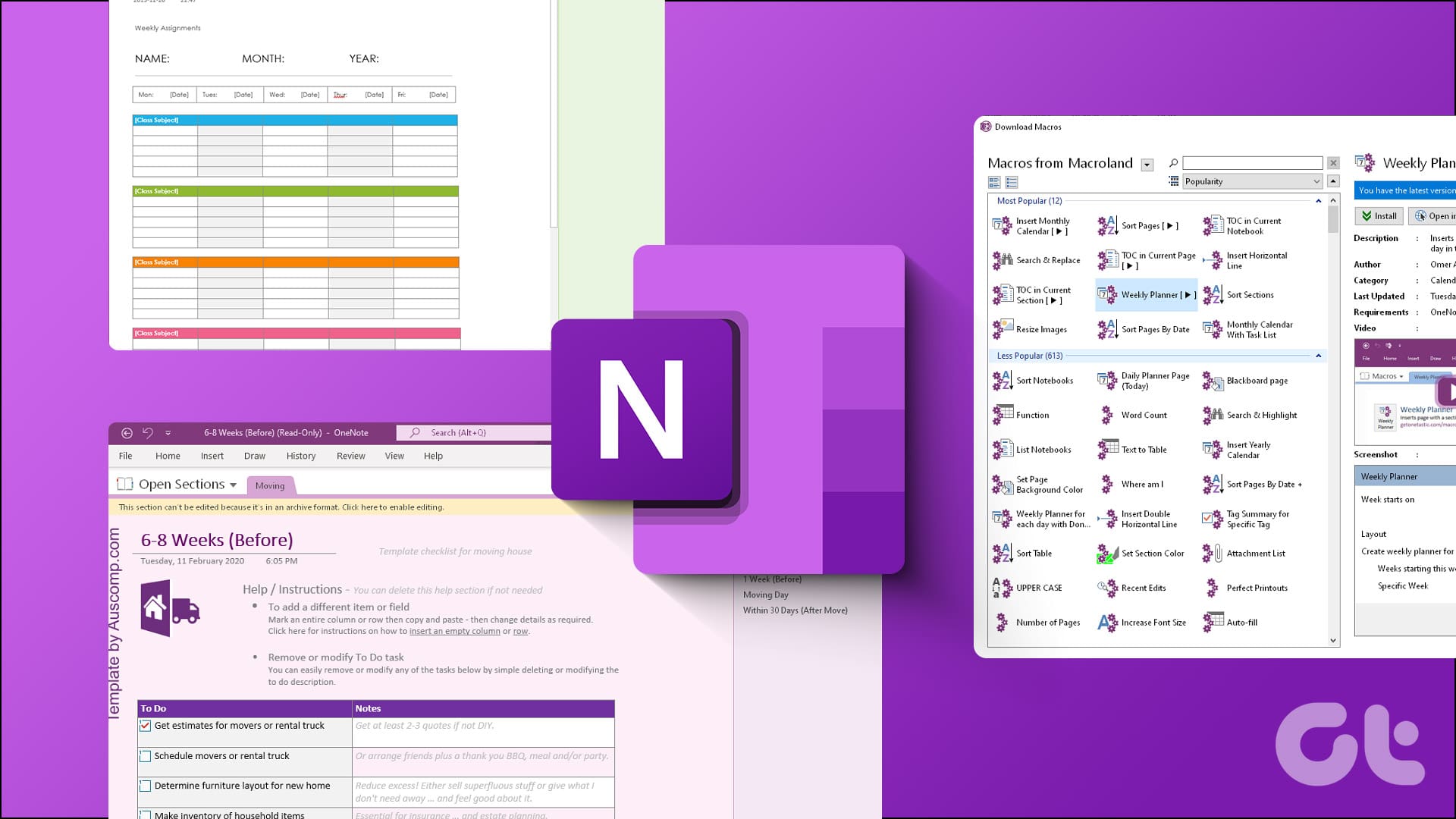
Image source: Guiding Tech
Top OneNote Templates for Professional Project Management
Moving beyond basic lined paper and simple checklists, OneNote's free-form canvas allows for the implementation of robust productivity frameworks. Community consensus highlights that project management and structured research are among the most sought-after professional use cases.
Building a Functional Kanban Board Custom Build
While tools like Trello or Planner are purpose-built for Kanban, many professionals prefer keeping their tasks alongside their detailed notes. You can build a Kanban board in OneNote by leveraging "Note Containers"—the invisible boxes that hold your text.
To create a Kanban layout:
- Click anywhere on a blank page and type "To-Do". This creates your first container.
- Click far to the right of that container and type "Doing".
- Click further to the right and type "Done".
- Drag the top bar of each container to align them horizontally.
- Use OneNote's "To Do" tags (Ctrl+1) to create draggable task items under each column.
The Cornell Method for High-Stakes Meetings Native/Custom
For executive summaries and client discovery calls, unstructured notes often lead to lost action items. The Cornell Method is a structured note-taking system that forces you to separate raw notes from key takeaways.
To set this up as a template, insert a 2x2 table. Merge the top two cells for your Title/Date. In the bottom row, drag the middle border so the left column takes up 30% of the page (for Cues/Action Items) and the right column takes up 70% (for Detailed Notes). Add a final row at the bottom spanning the full width for your Executive Summary.
Implementing the Eisenhower Matrix Advanced
The Eisenhower Matrix helps professionals prioritize tasks based on urgency and importance. Since this is absent from the native library, building it requires a specific table structure.
Create a 3x3 table. Leave the top-left cell blank. Label the top row headers "Urgent" and "Not Urgent". Label the left column headers "Important" and "Not Important". You can shade the cells using the Table Tools menu (e.g., light red for Urgent/Important, light green for Not Urgent/Not Important). Save this page to your Template Master section for daily task triage.
Comparing the Top Professional Template Providers
If building custom layouts from scratch is too time-consuming, a robust market of third-party providers exists. The demand for these solutions is significant; over 4,000+ monthly searches occur on visual platforms like Pinterest for OneNote layouts.
| Provider / Source | Best Suited For | Format Type | Key Characteristic |
|---|---|---|---|
| Microsoft Native | Basic meetings, quick lists | In-app feature | Free, but limited to Windows desktop for installation. |
| Auscomp | Enterprise & Project Managers | Full Notebooks | Offers comprehensive "Work Hubs" with interconnected pages. |
| OneNote Gem | Technical Power Users | .onepkg / Add-ins | Requires desktop software; offers deep technical integrations. |
| Etsy / Pinterest | Aesthetic Planners | PDF / Copy-Paste | Highly visual, often focused on daily life and habit tracking. |
Auscomp: The Enterprise Solution
For corporate environments, Auscomp OneNote Templates ranks among the top premium options. Rather than providing single pages, they offer entire pre-structured notebooks designed as "Work Hubs." These templates often include built-in navigation menus, interconnected project dashboards, and standardized team wikis. They are particularly popular among project managers who need a ready-to-deploy system without spending hours formatting tables.
OneNote Gem: For Power Users
If you require advanced functionality, OneNote Gem Templates provides layouts that often pair with their proprietary add-ins. These templates frequently come packaged as `.onepkg` files. It is important to note that `.onepkg` files are essentially zipped OneNote notebooks that require the Windows desktop version of OneNote to unpack and sync to OneDrive before they can be viewed on mobile devices or Macs.
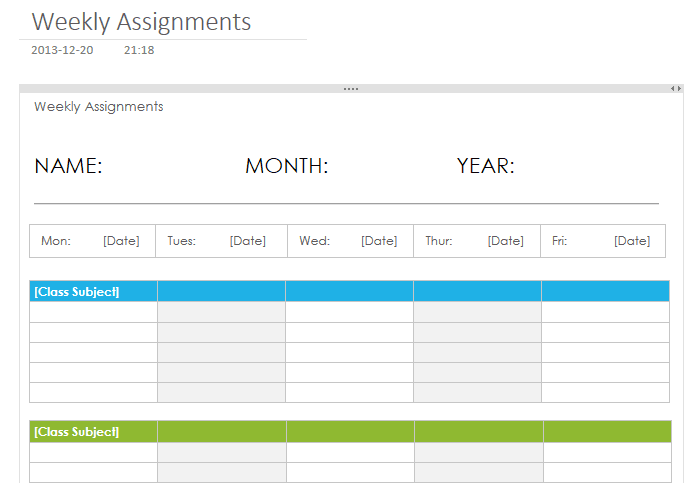
Image source: OneNote Gem Add-Ins
How to Build a Central Work Hub Using Internal Linking
A single template page is useful, but a network of connected templates creates a system. Productivity experts recommend moving away from isolated notes and instead building a "Central Work Hub" that acts as your professional dashboard.
Creating a Dashboard Page
Your Work Hub should start with a master Dashboard template. This page acts as the homepage for your professional life. Instead of scrolling through endless sections, you use OneNote's internal linking feature to create a clickable table of contents.
To link to another page, right-click the target page in your navigation pane and select Copy Link to Page. Return to your Dashboard, type the project name, highlight it, and press Ctrl+K (or Cmd+K on Mac) to paste the link. You can organize your Dashboard into categories like "Active Projects," "Daily Planners," and "Archive."
Integrating with Outlook Tasks
For professionals embedded in the Microsoft 365 ecosystem, OneNote templates become significantly more powerful when linked to Outlook. When taking meeting minutes in your template, you do not need to copy action items into a separate task manager.
- Highlight the text of your action item in OneNote.
- Click the Outlook Tasks flag icon in the Home ribbon.
- Select a due date (e.g., "Tomorrow" or "Next Week").
This action automatically sends the item to Microsoft To Do and your Outlook Task list, complete with a hyperlink back to your specific OneNote template page for context.
The "Wiki" Strategy for Researchers
If your work involves heavy research, you can use the double-bracket hack to instantly generate new templated pages. While typing in your master document, enclose a new topic in double brackets, like this: [[Q3 Marketing Strategy]]. OneNote will instantly create a new, blank page with that exact title and turn your text into a clickable link pointing to it. You can then apply your standard research template to that new page.
Troubleshooting Common OneNote Template Issues
Even with a solid system in place, users occasionally encounter technical hurdles when deploying templates across different devices and software versions.
Why Your Template Looks Distorted on Mobile
OneNote's canvas is infinite, which is great for desktop monitors but problematic for mobile screens. If you design a template with multiple side-by-side note containers (like the Kanban board mentioned earlier), the mobile app may stack them unpredictably or require excessive horizontal scrolling.
The Fix: For templates you intend to view frequently on a phone, use OneNote's Table feature instead of floating note containers. Tables force the mobile app to respect the structural boundaries of your layout, ensuring a much cleaner viewing experience.
Fixing the .onepkg File Error on Mac
As mentioned, many premium templates are distributed as `.onepkg` files. If you try to open this file on a Mac, you will receive an error stating the file type is unsupported.
The Fix: You must use a Windows PC as an intermediary. Open the `.onepkg` file on a Windows computer running the desktop version of OneNote. Once it unpacks into a local notebook, go to File > Share and move the notebook to your OneDrive account. Once it finishes syncing to the cloud, you can open that notebook natively on your Mac or iPad.
Managing Template Versioning (2024-2026)
When downloading planner templates, pay attention to the dates. Many complex templates include hardcoded hyperlinks for specific calendar days. A planner designed for 2024 will have broken day-to-date alignments in 2026. Look for "undated" or "evergreen" templates, or ensure the provider offers annual updates as part of their package.
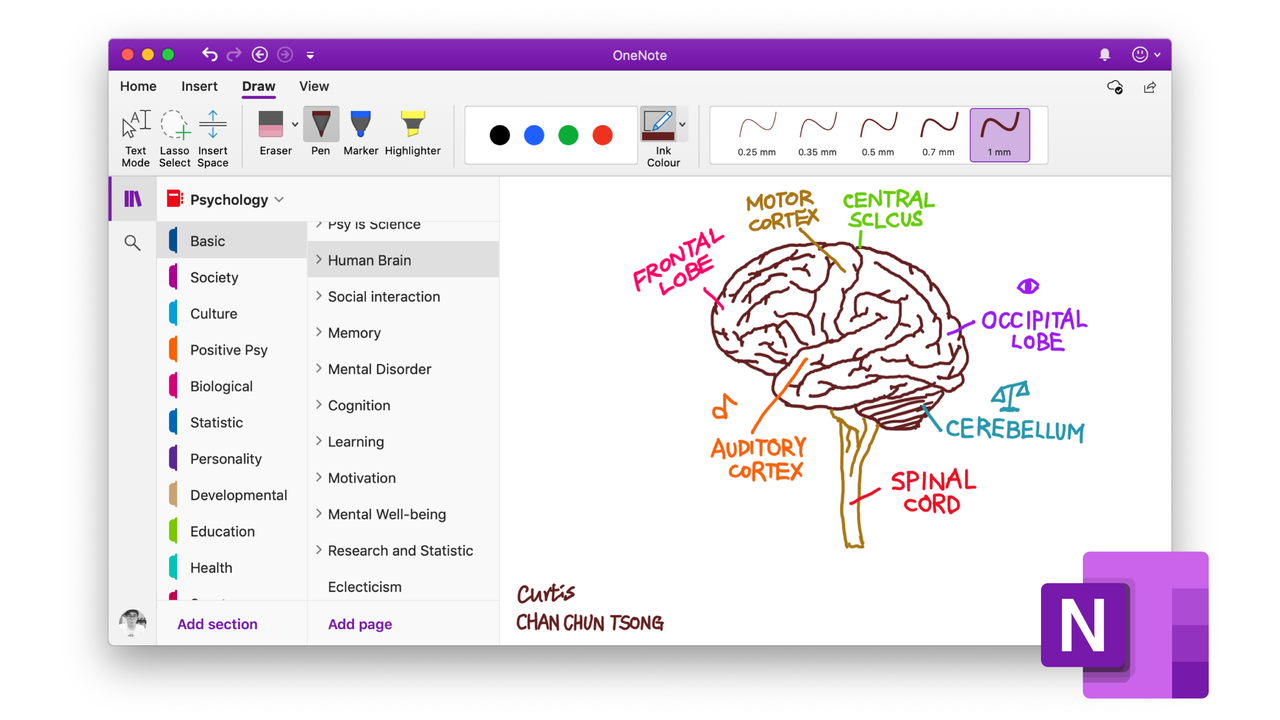
Image source: AFFiNE
Frequently Asked Questions
Final Thoughts on Optimizing Your Workflow
Relying on a blank page for daily professional tasks often leads to disorganized notes and lost action items. By implementing a structured template system, you reduce the cognitive load of formatting and can focus entirely on the content of your work.
- Audit your current version of OneNote to determine if you have access to the native Page Templates pane or if you need to use workarounds.
- Establish a "Template Master" section in your primary notebook to ensure your custom layouts sync across Mac, Windows, and mobile devices.
- Utilize OneNote's table tools rather than floating containers if you frequently review your notes on a smartphone to prevent visual distortion.
- Integrate your meeting templates with Outlook Tasks by using the flag feature to automatically send action items to Microsoft To Do.
- Build a centralized Work Hub dashboard using internal page links (Ctrl+K) to navigate quickly between active projects and daily planners.
- Evaluate third-party providers like Auscomp or OneNote Gem if you require enterprise-grade, pre-linked notebook systems rather than single pages.