How to Use Google Keep for Maximum Productivity on Every Device
Google Keep is a versatile, cross-platform note-taking tool integrated directly into the Google Workspace ecosystem. It is designed for capturing unstructured data, ideas, and lists across all your devices. You can access it immediately via:
- Web Browser: keep.google.com
- Android Devices: Download from the Google Play Store (Requires Android 10+)
- Apple Devices: Download from the Apple App Store (Requires iOS 17.0+)
Note for privacy-conscious users: On iOS, Google Keep may link data including Location, Contact Info, and Search History to your identity.
When most people open Google Keep for the first time, they see a simple digital corkboard for sticky notes. However, treating Keep as just a basic memo pad leaves its most powerful capabilities completely untapped. Originally launched in 2013 as "Google Notes," the application has evolved into a robust productivity engine that supports 73 languages and syncs seamlessly across the Web, Android, iOS, and Wear OS.
Whether you are a student trying to digitize textbook pages, a professional managing a complex web of daily tasks, or a creative writer capturing fleeting ideas on the go, understanding the deeper mechanics of this tool is essential. This comprehensive resource will walk you through advanced workflows, hidden shortcuts, and ecosystem integrations that transform Google Keep from a simple scratchpad into a high-functioning digital brain.
How to Install Google Keep as a Desktop App on Your PC or Mac
One of the most common frustrations for new users is the apparent lack of a dedicated desktop application. If you search for a ".exe" or ".dmg" file to download Google Keep to your PC or Mac, you will come up empty-handed. Google officially only provides a web interface for desktop users.
However, you do not have to keep a browser tab open at all times to use the service. You can bridge this gap by installing Google Keep as a Progressive Web App (PWA). A PWA behaves exactly like a native desktop application: it opens in its own dedicated window without browser toolbars, it can be pinned to your Windows Taskbar or macOS Dock, and it can be launched with a single click.
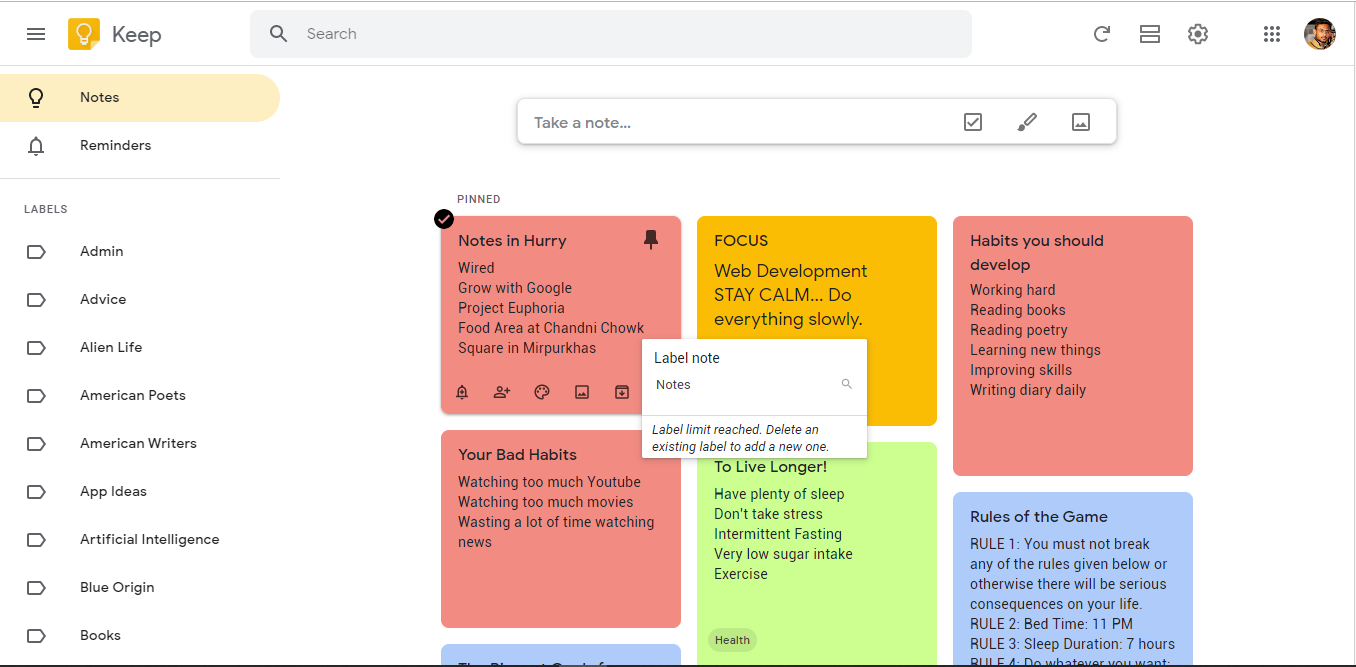
Image source: Software Advice
To install the Google Keep desktop app via Google Chrome or Microsoft Edge, follow these steps:
- Open your preferred Chromium-based browser (Chrome, Edge, or Brave) and navigate to keep.google.com.
- Log in to your Google Workspace account.
- Look at the far right side of your URL address bar. You will see a small icon that looks like a computer monitor with a downward arrow (in Chrome) or an "App available" icon (in Edge).
- Click this icon and select Install.
- Alternatively, if you do not see the icon, click the three-dot menu in the top right of your browser, navigate to Save and share (or Apps in Edge), and select Install page as app.
Once installed, the application will launch in a standalone window. You can right-click the icon in your Taskbar or Dock and select "Pin" to ensure it is always accessible. This method also allows the app to cache data, providing limited offline capabilities so you can view your notes even when your internet connection drops.
How to Capture Ideas Faster Using Advanced Note Features
The true value of a note-taking application lies in how quickly it allows you to capture information before you forget it. Google Keep excels in this area by offering several advanced capture methods that go far beyond standard typing.
How to Extract Text from Photos Using OCR
Optical Character Recognition (OCR) is arguably Google Keep's most underutilized feature. Instead of manually typing out information from a physical document, a business card, a whiteboard, or a receipt, you can use your device's camera to capture the image and let Keep extract the text automatically.
This feature is a massive time-saver for students who need to quote passages from physical books or professionals who need to digitize meeting notes written on a whiteboard.
- Open the Google Keep mobile app and tap the Image icon at the bottom of the screen.
- Select Take photo and capture a clear image of the text you want to digitize.
- Once the image is attached to the note, tap on the image itself to view it in full screen.
- Tap the three-dot menu in the top right corner and select Grab image text.
Within seconds, Google's machine learning algorithms will scan the image and paste the extracted text directly into the body of your note. While the OCR is highly accurate for printed text, its success with handwriting will depend heavily on legibility. You can also perform this action on the web version by uploading an image and selecting the same option from the menu.
Image source: PCMag
How to Use Voice Notes with Automatic Transcription
When you are driving, walking, or simply unable to type, voice notes are essential. However, Google Keep handles voice memos differently than most standard recording apps. When you use the native audio feature in Keep, it does not just save an audio file; it simultaneously generates a highly accurate text transcript of everything you said.
To use this feature, tap the Microphone icon at the bottom of the mobile app. Speak naturally. When you stop speaking, Keep will automatically finalize the note. The resulting note will contain both the playable audio file and the transcribed text. This dual-format approach ensures that you can quickly read your idea later, but you also have the original audio to reference if the transcription misunderstood a specific word or nuance in your tone.
How to Speed Up Labeling with Hashtags
Organization is only effective if you actually use it. If categorizing a note requires clicking through multiple menus, you are less likely to do it. According to productivity experts, reducing friction is key to maintaining a digital system.
You do not need to open the three-dot menu to add a label to a note. Simply type a hashtag directly into the body or title of your note (e.g., #grocery, #work, #ideas). A dropdown menu will instantly appear, allowing you to select an existing label or create a brand new one on the fly. This keeps your hands on the keyboard and your workflow uninterrupted.
When you use the hashtag shortcut, the label is applied to the note immediately. You can leave the hashtag in the text or delete it; the label will remain attached to the note regardless.
How to Organize Your Notes Without Creating a Mess
Because Google Keep defaults to a masonry grid layout (similar to Pinterest), a highly active account can quickly turn into an overwhelming wall of text. To prevent this, you must implement a strict visual hierarchy and organization system.
How to Use Colors and Backgrounds for Visual Categorization
Google Keep allows you to change the background of any note. You have access to eight specific solid colors (white, red, orange, yellow, green, teal, blue, gray) and several patterned wallpapers (such as groceries, recipes, or travel themes).
To maximize productivity, do not use colors randomly. Establish a strict "Color Code" for your life and stick to it. For example:
- Red: Urgent tasks that must be completed today.
- Green: Financial notes, budgets, or purchase lists.
- Blue: Long-term reference material or reading lists.
- Yellow: Personal ideas and creative brainstorming.
By enforcing a color code, your brain will eventually learn to filter the grid visually. When you open the app looking for your grocery list, your eyes will naturally skip over the blue and red notes and zero in on the green ones.
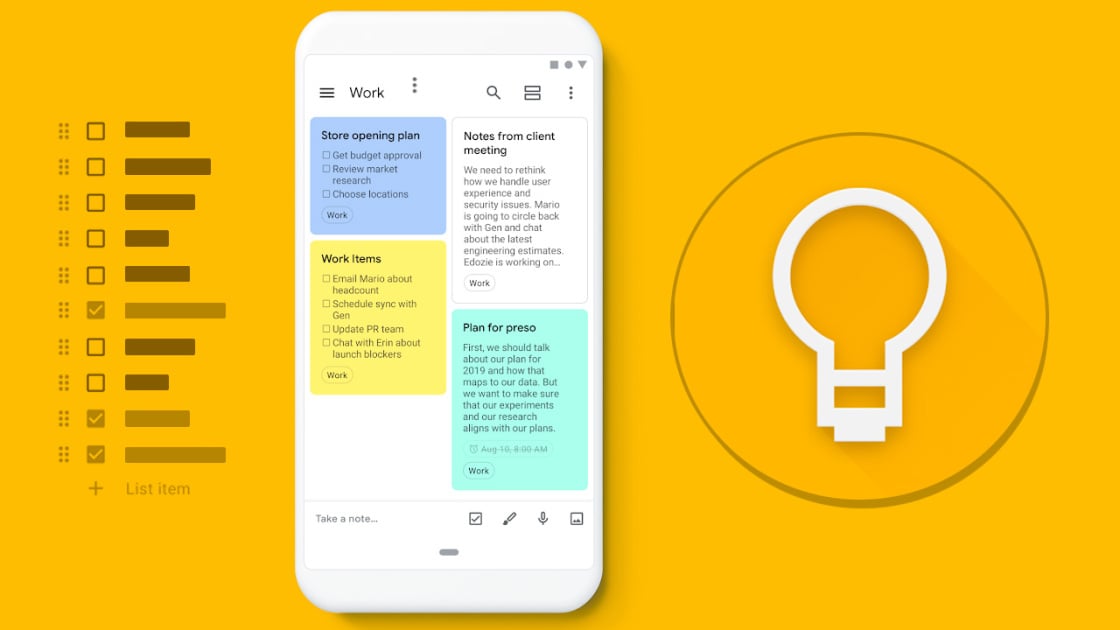
Image source: PCMag
How to Pin Important Notes to the Top
As you create new notes, older ones are pushed further down the grid. If you have a note that you need to access every single day—such as a daily routine checklist, a Wi-Fi password, or a current project outline—you cannot afford to go searching for it.
Click or tap the Pin icon in the top right corner of any note. This creates a dedicated "Pinned" section at the absolute top of your Keep interface. Pinned notes will remain there permanently, regardless of how many new notes you create, until you unpin them.
How to Use Bulk Editing to Save Time
If you have neglected your organization and need to clean up hundreds of notes, doing it one by one is agonizing. Google Keep includes a bulk editing feature that is often overlooked.
On the Web: Hover over a note and click the small checkmark that appears in the top left corner. You can then click on other notes to select them, or hold Shift to select a range. Once multiple notes are selected, use the toolbar at the top right to change their color, add a label, or archive them all simultaneously.
On Mobile: Touch and hold any note for about one second. The note will be highlighted, and you can then tap other notes to add them to your selection. The bulk action menu will appear at the top of your screen.
How to Master the Google Keep Workflow
Having features is one thing; combining them into a reliable daily workflow is another. The most successful Google Keep users employ specific methodologies to keep their digital workspace clean and functional.
How to Use the Archive Function for a Clean Inbox
The most common complaint found in community forums like Reddit's r/GoogleKeep is that the main screen becomes too cluttered. Users often create labels (like "Recipes" or "Work Projects"), but are frustrated to find that labeled notes still appear on the main dashboard.
To solve this, you must treat the main Google Keep screen like an email inbox. The goal is "Inbox Zero."
When you create a note and assign it a label, you should immediately click the Archive button (the icon showing a folder with a downward arrow). Archiving a note does not delete it. Instead, it acts as a "Move to Folder" command. The note is removed from your main cluttered view, but it remains perfectly safe and accessible whenever you click on its specific Label in the left-hand navigation menu.
By adopting the Archive workflow, your main screen only shows active, unfiled, or urgent notes, drastically reducing cognitive load.
How to Use the Transcribe and Trash Workflow
Google Keep is excellent for capturing ideas, but it is terrible for long-form writing or complex formatting. Writers, students, and professionals often use the "Transcribe and Trash" method to bridge the gap between sudden inspiration and polished output.
- When an idea strikes, use the Keep mobile app to record a Voice Note. Let the app automatically transcribe your thoughts.
- Later, when you are at your computer, open the note on the web.
- Click the three-dot menu and select Copy to Google Docs.
- A link will appear at the bottom of the screen saying "Open Doc." Click it to open your transcribed text in a full word processor where you can edit, format, and expand upon it.
- Return to Google Keep and Delete or Archive the original note to prevent duplication and clutter.
How Google Keep Integrates With the Google Workspace Ecosystem
Google Keep's greatest advantage over competitors like Apple Notes or Evernote is its deep integration with the rest of the Google Workspace (formerly G Suite).
How to Use the Google Docs Sidebar
If you are writing a report, an essay, or a project proposal in Google Docs, switching back and forth between tabs to look at your research notes is highly inefficient. Google solved this by building Keep directly into the Docs interface.
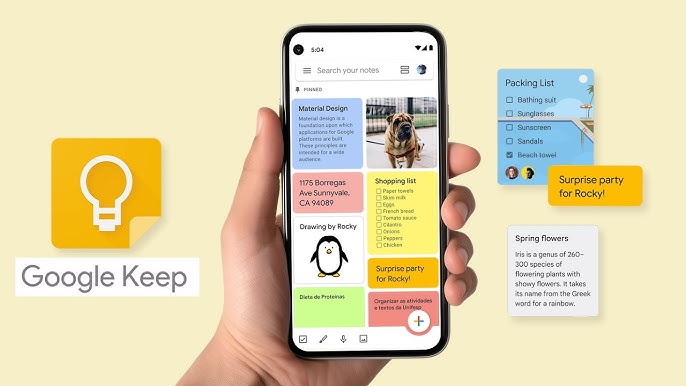
Image source: YouTube
While working in Google Docs on a desktop browser, look at the narrow sidebar on the far right edge of the screen. Click the yellow Google Keep icon. A panel will slide out displaying all of your Keep notes. You can search through them, read them, and most importantly, you can click and drag a note directly from the sidebar into your document. The text (and any attached images) will be instantly pasted into your manuscript.
This sidebar integration is also available in Gmail and Google Calendar, allowing you to easily turn an email into a note, or attach a note to a calendar event.
How to Convert a Note into a Full Google Doc
As mentioned in the Transcribe and Trash workflow, notes often outgrow the Keep interface. Keep has a hard character limit of approximately 20,000 characters per note. If you are approaching this limit, or if you simply need to add bolding, italics, headers, or complex tables, you must migrate the data.
The Copy to Google Doc feature (found in the three-dot menu of any note) handles this instantly. It creates a brand new document in your Google Drive root folder, using the Keep note's title as the document title, and transfers all text and images seamlessly.
How to Fix Common Google Keep Problems and Sync Issues
While generally reliable, power users occasionally run into technical hiccups, especially when using third-party browsers or interacting with legacy Google Assistant features.
How to Solve the Sign-In Loop in Non-Chrome Browsers
Users of privacy-focused browsers like Vivaldi, Brave, or Firefox often report a frustrating "Sign-in loop" when trying to use the Google Keep Chrome Extension or Web Panel. You may be prompted to log in, but after entering your credentials, the panel simply refreshes and asks you to log in again.
This is almost always caused by strict third-party cookie blocking. Because the Keep extension operates as a frame within your browser, blocking third-party cookies prevents Google from verifying your session.
The Fix: You do not need to disable your privacy shields entirely. Instead, go to your browser's cookie settings and add an exception to "Allow all cookies" specifically for [*.]google.com and [*.]googleusercontent.com. In Vivaldi specifically, right-click the Keep Web Panel icon, select "Show Desktop Version," log in, and then revert it to the mobile view.
Where Did the Google Assistant Shopping List Go?
For years, saying "Hey Google, add milk to my shopping list" would automatically append the item to a specific note in Google Keep. However, many users have experienced confusion as Google frequently changes how Assistant handles lists.
Historically, Google migrated Assistant lists away from Keep and into Google Express/Google Shopping, causing massive user frustration. While Google eventually allowed users to select Keep as their default list provider again, the integration remains fragile. If your voice commands are no longer updating your Keep notes, open the Google Assistant settings on your phone, navigate to Notes & Lists, and ensure that Google Keep is explicitly selected as your default provider.
Are Location-Based Reminders Still Available?
There is conflicting documentation regarding location-based reminders in Google Keep. Some app store descriptions still highlight the ability to set a reminder that triggers when you arrive at a specific GPS coordinate (e.g., "Remind me to buy milk when I get to the grocery store").
However, historical data and Wikipedia entries note that support for location-based notifications was largely discontinued or deprecated across the Google ecosystem in late 2025 in favor of time-based reminders and Google Tasks integration. If you do not see the "Remind me at a place" icon (a small map pin) when setting a reminder, your version of the app no longer supports this feature. It is recommended to rely on time-based reminders instead.
Google Keep vs Google Tasks — Which One Do You Need?
Because Google offers two different productivity apps—Keep and Tasks—users are often confused about which one to use. The simplest way to decide is to look at the structure of your data.
Google Keep is for ideas, unstructured data, reference material, and visual brainstorming. It is your digital scratchpad. Google Tasks is strictly for actionable to-do items, deadlines, and structured sub-tasks.
| Feature / Capability | Google Keep | Google Tasks |
|---|---|---|
| Best Used For | Brainstorming, reference notes, long lists, saving images/links. | Strict deadlines, daily to-do lists, project steps. |
| Media Support | Supports photos, audio recordings, and freehand drawings. | Text only. No images or audio support. |
| Sub-tasks & Hierarchy | Basic checkboxes only. No nested sub-tasks. | Supports deep nesting of sub-tasks under a parent task. |
| Ecosystem Integration | Sidebar in Docs/Gmail. Exports to Google Docs. | Integrates directly into Google Calendar as scheduled events. |
| Reminders | Time-based reminders attached to the whole note. | Specific date and time deadlines attached to individual tasks. |
For maximum productivity, use both. Use Keep to draft the outline of a project, and use Tasks to schedule the specific deadlines required to get that project done.
Frequently Asked Questions
Officially, Google does not offer a downloadable desktop application (.exe or .dmg) for Google Keep. However, you can achieve the exact same experience by opening Keep in Chrome or Edge and installing it as a Progressive Web App (PWA). This allows you to pin Keep to your taskbar and run it in a standalone, distraction-free window.
Yes, but with limitations. If you have installed Keep as a Chrome app or PWA, it will cache your recent notes. You can open the app without an internet connection to view and edit existing cached notes. Any changes you make will be synced to the cloud automatically the next time your device connects to the internet.
Currently, Google Keep does not offer per-note encryption or password protection. Anyone who has access to your unlocked device or your Google account can read your Keep notes. If you need to store highly sensitive information (like passwords or financial data), it is recommended to use a dedicated password manager or a password-protected Google Doc instead.
No. Despite Google's reputation for sunsetting products, Keep remains a core, actively supported component of the Google Workspace ecosystem. It receives regular updates for stability and security across Web, Android, and iOS platforms.
A single Google Keep note can hold approximately 20,000 characters. If you exceed this limit, the app will prompt you to shorten the note. For documents requiring more space, you should use the "Copy to Google Doc" feature to migrate the text to a full word processor.
Final Thoughts
Google Keep is deceptively simple. By looking past the basic sticky-note interface and implementing the advanced features discussed in this article, you can transform it into a highly efficient system for capturing and organizing your life.
To get the most out of Google Keep, remember that how you capture and organize information is just as important as the information itself. Here is a summary of the most critical strategies to implement:
- Install the PWA via Chrome or Edge to give yourself a dedicated, distraction-free desktop application experience.
- Archive aggressively to maintain "Inbox Zero" on your main screen, relying on Labels to organize your saved notes.
- Use OCR extraction to instantly digitize text from physical documents, whiteboards, and receipts instead of typing them manually.
- Leverage the Docs sidebar to seamlessly drag and drop your research notes directly into your long-form writing projects.
- Type hashtags directly into your notes to instantly categorize them without ever touching your mouse or opening a menu.