How to Use and Format a Script Template in Google Docs
Google Docs does not feature a native "Screenplay Mode," meaning writers must rely on pre-formatted templates or manual margin adjustments to meet industry standards. To set up a script immediately, you must follow the core formatting rules:
- Font: Courier New, 12-point size.
- Margins: 1.5 inches on the left, 1.0 inch on the top, bottom, and right.
- Indents: Dialogue at 2.5 inches, Character Names at 3.5 inches.
For immediate use, you can copy community-trusted templates directly to your Google Drive, bypassing the manual setup process entirely.
Google Docs ranks among the top word processors for collaborative writing, allowing multiple users to edit a document simultaneously from anywhere in the world. However, when it comes to screenwriting, stage plays, or audio-visual (AV) scripts, the platform presents significant formatting challenges. Unlike dedicated screenwriting software, Google Docs requires specific workarounds to handle industry-standard indents, capitalization rules, and pagination.
This comprehensive resource details how to find reliable templates, configure your own document manually, troubleshoot mobile app formatting issues, and export your final draft for professional production.
Where to Find Free Google Docs Script Templates
Because Google has frequently moved or hidden its native "Movie Script" template in the Template Gallery depending on regional settings, the screenwriting community has developed several highly reliable alternatives. These templates use Google Docs' built-in "Styles" feature to map specific indents to your keyboard shortcuts.
The Standard Screenplay Template
For traditional feature films and television pilots, the John Haller Screenplay Template Industry Standard is widely regarded as one of the most stable options available as of 2026. It maps Scene Headings to "Heading 1," Character Names to "Heading 2," and Dialogue to "Heading 3." This template is specifically designed to maintain the strict 1.5-inch left margin required for physical script binding.
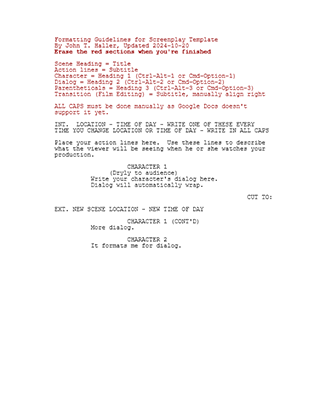
Image source: JohnHaller.com
The Two-Column AV Script Template
Audio-Visual (AV) scripts, frequently used for commercials, corporate videos, and YouTube content, require a completely different layout. According to production guidelines shared by industry professionals like Jacob Pander, AV scripts utilize a two-column format. The left column details the visual actions (camera movements, b-roll), while the right column contains the audio (voiceover, dialogue, music cues).
To achieve this in Google Docs, you do not use the Ruler. Instead, you insert a 2x2 Table (`Insert > Table`), place your content in the respective columns, and set the table border width to 0pt to make the grid invisible.
The Stage Play Template
Stage plays differ significantly from screenplays. Character names are typically placed on the left margin rather than indented to the center, and dialogue is often indented slightly to separate it from stage directions. The Christian Darkin Stage Play Template offers a strong foundation for theatrical writers, accommodating both US and UK stage formatting nuances.
| Template Type | Formatting Method | Best Used For | Mobile Stability |
|---|---|---|---|
| Standard Screenplay | Ruler Indents & Paragraph Styles | Feature Films, TV Pilots, Short Films | Moderate (Tab stops can shift on iOS) |
| AV Script (Two-Column) | Invisible Tables | Commercials, Documentaries, YouTube | High (Tables remain locked on mobile) |
| Stage Play | Left-aligned Character Names | Theater, Live Performances | High (Fewer complex indents) |
| Comic Book Script | Numbered Lists & Bold Text | Graphic Novels, Webcomics | High (Relies on standard text formatting) |
How to Set Up Your Own Script Format Manually
If you prefer not to rely on third-party templates, setting up a script format manually in Google Docs is entirely possible. This approach gives you complete control over your document and ensures you understand the mechanics behind the formatting. According to the Google Docs Screenplay Format Template guidelines, there are strict rules you must follow.
The Industry Standard Font Rule
Your entire document must be set to Courier New, 12-point font. This is a non-negotiable industry standard. Courier is a monospaced font, meaning every character takes up the exact same amount of horizontal space. This mathematical consistency is what allows production managers to estimate that one page of script equals roughly one minute of screen time. Using Arial, Times New Roman, or even Courier Prime at an incorrect size will break this page-to-minute ratio.
The 1.5-Inch Rule: Why is the left margin wider than the others? In professional production, scripts are printed on three-hole-punch paper and bound with solid brass brads. The extra half-inch on the left margin (the "gutter") ensures that the text remains readable once the script is physically bound.
Configuring the Margins and Ruler
To configure your document manually, follow these precise steps:
- Set the Page Margins: Go to
File > Page setup. Set the Left margin to 1.5 inches. Set the Top, Bottom, and Right margins to 1.0 inch. - Enable the Ruler: Ensure your ruler is visible by checking
View > Show ruler. - Format Action Lines: Action lines (scene descriptions) stretch from the 1.5" left margin to the 1.0" right margin. No special indentation is needed here.
- Format Dialogue: Highlight a line of dialogue. Drag the blue triangle (Left Indent) on the ruler to the 2.5-inch mark. Drag the right triangle (Right Indent) to the 6.0-inch mark to prevent dialogue from stretching too far across the page.
- Format Parentheticals: Highlight a parenthetical (e.g., (sighs)). Drag the left indent to the 3.0-inch mark.
- Format Character Names: Highlight a character name. Drag the left indent to the 3.5-inch mark.
Crucial Warning: A common amateur mistake is using the "Center Align" button for character names. Do not center character names. Centering causes the name to shift left or right depending on the length of the character's name (e.g., "BOB" will sit differently than "CHRISTOPHER"). Using a hard left indent at 3.5 inches ensures all character names align perfectly in a vertical column.
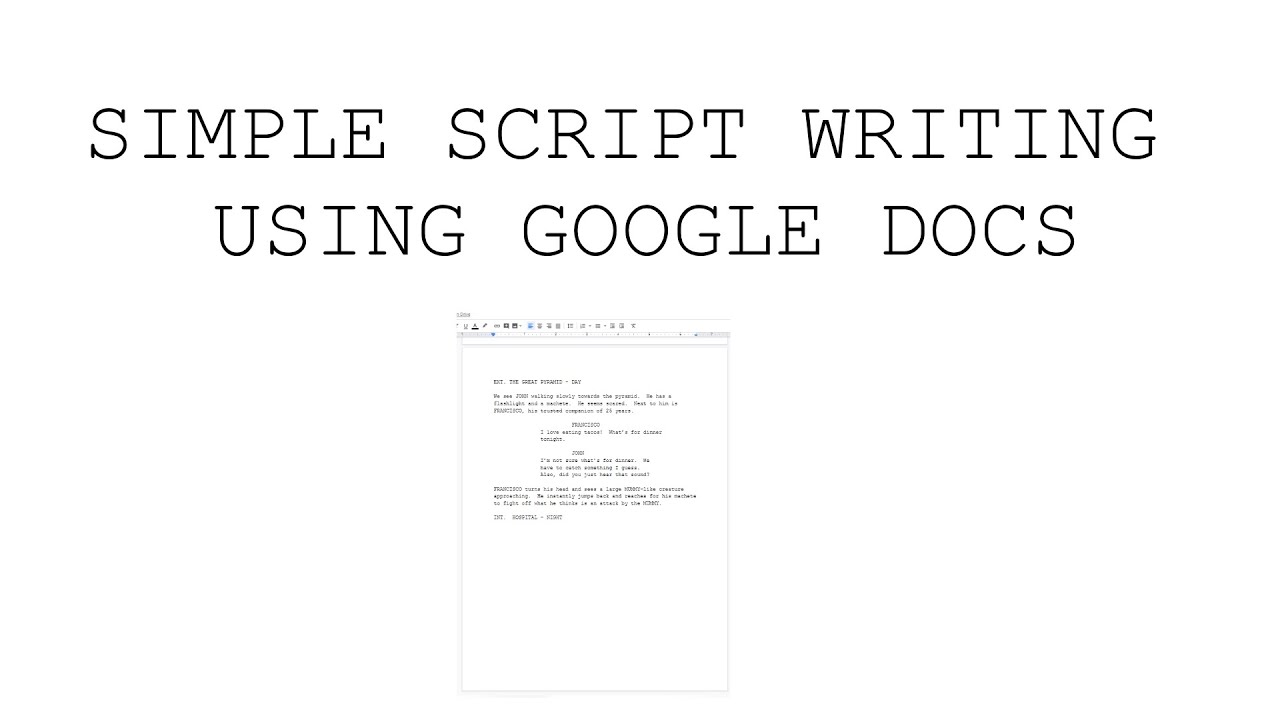
Image source: YouTube
Why Your Script Formatting Breaks on the Mobile App
Writers frequently switch between desktop computers, Chromebooks, and mobile devices. However, Google Docs handles complex formatting differently across these platforms, leading to a common frustration: scripts that look perfect on a laptop suddenly appear broken on an iPad or Android phone.
The Mobile Stress Test Results
When testing standard style-based templates on the Google Docs mobile app, a significant issue emerges regarding "Tab Stops." The mobile versions of Google Docs (both iOS and Android) do not fully support the visual ruler or custom tab stops. If you open a heavily formatted screenplay on your phone and attempt to add a new scene, the app often defaults back to standard prose margins, ignoring the 3.5-inch character indent.
Furthermore, Chromebook users who rely entirely on the web-based version of Google Docs often find that offline syncing can occasionally strip custom paragraph styles if the document is edited without an active internet connection.
The Solution for Mobile Writers
If you primarily write on a tablet or phone, table-based templates offer a much higher degree of stability. By inserting a single-row, multi-column table and hiding the borders, you force the mobile app to respect the spatial boundaries of the text. While this method is slightly more tedious to set up initially, it is exceptionally strong at preventing margin collapse on mobile devices.
How to Fix the Google Docs "All Caps" Style Limitation
One of the most persistent limitations of Google Docs for screenwriters is its inability to save capitalization rules within a Paragraph Style. In professional screenwriting, Scene Headings (Sluglines) and Character Names must be written in ALL CAPS.
In dedicated software like Final Draft, typing a character's name automatically capitalizes it. In Google Docs, if you map "Heading 2" to your Character Name format, it will remember the 3.5-inch indent and the Courier font, but it cannot force the text into uppercase.
The "Pro-Tip" Polish Workflow
Rather than holding down the Shift key or toggling Caps Lock constantly while writing—which interrupts creative flow—many writers use a post-writing polish workflow:
- Write your scene naturally, allowing character names and sluglines to remain in lowercase or title case.
- Once the scene is finished, highlight the specific text that needs capitalization.
- Navigate to
Format > Text > Capitalization > UPPERCASE.
Automating with Google Apps Script
For users comfortable with basic coding, Google Docs allows you to write custom macros using Apps Script (Extensions > Apps Script). You can implement a simple script that scans the document for any text formatted as "Heading 2" and automatically applies the `.toUpperCase()` function to those specific strings. This provides a highly effective workaround for the platform's native limitations.
Using the Screenplay Formatter Add-on for Automation
If manual formatting and post-writing capitalization sound too tedious, third-party add-ons provide a robust solution. The Screenplay Formatter add-on is a popular choice available in the Google Workspace Marketplace.
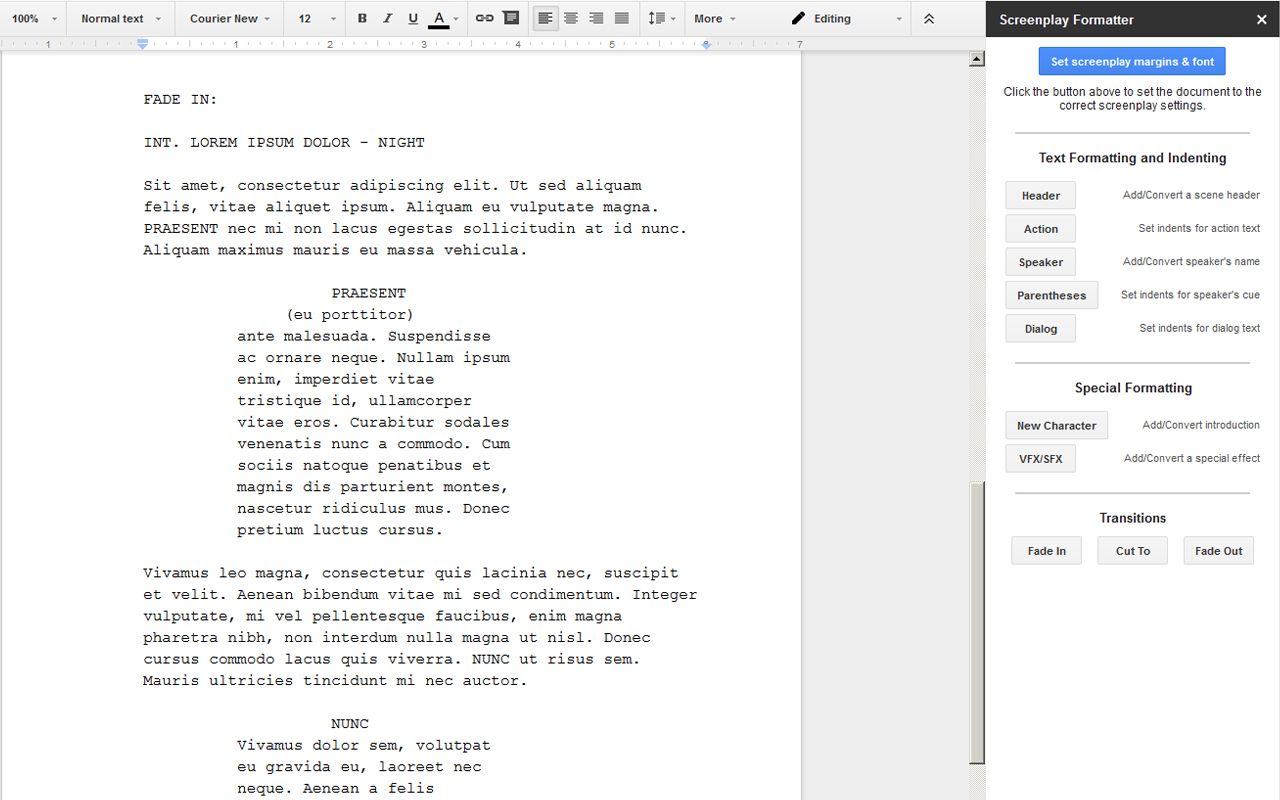
Image source: Google Workspace
Pros and Cons of the Add-on
The primary advantage of Screenplay Formatter is speed. It generates a sidebar within your document featuring dedicated buttons for "Scene Heading," "Action," "Character," "Dialogue," and "Parenthetical." Clicking these buttons instantly applies the correct margins and, crucially, handles the auto-capitalization that native Google Docs styles cannot.
It is also an excellent tool for cleaning up a "messy" script. If you have pasted a script from a plain text file or an email where all the formatting was lost, you can highlight blocks of text and use the add-on to rapidly re-format the document line by line.
However, there are drawbacks to consider. Installing any third-party add-on requires granting it permission to read and modify your documents. For writers working on confidential projects under strict Non-Disclosure Agreements (NDAs), using unauthorized third-party extensions may violate studio security protocols. Always verify your project's security requirements before installing external tools.
How to Export Your Google Doc to Final Draft (.fdx)
While Google Docs is excellent for the drafting phase, the professional film and television industry runs almost exclusively on Final Draft (.fdx) files. Production managers, script supervisors, and assistant directors require .fdx files to import into scheduling and budgeting software. Google Docs cannot natively export to the .fdx format.
The "Bridge" Method
To bridge the compatibility gap without losing your formatting, you must use an intermediary software. Based on workflows shared by the Google Docs Editors Community, here is the most reliable method:
- Export from Google Docs: Go to
File > Download > PDF Document (.pdf). Exporting as a PDF locks your margins and pagination in place, preventing the text from shifting. - Use a Bridge Software: Create a free account on a cloud-based screenwriting platform like WriterDuet or download the free version of Highland 2 (Mac only).
- Import the PDF: Upload your exported PDF into the bridge software. These programs feature advanced optical character recognition (OCR) and formatting AI that can read the visual layout of your PDF and accurately categorize the text into Scene Headings, Action, and Dialogue.
- Export to .fdx: Once the script is successfully imported and verified in the bridge software, use its export menu to save the file as a Final Draft (.fdx) document.
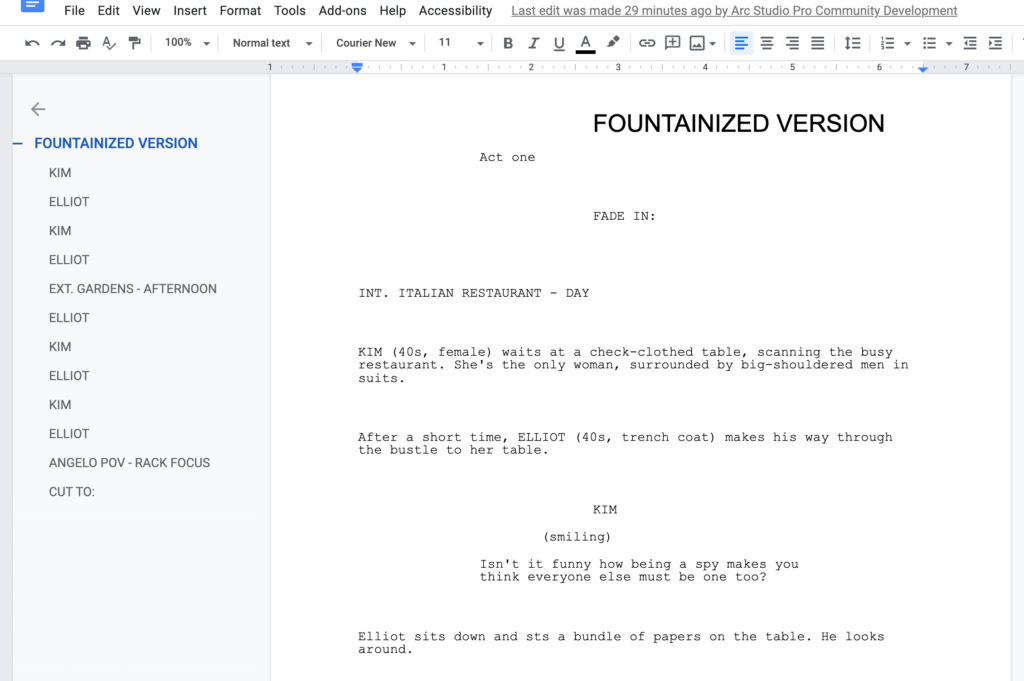
Image source: Arc Studio
Maintaining Pagination and Page Breaks
Before exporting your Google Doc, you must ensure your page breaks are clean. A major formatting faux pas is leaving a character's name at the bottom of page 4, while their dialogue begins at the top of page 5. To prevent this, highlight your character names and dialogue, go to Format > Line & paragraph spacing, and check Keep with next. This ensures the character name will always travel to the next page if there isn't enough room for the dialogue beneath it.
Using Gemini AI to Enhance Your Scripting Workflow
With the integration of Gemini AI directly into Google Workspace, writers now have access to powerful brainstorming and editing tools right inside their script documents. While AI cannot replace the creative voice of a writer, it serves as a highly capable assistant for structural checks and formatting assistance.
Brainstorming and Expanding Action Lines
If you are struggling with a transition or need to flesh out a sparse scene description, you can highlight a basic action line (e.g., "They fight in the warehouse") and use the "Help me write" feature. Prompt Gemini with: "Expand this action line into a detailed, half-page scene description focusing on the environmental hazards of an abandoned warehouse, written in a punchy, present-tense screenwriting style."
Dialogue Consistency Checks
Maintaining a distinct voice for each character over a 100-page script is challenging. You can copy a specific character's dialogue from an early scene, paste it into the Gemini sidebar prompt, and ask: "Analyze the cadence and vocabulary of this character. Now, read the dialogue I just wrote on page 45. Does it sound consistent with their established voice, or is it too formal?"
Collaborative "Script Doctoring" in Google Docs
The primary reason writers tolerate the formatting hurdles of Google Docs is its collaborative power. When working in a writers' room or co-writing a script, the platform offers features that traditional desktop software struggles to match.
Suggested Edits vs. Comments
When performing a "punch-up" (adding jokes or refining dialogue), co-writers should switch their editing mode from "Editing" to "Suggesting" (located in the top right corner). This allows a script doctor to rewrite a line of dialogue without deleting the original text. The original writer can then review the suggestion and click the checkmark to accept it or the 'X' to reject it, keeping the creative control intact.
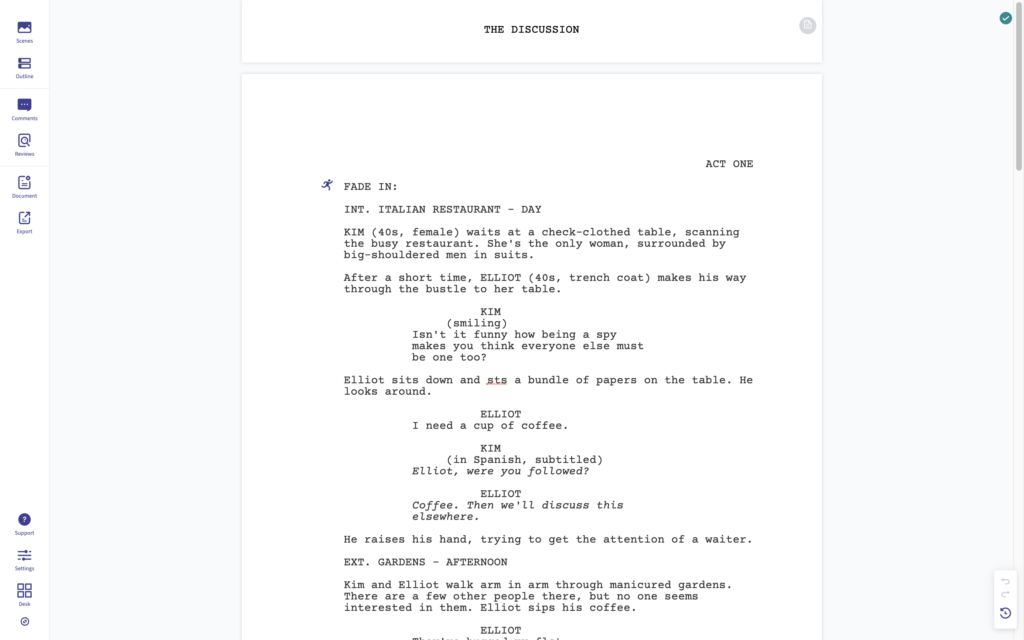
Image source: Arc Studio
Using Checklists for Scene Beats
Google Docs recently introduced interactive checklists. Writers can create a sidebar document or a section at the top of the script to track narrative beats. Creating a checklist for "Inciting Incident," "Plot Point 1," "Midpoint," and "Climax" allows collaborators to physically check off structural milestones as the draft progresses.
Version History Recovery
If a collaborative session goes off the rails and a scene is rewritten poorly, you do not need to panic. Navigate to File > Version history > See version history. This opens a timeline on the right side of the screen, allowing you to view and restore the document to exactly how it looked at any specific minute in the past, ensuring no draft is ever permanently lost.
Frequently Asked Questions
What is the correct font for a script in Google Docs?
How do I get the screenplay format on Google Docs?
Can I export Google Docs directly to Final Draft (.fdx)?
How do I fix page breaks separating character names from dialogue?
Format > Line & paragraph spacing, and select "Keep with next." This forces the character name to jump to the next page if there isn't enough room for the accompanying dialogue below it.
How do I create a 2-column AV script in Google Docs?
Insert > Table and select a 2x2 grid. Place your visual directions in the left column and your audio/dialogue in the right column. Once formatted, right-click the table, select "Table properties," and set the table border width to 0pt to make the grid lines invisible.
Final Thoughts
Google Docs is a highly capable, free alternative to expensive screenwriting software, provided you understand how to navigate its formatting quirks. By utilizing the right templates and understanding the mechanics of margins and styles, you can produce industry-standard scripts ready for production.
- Set your document font to Courier New, 12pt to maintain the industry-standard page-per-minute ratio.
- Adjust your left margin to 1.5 inches to accommodate physical script binding.
- Map your paragraph styles to specific ruler indents (2.5" for dialogue, 3.5" for characters) to speed up your workflow.
- Apply the "Keep with next" paragraph setting to prevent awkward page breaks between character names and dialogue.
- Export your final draft as a PDF and use a bridge software if you need to deliver a professional .fdx file to a production team.