How to Log In to Google Forms and Fix Common Access Errors
To log in to Google Forms immediately, navigate to forms.google.com and enter your Google credentials. If you are a Google Workspace administrator managing organizational access, log in through the Google Admin Console. If you are receiving a "Permission Denied" error, open the form link in an Incognito window to bypass conflicting browser accounts.
Navigating to the Google Forms login page is straightforward, but managing access permissions, troubleshooting account conflicts, and ensuring respondents can actually view your surveys often presents unexpected challenges. Whether you are building a simple RSVP form for a personal event or deploying a complex data collection tool across a large enterprise, understanding how Google handles authentication is essential.
This guide explores the mechanics of accessing your account, resolving the notorious "sign-in loop," configuring forms for public access, and utilizing mobile workarounds in the absence of an official application.
How Do I Log In to My Google Forms Account?
Accessing the form builder requires a standard Google account, but the entry point and default settings vary depending on whether you are using a personal Gmail address or a corporate Google Workspace account.
For individual users, the primary access point is forms.google.com. Upon navigating to this URL, you will be prompted to enter your standard Google credentials. Once authenticated, you are directed to the Forms dashboard, which displays a template gallery at the top and a list of your recently edited forms below.
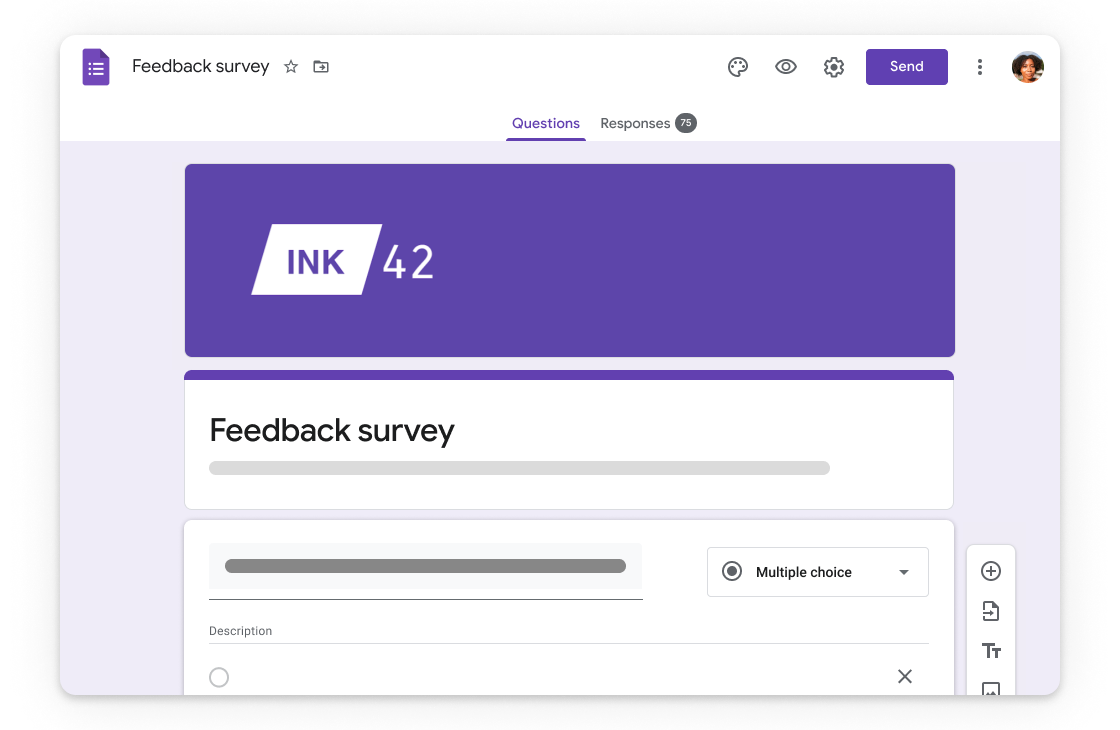
Image source: G Suite
For business and education users, access is typically managed through Google Workspace. While the direct URL remains the same, the authentication process may redirect you through your organization's Single Sign-On (SSO) portal. Administrators managing these permissions must log in via the Google Admin Console rather than the standard consumer interface.
The 30-Day Draft Persistence Feature
A highly practical feature of being logged into a Google account while filling out a form is automatic draft saving. According to Google Workspace documentation, when a respondent is logged in, their progress is automatically saved as a draft for 30 days. This allows users to begin a lengthy survey on a desktop computer, close the browser, and complete it later on a mobile device without losing their inputted data. The form creator cannot see these drafts; they are stored locally within the respondent's Google account until the final submission button is clicked.
Accessed via standard Gmail credentials. Forms are public by default. Storage is shared across the user's 15GB Drive allocation.
Accessed via organizational SSO. Forms are restricted to internal users by default. Features enhanced security and higher storage limits.
Why Does Google Forms Keep Asking Me to Sign In?
One of the most frequent frustrations users encounter is the "account switcher loop" or persistent "Permission Denied" errors. You click a link to a form, and instead of seeing the questions, you are met with a screen demanding that you sign in, even if you are already logged into Google.
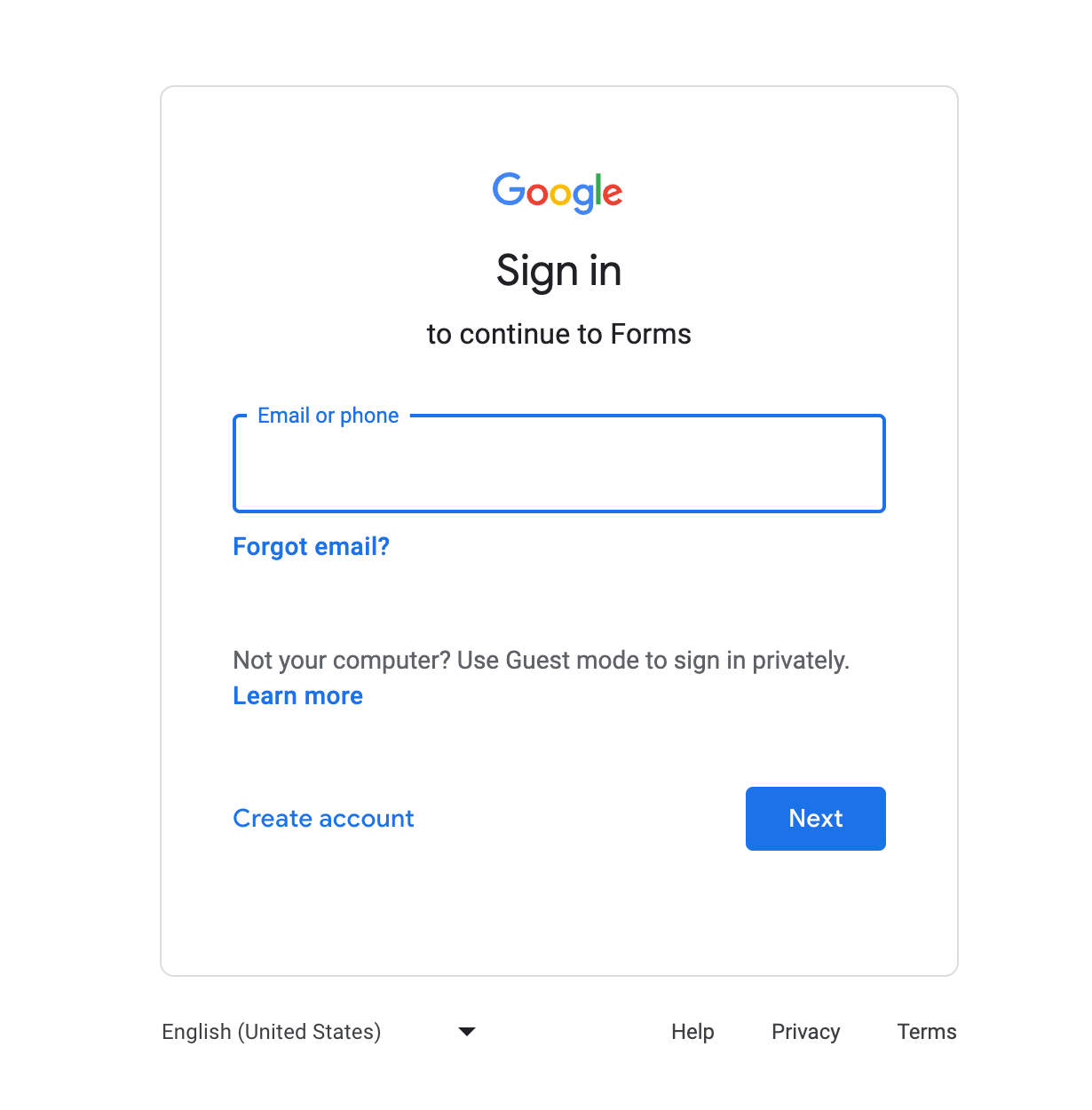
Image source: Google Help
This issue almost always stems from browser profile conflicts. Modern web browsers allow users to be logged into multiple Google accounts simultaneously (e.g., a personal `@gmail.com` account and a professional `@company.com` account). When you click a Google Forms link, the browser automatically attempts to authenticate using the default account—usually the first one you logged into during that session.
If the form is restricted to a specific organization, and your browser defaults to your personal account, Google Forms will block access. According to troubleshooting discussions in the K12 Tech Forum, simply clicking "Switch Accounts" on the error page often fails to resolve the underlying cookie conflict, trapping the user in a loop.
How to Break the Sign-In Loop
To reliably bypass this authentication error, you must isolate the browser session:
- Use Incognito or Private Browsing: Right-click the form link and select "Open in Incognito Window." This opens a session devoid of cached cookies. You will be prompted to log in; enter the specific email address that was invited to the form.
- Utilize Browser Profiles: Instead of switching accounts within a single Google tab, use the profile manager built into Chrome or Edge. Create a dedicated browser profile for your work account and another for your personal account. This keeps the authentication cookies completely separate.
- Check the Active Avatar: When editing a form, always verify the profile picture in the top-right corner of the webpage (the Google account) matches the profile picture in the top-right corner of the browser frame. Mismatches here are the primary cause of saving errors.
How to Let People Fill Out Your Form Without Logging In
If you are distributing a survey to the general public, forcing respondents to log into a Google account will significantly reduce your completion rate. Many users search for "Google Forms login" because they are trying to figure out how to remove the login requirement for their audience.
By default, if you create a form using a Google Workspace account, Google assumes the form is for internal company use. It automatically applies a setting that restricts access to users within your specific domain. Furthermore, certain data collection settings inherently require authentication.
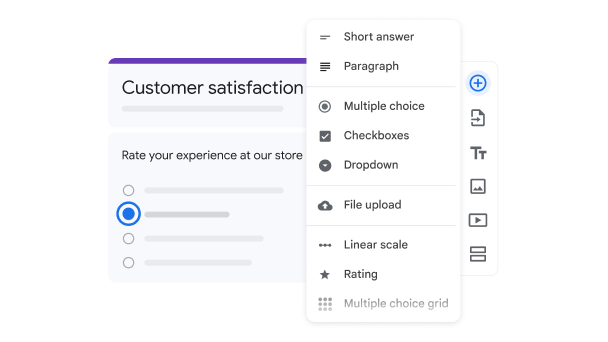
Image source: Google Workspace
The Public Form Checklist
To ensure anyone can access your form anonymously, you must verify three specific configurations within the form settings:
- Disable Organizational Restrictions: Navigate to the "Settings" tab at the top center of the form editor. Expand the "Responses" section. Toggle off the switch labeled "Restrict to users in [Your Organization] and its trusted organizations."
- Avoid the "Limit to 1 Response" Trap: In the same "Responses" menu, ensure "Limit to 1 response" is toggled off. If this is enabled, Google must require respondents to log in so it can track who has already submitted the form. There is no way to limit responses to one per person while keeping the form completely anonymous.
- Adjust Email Collection Modes: Under the "Responses" section, locate "Collect email addresses." If this is set to "Verified," respondents will be forced to log in so Google can authenticate their email. Change this setting to "Responder input" (where users manually type their email) or "Do not collect" to remove the login barrier.
| Email Collection Mode | Login Required? | Data Accuracy |
|---|---|---|
| Verified | Yes | High (Google confirms the active account email) |
| Responder Input | No | Variable (Users can type fake or misspelled addresses) |
| Do Not Collect | No | N/A (Completely anonymous) |
Can You Use Google Forms on an iPhone or Android Device?
A common point of confusion regarding access is the search for a mobile application. As of 2026, there is no official, first-party Google Forms app available on the Apple App Store or Google Play Store. Google intends for the platform to be accessed entirely through web browsers.
While you can log in and manage forms using mobile Safari or Chrome, the browser-based interface on a smartphone can feel cramped, particularly when attempting to configure complex logic branching or reviewing large spreadsheet datasets.
Third-Party API Alternatives
To bridge this gap, several developers have utilized the Google Forms API to create native mobile experiences. A notable example is Forms+, a third-party application that connects to your Google account and provides a mobile-optimized interface.
These third-party tools often introduce power-user workflows that are entirely absent from the official web version. For instance, some apps utilize the smartphone camera to scan physical paper documents and automatically convert them into digital quiz questions. Others offer advanced export features, allowing users to convert response charts and graphs into mp4 video formats, which is highly effective for sharing survey results on social media platforms.
When using third-party applications, you will be prompted to log in using Google's OAuth system. Ensure you review the permissions requested by the app; reputable tools will request access specifically to manage your forms and spreadsheets, rather than requesting full access to your entire Google Drive.
What to Do When Your Google Forms Menu Is Grayed Out
Users managing forms through linked Google Sheets occasionally encounter a frustrating technical glitch: the "Form" menu option in the spreadsheet toolbar becomes grayed out and unclickable. This prevents the user from editing the form, viewing live responses, or unlinking the document.
Based on technical support documentation, this issue is rarely related to account permissions and is almost always a script execution failure within the browser.
Troubleshooting Script Failures
Google Workspace applications rely heavily on background JavaScript to function. If these scripts fail to load, the interface degrades. To resolve a grayed-out menu, follow these steps:
- Check Network Stability: Unstable Wi-Fi connections can cause the page to load partially, abandoning the scripts required to activate the menu bar. Refresh the page or switch to a hardwired connection to ensure all assets load completely.
- Disable Interfering Extensions: Aggressive ad-blockers, privacy shields, or script-blocking extensions (like NoScript) frequently misidentify Google's internal scripts as tracking software. Pause your extensions and reload the page to see if the menu reactivates.
- Clear Local Cache: Corrupted cached files can prevent the latest version of the Google Sheets interface from rendering. Clearing your browser cache forces the system to download fresh, functional scripts from Google's servers.
How to Manage Forms for Large Organizations and Schools
Administrators deploying forms across universities or large corporate networks face unique access challenges. When dealing with thousands of users, managing individual permissions becomes impractical, requiring domain-level strategies.
Domain-Specific Restrictions and Embedded Forms
Institutions often require that forms only be accessible to active students or employees. While toggling on "Restrict to users in [Organization]" achieves this, it creates complications when embedding forms on internal websites.
As highlighted by Stanford IT's pro tips, a significant nuance exists with embedded forms (iframes). Modern web browsers employ strict Intelligent Tracking Prevention (ITP) protocols that block third-party cookies. If a user visits an internal university portal with an embedded Google Form, the browser may block Google from reading the user's login cookie, resulting in a blank box or a persistent login error—even if the user is logged into their university email in another tab.
To circumvent this, IT departments generally recommend direct linking rather than embedding when domain restrictions are active. Providing a standard hyperlink forces the form to open in a top-level window, allowing Google to authenticate the user without triggering the browser's anti-tracking defenses.
Admin Console Controls
For overarching security, Google Workspace administrators can dictate sharing policies from the top down. Within the Admin Console, IT staff can disable the ability for employees to share forms outside the organization entirely. If a user finds that the option to make a form public is missing or grayed out in their settings, it indicates that a domain administrator has locked down external sharing at the organizational level.
Advanced Tips for Managing Your Form Responses
Once you have successfully navigated the login and permission settings, optimizing how you handle the incoming data is the next critical step. Google Forms offers robust tools for routing and utilizing response data.
Directing Responses to Spreadsheets
By default, forms store responses internally, viewable on the "Responses" tab. However, for serious data analysis, linking the form to Google Sheets is highly recommended. According to advanced management guides, you have two options when setting up this integration: create a new spreadsheet or select an existing one. Selecting an existing spreadsheet allows you to route multiple different forms into separate tabs within a single master document, which is exceptionally useful for consolidating departmental data.
API and Automation
For developers and technical teams, the Google Forms API provides programmatic access to form creation and response management. Instead of manually logging in to build a survey, developers can use the API to automatically generate quizzes based on database inputs, update multiple-choice options dynamically, or set up push notifications (via Google Cloud Pub/Sub) that trigger external workflows the moment a respondent submits a form.
Logic Branching
To improve completion rates, utilize the "Go to section based on answer" feature. This allows you to build dynamic surveys that skip irrelevant questions based on previous inputs. For example, if a user selects "No" to a question about owning a vehicle, the form can automatically bypass the subsequent page detailing maintenance questions, providing a streamlined, personalized experience.
Frequently Asked Questions
- Do you need a Google account to fill out a Google Form?
- No, a Google account is not strictly required unless the form creator has enabled specific settings. If the creator turns on "Limit to 1 response," sets email collection to "Verified," or restricts the form to their specific organization, respondents will be forced to log in. If these settings are disabled, anyone can fill out the form anonymously.
- How do I stay logged in to Google Forms?
- Google Forms relies on your browser's standard Google account cookies. To stay logged in, ensure you check the "Remember me" option on the initial Google login screen. Additionally, check your browser's privacy settings to ensure it is not configured to clear cookies automatically every time you close the application.
- Why does Google Forms say "Sign in to continue"?
- This message appears when the form requires authentication to proceed. It typically means the form is restricted to a specific company or school domain, or the creator is using the "Verified" email collection method. You must sign in with an account that has been granted permission to view the document.
- How do I find my saved Google Forms after logging in?
- Once authenticated, navigate directly to
forms.google.com. The dashboard will display a "Recent forms" section at the bottom of the page, listing all forms you own, as well as forms owned by others that you have been granted permission to edit. - Is Google Forms secure for sensitive data?
- Google encrypts data both in transit and at rest, and the platform complies with major security standards. However, while the infrastructure is secure, form creators must be diligent about access settings. Sensitive forms should be restricted to specific users rather than made public, and organizations should manage sharing policies via the Admin Console.
- Can I log in to Google Forms as an administrator?
- Yes, but administrative tasks are handled differently. While you create individual forms at
forms.google.com, managing organizational permissions, sharing rules, and user access requires logging into the Google Admin Console using an account with administrator privileges.
Final Thoughts on Managing Your Google Forms Access
Mastering Google Forms requires more than just knowing where to log in; it demands an understanding of how Google handles browser profiles, organizational permissions, and data collection settings. By configuring your access rules correctly, you can prevent respondent frustration and ensure your data remains secure.
- Use direct links: Always access the platform via forms.google.com for personal use or the Admin Console for organizational management.
- Isolate browser sessions: Resolve "Permission Denied" loops by opening form links in an Incognito window to bypass conflicting Google accounts.
- Check restriction toggles: To make a form truly public, you must disable "Restrict to Organization" and "Limit to 1 response" in the settings menu.
- Understand mobile limits: Recognize that there is no official iOS/Android app; rely on mobile browsers or trusted third-party API tools for on-the-go management.
- Leverage draft saving: Take advantage of the automatic 30-day draft persistence feature for logged-in respondents tackling lengthy surveys.