
How to Find and Use a Free Editable Voting Ballot Template for Any Election
1. Why Your Choice of Ballot Template Matters More Than You Think
Organizing a local election—whether for a parent-teacher organization, a student council, or a homeowner's association board—often begins with a simple web search for a free editable voting ballot template. It is tempting to download the first visually appealing document you find, change the names, and send it to the printer. However, the structural design of your ballot plays a critical role in the integrity of your election.
Poorly designed ballots frequently lead to a phenomenon known as "lost votes." This occurs when a voter's intent cannot be accurately determined because they marked outside the designated area, voted for too many candidates (overvoting), or skipped a section entirely because the layout was confusing. When a template prioritizes decorative elements over clear, functional design, the risk of these errors increases significantly.
The financial and logistical stakes of ballot design errors are substantial. According to data from The Elections Group, a single ballot error in a recent government election resulted in $200,000 in costs for reprinting and overnight shipping. While a local club or classroom will not face a bill of that magnitude, the core lesson remains applicable: correcting a flawed ballot after distribution requires immense effort, damages trust in the election process, and often necessitates a complete revote.
By selecting a template that adheres to established civic design standards, you ensure that every participant can easily read the options, understand the instructions, and cast a vote that accurately reflects their choice.
2. Which Ballot Format Is Right for Your Group?
Free templates are distributed across several different file formats and platforms. Selecting the right medium depends entirely on your organization's size, whether the voting is in-person or remote, and your available budget for printing.
- Microsoft Word (.docx)
- Word documents stand out as a top choice for traditional, in-person paper elections. They are universally accessible, highly customizable, and allow organizers to easily add or remove rows for candidates. Word is particularly effective for text-heavy ballots that require detailed instructions or lengthy bylaw amendments.
- Printable PDF (.pdf)
- PDF templates are ideal when you need to preserve a strict layout. If you are printing hundreds of ballots and need to ensure that margins, checkboxes, and fonts do not shift from computer to computer, a fillable PDF offers exceptionally strong formatting stability.
- Graphic Design Platforms (Canva)
- Platforms like Canva offer thousands of vote-related templates. These are highly visual and often include colorful graphics. They are a popular choice for classroom activities, "I Voted" sticker designs, and informal social media polls, but their maximalist designs can sometimes distract from the voting process in formal elections.
- Digital Forms (Jotform / Polyas)
- For remote teams, distributed boards, or organizations that prefer to avoid paper entirely, digital form builders are highly recommended. Services like Jotform provide templates that can automatically tally results, while specialized platforms like Polyas offer advanced features for secure, anonymous digital voting.
| Format Type | Ease of Editing | Printability | Best Use Case |
|---|---|---|---|
| Microsoft Word | High (Easy to change text/tables) | Excellent (Standard margins) | Local boards, PTOs, student councils |
| PDF (Fillable) | Medium (Requires PDF editor) | Excellent (Locked formatting) | Official referendums, large print runs |
| Canva | High (Drag-and-drop interface) | Good (Watch for ink costs) | Classroom activities, informal polls |
| Digital Forms | High (Web-based builders) | Poor (Designed for screens) | Remote voting, anonymous online polls |
3. Free Editable Voting Ballot Templates for Schools and Classrooms
Educational environments frequently utilize voting templates to teach civic engagement, run student council elections, or make simple classroom decisions. The design requirements for these groups differ significantly from corporate or municipal elections.
The Student Council Ballot
For middle and high school student council elections, the ballot should mimic an official civic layout to provide an authentic experience. These templates typically feature the office title (e.g., "President," "Treasurer") as a clear header, followed by candidate names listed in alphabetical order. Clear instructions, such as "Mark only one candidate per office," are essential to prevent overvoting.
Classroom Decision Slips
For younger students, simplicity is key. A "Book A vs. Book B" or "Activity A vs. Activity B" layout works best. These templates often utilize larger fonts, simple two-column layouts, and sometimes incorporate small images or icons next to the text to assist early readers in identifying their choices.
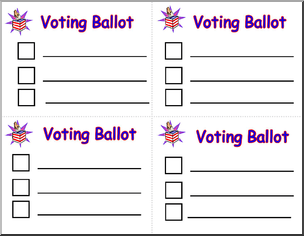
Image source: abcteach
The Hybrid Workflow for Large Schools: When managing an election for a school with hundreds or thousands of students, hand-counting paper ballots becomes a logistical burden. Many large educational institutions utilize a hybrid workflow. They design their ballots using a standard Word template but format the marking areas (usually bubbles or specific checkboxes) to be read by Optical Mark Recognition (OMR) software. According to providers like Remark Software, this allows schools to maintain the tactile experience of a paper election while automating the counting process via standard document scanners.
4. Professional Ballot Templates for Non-Profits, PTOs, and Board Elections
Community organizations, Parent-Teacher Organizations (PTOs), and corporate boards require a more formal approach to ballot design. These groups often deal with complex voting scenarios that go beyond simply choosing between candidates.
For standard leadership elections, a template provided by resources like PTO Today offers a solid foundation. These templates usually include designated spaces for write-in candidates, which is a common requirement in many organizational bylaws.
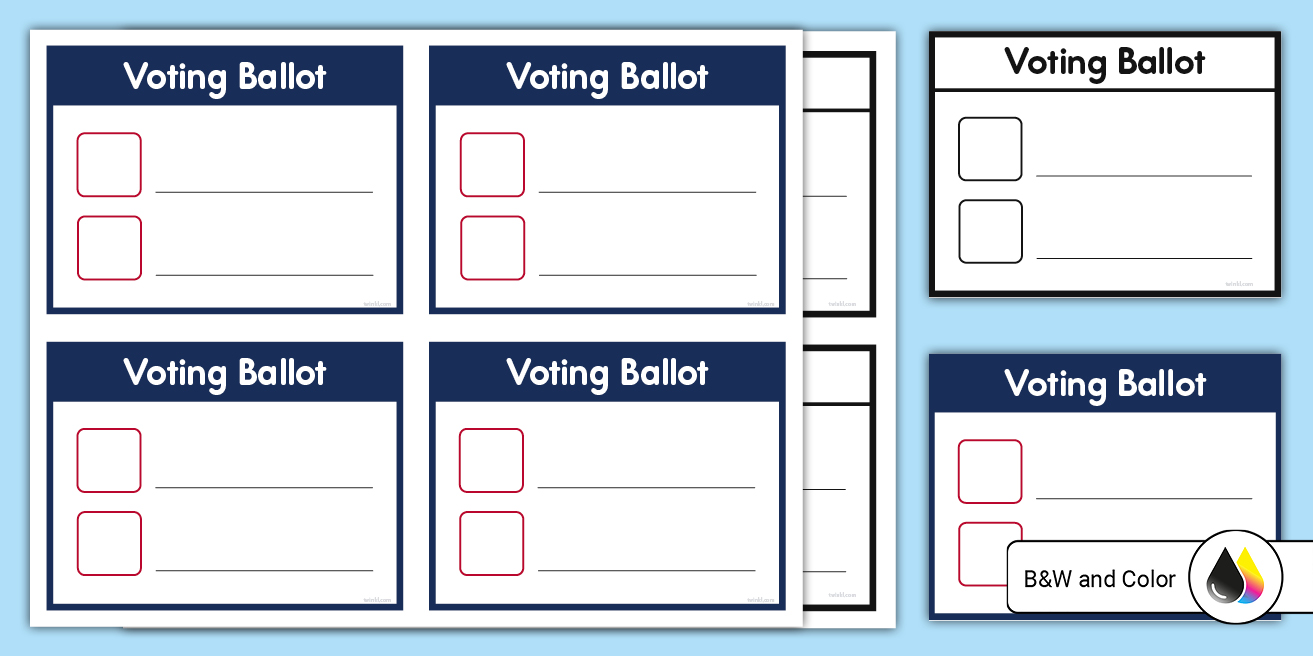
Image source: Twinkl
Addressing the "Yes/No" Gap
A common challenge when searching for a free editable voting ballot template is finding one designed for referendums rather than candidates. Boards frequently need to vote on bylaw amendments, budget approvals, or specific resolutions. A standard candidate template does not work well for this.
For these situations, you need a "Resolution Ballot." This template style features the full text (or a clear summary) of the proposed amendment, followed by a distinct two-column marking area labeled "YES" and "NO" (or "FOR" and "AGAINST"). When voting on multiple amendments in a single session, the template should clearly separate each resolution with horizontal lines and distinct numbering to ensure voters do not accidentally skip an item.
5. How to Create a Custom Voting Ballot in Microsoft Word
If you cannot find a pre-made template that perfectly fits your needs, creating a custom ballot in Microsoft Word is a straightforward process. Building it from scratch ensures you have complete control over the layout and can easily adapt it for future elections.
The most effective way to structure a ballot in Word is by using the Table tool. The "box and line" layout is widely considered one of the best formats for clearly associating a candidate's name with their respective marking area.
- Set Up the Document: Open a new Word document. Go to the Layout tab and set your margins to "Narrow" (0.5 inches) to maximize usable space.
- Create the Header: Type your organization's name, the date of the election, and general instructions at the top.
- Insert a Table: Go to Insert > Table. Create a table with two columns and as many rows as you have candidates (plus one for the office title).
- Format the Columns: Adjust the column widths so the left column (for names) takes up about 85% of the space, and the right column (for the marking box) takes up the remaining 15%.
- Add Checkboxes: In the right column, you can either insert a large square symbol (Insert > Symbol > Wingdings) or use the Developer tab to insert interactive Check Box Content Controls if you plan to distribute the form digitally.
- Adjust Borders: Highlight the table, go to Table Design > Borders. Remove all outside borders, but keep the inside horizontal borders to create clean, distinct lines between candidates.
When formatting your text in Word, ensure your base font size is large enough for all voters to read comfortably. Civic design experts strongly recommend a minimum of 12-point font for all standard ballot text, and larger sizes for primary headers and instructions.
6. Designing for Fairness Using Civic Design Principles
Creating a fair election involves more than just listing names accurately; it requires applying established design principles that guide the voter's eye and minimize confusion. The Center for Civic Design has conducted extensive research into how ballot layout impacts voter behavior, resulting in several key guidelines that should be applied to any free template.
The Legibility Rule: Avoid All-Caps
Many amateur designers use ALL CAPS for candidate names or office titles, believing it makes the text look more official or prominent. However, research indicates that lowercase letters are significantly more legible because they create recognizable, varied shapes for the eye to follow. Text written entirely in capital letters forms a uniform rectangular block, which slows down reading speed and increases the likelihood of errors. Always use mixed-case (Title Case) for names and instructions.
The Alignment Rule: Left-Align Your Text
While centered text is often used on invitations or certificates for aesthetic reasons, it is detrimental to a voting ballot. Left-aligned text provides a consistent starting point for the eye as it moves down the page. When text is centered, the reader's eye must "hunt" for the beginning of each new line, which can cause them to skip lines or misalign a candidate's name with the corresponding checkbox.
Font Choice and Instructional Clarity
To prevent "voter fatigue," use a single, clean sans-serif font (such as Arial, Helvetica, or Calibri) for the body of the ballot. Mixing multiple fonts forces the reader's brain to constantly adjust, which can be distracting. Furthermore, organizations like VOTE411 (launched by the League of Women Voters) emphasize the importance of clear, personalized instructions. Instead of generic phrasing, use specific, action-oriented instructions like "Vote for ONE" or "Fill in the box completely."
7. How to Ensure Your Small-Group Election Stays Secure
When utilizing a free editable voting ballot template, organizations often face a "security gap." Because the template is easily accessible and printable on standard paper, there is a risk—even in small, low-stakes environments—of unauthorized ballot duplication or "ballot stuffing."
To maintain integrity without investing in expensive election software, implement a structured approach to ballot management.
The Ballot Proofing Checklist: Before printing your final batch, the ballot must be proofed. The Elections Group recommends having multiple staff members or volunteers review the document with "fresh eyes." They should verify that all candidate names are spelled correctly, that the instructions match the bylaws (e.g., ensuring a "Vote for Two" race actually allows two choices), and that the formatting has not shifted.
Implementing Version Control: To prevent individuals from printing their own copies of your template and submitting them, you must make the official ballots unique. There are several cost-effective ways to achieve this:
- Colored Paper: Print the official ballots on a specific, uncommon color of paper (e.g., pale yellow or light blue) that is not readily available in the standard office printer.
- Official Stamps: Purchase a custom rubber stamp for your organization. Have an election official stamp the back of every ballot before it is handed to a voter. During the count, any ballot without the stamp is invalidated.
- Signatures: For very small board elections, the election secretary can initial the bottom corner of each ballot prior to distribution.
If you require anonymous voting with paper ballots, utilize a "double envelope" system. The voter places their marked ballot inside a blank, unmarked envelope, seals it, and then places that envelope inside an outer envelope that they sign. The outer envelopes are verified against the voter roll and discarded before the inner envelopes are opened, ensuring complete anonymity.
8. Frequently Asked Questions
How do I make a "Yes or No" voting slip?
To create a "Yes or No" voting slip, use a word processor to insert a two-column table. Place the resolution or question at the top. In the left column, type "YES" with a large, clear checkbox next to it. In the right column, type "NO" with an identical checkbox. Ensure the text is large (at least 14-point) and the checkboxes are clearly separated to prevent stray marks from invalidating the vote.
What is the best font size for a printable ballot?
According to civic design guidelines, the minimum font size for standard text on a printable ballot should be 12-point. For instructions, office titles, and headers, you should use 14-point or 16-point font. If your voting demographic includes a large number of elderly individuals or those with visual impairments, consider increasing the base font size to 14-point.
Can I use Canva for an official board election?
While Canva offers many voting templates, they are generally better suited for informal polls or classroom activities. If you choose to use Canva for an official board election, you must strip away the "maximalist" design elements. Remove distracting background images, ensure high contrast (black text on a white background), and use a clean, sans-serif font to maintain a professional and highly readable layout.
How do I ensure anonymous voting with a paper ballot?
To ensure anonymity with paper ballots, provide a secure, opaque ballot box with a narrow slot at the top. Instruct voters to fold their ballots before depositing them. For mail-in or drop-off paper voting, use the double-envelope system: the ballot goes into a blank inner envelope, which is then sealed inside a signed outer envelope used only for verifying voter eligibility.
What should be included on a student council ballot?
A student council ballot should include the name of the school or organization, the date of the election, clear instructions (e.g., "Mark only one box per office"), the title of each office being contested, and the candidates' names listed in alphabetical order by last name. You may also want to include a designated line for write-in candidates if your school's rules permit them.
Final Thoughts and Your Election Day Checklist
Finding a free editable voting ballot template is only the first step in organizing a successful election. The true measure of a good ballot is how easily and accurately a voter can express their intent without confusion or error. By prioritizing clean layouts, legible fonts, and clear instructions, you protect the integrity of your organization's democratic process.
- Select the right format: Use Word or PDF for printable paper elections, and digital forms for remote voting.
- Apply civic design rules: Maintain a minimum 12-point font, use mixed-case lettering, and keep all text left-aligned.
- Proofread thoroughly: Have at least two different people review the ballot to catch spelling errors or instructional mistakes before printing.
- Print a test copy: Always print a single test ballot to verify that margins are correct and checkboxes have not shifted off the page.
- Secure the process: Use colored paper or an official stamp to prevent unauthorized duplication of your printed templates.
