How to Find and Create a OneNote Task List Template for Your Workflow
Microsoft OneNote ranks among the top digital notebook applications available today, offering a highly flexible canvas that sits comfortably between rigid task managers and completely blank text documents. However, setting up a reliable OneNote task list template can be confusing due to the platform's varied versions and somewhat hidden features.
Whether you are looking to deploy a simple daily checklist, build a complex Kanban board, or sync your action items directly with Microsoft To Do, establishing a standardized template is a highly effective way to streamline your productivity. This guide covers how to locate native templates, build your own custom layouts, and bypass the limitations of mobile and web versions.
How to Distinguish Between OneNote Versions Before You Start
Before attempting to insert or create a template, you must identify which version of OneNote you are currently running. This is a common stumbling block, as Microsoft has maintained multiple overlapping versions of the software over the years. As of 2026, the feature parity between these versions still varies significantly, particularly regarding template management.
The "Insert Template" feature is highly dependent on your specific application environment. Here is how to identify your version and understand its capabilities:
- OneNote Desktop (Formerly OneNote 2016): This is the full-featured desktop application included with Microsoft 365. It features a robust, multi-tabbed ribbon interface. This is the only version that includes the native "Page Templates" pane.
- OneNote for Windows 10 (Store App): This version was designed for touch devices and features a simplified, flatter ribbon. Microsoft has been phasing this out in favor of the unified Desktop app, but millions of users still rely on it. It does not have a native "Insert Template" button.
- OneNote Web & Mobile (iOS/Android/Browser): These lightweight versions are excellent for capturing notes on the go but lack advanced formatting tools. You cannot apply templates natively in these versions.
If you open your application and look at the Insert tab, the presence or absence of the "Page Templates" button will immediately tell you if you are using the full Desktop version. If you are on the Windows 10 or Mobile versions, do not worry—you can still use templates by employing the "Master Page" workaround detailed later in this guide.
Where Are the Built-In OneNote Task Templates Located?
For users running the full Desktop version, Microsoft provides a library of pre-formatted layouts. While these native options are somewhat basic, they offer a solid starting point for users who want immediate structure without building from scratch.
According to official Microsoft Support documentation, you can access these templates by following a specific sequence:
Templates can only be applied to completely blank pages. If you attempt to apply a template to a page that already contains text or formatting, OneNote will either overwrite your existing content or fail to apply the layout properly.
Navigate to the Insert tab on the top ribbon. Look toward the far right side of the menu and click the Page Templates button. This will open a vertical pane on the right side of your screen.
Expand the categories by clicking the small arrows. For task management, the most relevant categories are Planners (which includes Simple To Do Lists and Prioritized To Do Lists) and Business (which includes Meeting Notes with action item sections).
While convenient, many power users find the built-in templates too rigid. The fonts, spacing, and background images are hardcoded into the layout. If you want a system tailored to your specific daily routine, building a custom template is a highly recommended alternative.
How to Build Your Own Custom Task List Template
Creating a custom OneNote task list template allows you to design a layout that perfectly matches your workflow. Because OneNote acts as an infinite canvas, relying purely on text lines can quickly become messy. A strong custom template relies on structural elements like tables and interactive tags.
Designing the Structure with Tables
Instead of just typing a list, insert a table (Insert > Table). A standard task management table typically includes three to four columns: Task Description, Due Date, Priority, and Notes. Tables keep your text aligned and prevent the page from looking cluttered as your list grows. You can adjust column widths by dragging the borders and apply background shading to the header row via the Table tab that appears when you click inside the grid.
Integrating the Checkbox Mechanism
The core of any OneNote task list is the interactive checkbox. While you can click the "To Do" tag on the Home ribbon, it is much faster to use the keyboard shortcut Ctrl + 1. Pressing this combination instantly inserts a clickable box at the start of your line. Pressing it again checks the box, and pressing it a third time removes it.
Adding Visual Categorization
Educator and productivity expert Kerszi recommends using visual cues to make scanning your list easier. By pressing the Windows key + period (.), you can open the system emoji keyboard. Inserting emojis into your page titles or column headers (e.g., 🔴 for High Priority, 🟢 for Low Priority) provides immediate visual context without relying on complex tagging systems.
Once you have designed your perfect layout, you don't need to copy and paste it every day. Right-click the page name in your page list (on the right or left side of the screen, depending on your settings) and select Set as Default Template. From that point forward, every time you click "Add Page" in that specific section, OneNote will automatically generate a fresh copy of your custom layout.
5 Advanced OneNote Task List Layouts for Different Needs
If you are unsure how to structure your custom template, here are five highly regarded layouts used by productivity professionals. You can build any of these using the table and formatting tools described above.
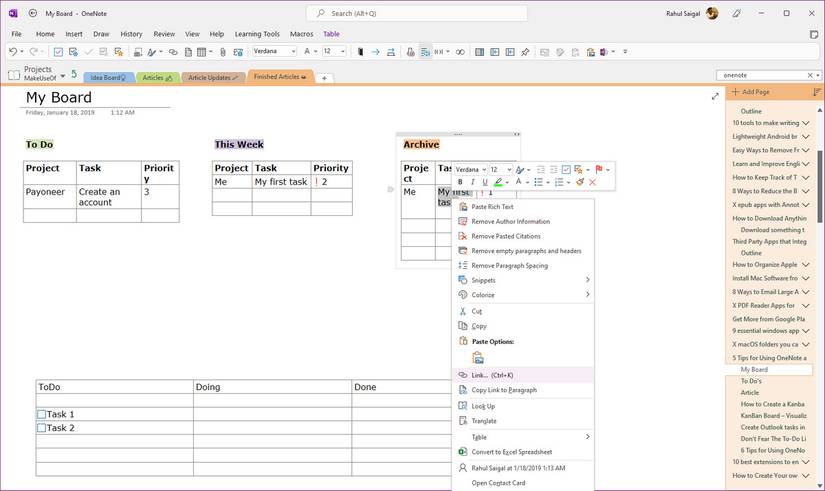
Image source: MakeUseOf
1. The Kanban Board Hack
While OneNote lacks a native drag-and-drop Kanban view like Trello, you can simulate one effectively. Create a three-column table with the headers: To Do | Doing | Done. Add your tasks as individual lines within the columns. To move a task from "To Do" to "Doing," place your cursor on the task line and use the shortcut Alt + Shift + Right Arrow. This instantly moves the entire paragraph to the next column without needing to cut and paste.
2. The ADHD Brain Dump
For users who struggle with task paralysis, a highly structured template can be overwhelming. The Brain Dump layout consists of two distinct areas. The left side of the page is a wide, unformatted text box for rapid, stream-of-consciousness typing. The right side contains a small, structured table labeled "Top 3 Actions." The workflow involves dumping all thoughts on the left, then actively selecting only three items to move to the structured table on the right for execution.
3. The Professional Weekly Planner
This layout is designed for corporate environments. It utilizes a 2x3 grid table representing Monday through Friday, with a sixth box for "Weekend/Next Week." Below the grid, a separate section titled "Meeting Action Items" is reserved specifically for tasks generated during calls. This separation ensures that deep-work tasks aren't buried under administrative follow-ups.
4. The Minimalist Daily (Rule of 3)
A strong contender for users who easily get distracted, this template is intentionally restrictive. It features a single, narrow column centered on the page. It contains exactly three checkboxes. The philosophy here is that if you accomplish three significant tasks in a day, the day is a success. Any additional tasks must be kept on a separate "Backlog" page.
5. The "Zen" Morning Ritual
Rather than maintaining one massive, never-ending list, this approach involves creating a new page every single morning. You review yesterday's page, copy only the unchecked items that still matter, and paste them onto today's fresh template. This manual migration forces you to evaluate whether a task is actually worth doing, providing a "clean slate" feeling each morning.
How to Use OneNote Task Templates on Mobile Devices
One of the most common frustrations with OneNote is the inability to apply templates natively within the iOS or Android mobile apps. If you are away from your desk and need to spin up a new daily checklist, the "Page Templates" button simply does not exist.
To solve this, power users employ the Master Page Strategy. This workaround requires a one-time setup on a desktop computer, but it makes templates accessible across all devices.
- Create a Template Hub: On your desktop PC, create a new Section in your notebook and name it "_Templates" (the underscore ensures it stays at the top of your section list).
- Build Master Pages: Inside this section, create your task list layouts. Name the pages clearly, such as "MASTER - Daily Checklist" or "MASTER - Meeting Notes."
- Sync Your Devices: Ensure your notebook is fully synced to OneDrive so the new section appears on your mobile device.
- Deploy on Mobile: When you need a new task list on your phone, navigate to the "_Templates" section. Long-press the Master Page you want to use, select Copy, navigate to your active working section, and select Paste.
This method bypasses the software limitation entirely, allowing you to maintain complex table structures and formatting on mobile devices where creating them from scratch would be tedious.
How to Sync OneNote Tasks with Microsoft To Do and Outlook
While OneNote is excellent for organizing information, it lacks native reminders and due-date notifications. If you need alerts, you must bridge the gap between OneNote and a dedicated task manager. Fortunately, OneNote integrates deeply with Outlook and Microsoft To Do—though this feature is exclusively available in the Desktop version.
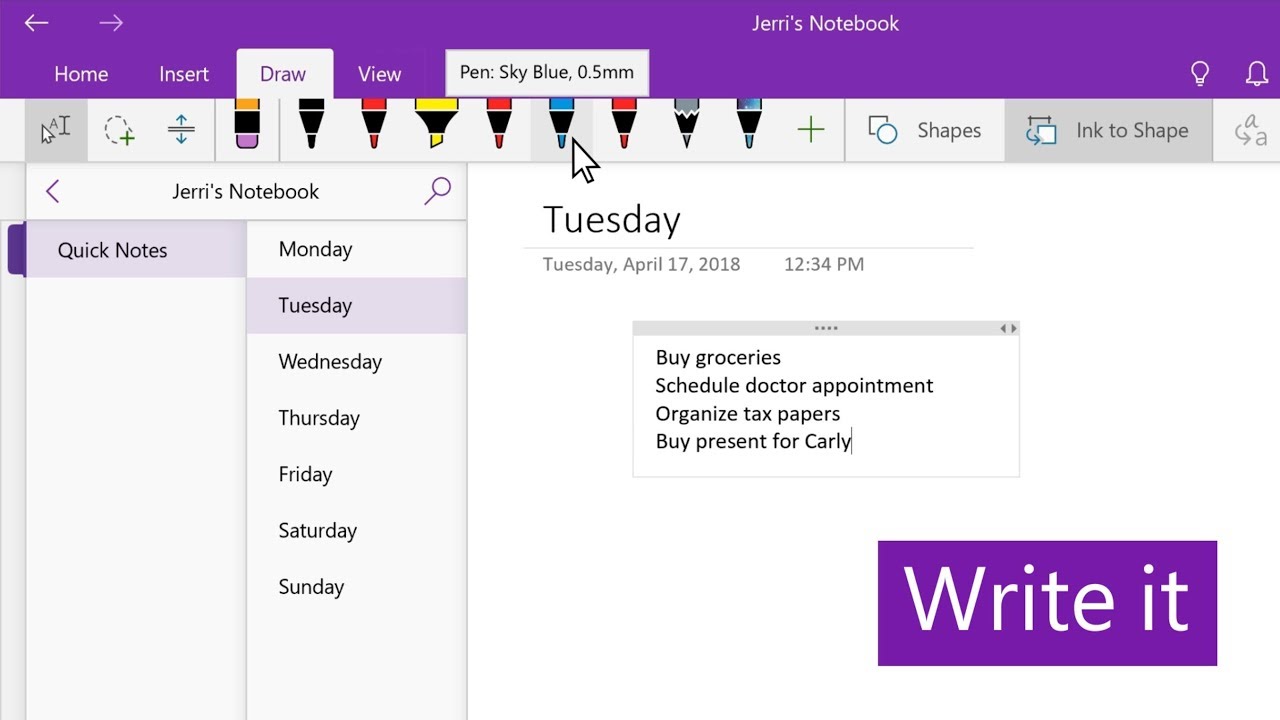
Image source: YouTube
To automate your workflow, highlight any line of text in your OneNote template. On the Home tab, click the Outlook Tasks button (represented by a red flag icon). A dropdown menu will appear allowing you to select a due date (e.g., Today, Tomorrow, Next Week).
Once flagged, several things happen automatically in the background via Microsoft Exchange:
- The task appears in your Outlook Tasks list.
- The task instantly syncs to the Microsoft To Do app on your phone and desktop.
- A hyperlink is generated within the To Do app that links directly back to the specific OneNote page, allowing you to quickly reference your notes when it's time to complete the task.
If you check the box in Microsoft To Do, it will automatically mark the item as complete (with a green checkmark) back in your OneNote page. This two-way sync is a significant advancement for users who want the freeform note-taking of OneNote combined with the strict deadline management of a dedicated app.
The Analog-to-Digital Bridge for Hybrid Task Management
Even with advanced digital templates, many professionals still prefer the tactile sensation of writing on paper. Data scientist Buck Woody advocates for a hybrid approach, utilizing physical notebooks for "Rapid Capture" and OneNote for "Permanent Storage."
This analog-to-digital bridge prevents your OneNote templates from becoming cluttered with half-formed thoughts and minor reminders. The workflow operates in three distinct phases:
| Phase | Tool Used | Action Performed |
|---|---|---|
| 1. Rapid Capture | Physical Notebook (e.g., Moleskine) | Jotting down quick notes, phone numbers, and immediate action items during the day while away from the keyboard. |
| 2. Evening Processing | OneNote Desktop | Reviewing the physical notebook at the end of the day. Actionable items are typed into the OneNote Task Template. Non-actionable notes are discarded. |
| 3. Execution & Search | OneNote / MS To Do | Working exclusively from the digital template the next day. Relying on OneNote's powerful Ctrl + E search function to find past tasks rather than over-complicating the taxonomy. |
Woody notes that "simple is better for tasks." By keeping the OneNote template clean and using it only for processed, finalized action items, you avoid the digital hoarding that often plagues note-taking applications. The physical notebook acts as a filter, ensuring only truly important tasks make it into your permanent digital system.
Frequently Asked Questions
.onepkg (OneNote Package) or .one files. To use them, you must download the file to a desktop computer and open it using the full OneNote Desktop application. They cannot be imported directly via the web or mobile apps.Final Thoughts
Establishing a reliable OneNote task list template transforms the application from a chaotic digital scratchpad into a structured productivity engine. By understanding the limitations of different versions and utilizing advanced formatting techniques, you can build a system that perfectly supports your daily workflow.
- Verify your version before starting; only the full Desktop app features the native template pane.
- Use tables to structure your custom layouts, preventing text from becoming misaligned as your lists grow.
- Set a default template for your daily planning section to automate page creation.
- Utilize the Master Page strategy to bypass mobile limitations and access your layouts on iOS and Android.
- Leverage the Alt+Shift+Arrow shortcut to quickly move tasks between table columns, simulating a Kanban board.
- Integrate with Outlook Tasks if you require strict due dates and mobile push notifications.