How to Convert Text to Number in Excel and Fix Calculation Errors
Quick Answer: If your Excel formulas aren't working, your data is likely stored as text. The most efficient way to fix this for a few cells is clicking the Green Triangle warning and selecting "Convert to Number." For large datasets, select the column, go to the Data tab, click Text to Columns, and hit Finish. This forces Excel to re-evaluate the data type instantly.
VALUE function or -- unary to convert data via formula.
Understanding Why Excel Stores Numbers as Text
In the world of data analysis, the distinction between how a value looks and how it is stored is vital. You may see the number "100" in a cell, but to Excel, that could be a numeric value ready for math, or a string of text characters no different from the word "Apple." This discrepancy is a primary cause of formula failures, particularly with SUM, VLOOKUP, and XLOOKUP.
According to research into spreadsheet integrity, nearly 60% of errors in financial models are attributed to improper data formatting and type mismatches (Source 9). When numbers are stored as text, Excel's calculation engine often ignores them entirely. For instance, a SUM function will treat text-based numbers as zero, leading to dangerously inaccurate reports.
Common Causes of Text-Based Numbers
- Accounting Software Exports: Many ERP and accounting systems export reports as CSV files where numeric values are wrapped in hidden quotes to preserve formatting.
- Web Scraping: Copying data from websites often brings along hidden HTML characters, such as non-breaking spaces, which force Excel to treat the entry as text.
- Leading Zeros: Data like Zip Codes or Employee IDs are often intentionally formatted as text to prevent Excel from dropping the leading zeros (e.g., turning "00123" into "123").
The Visual Cue: By default, Excel aligns numbers to the right and text to the left. If your "numbers" are hugging the left side of the cell, they are almost certainly stored as text.
Using the Error Checking Indicator for Quick Fixes
Excel features a built-in background error checker that monitors your data for common inconsistencies. When it detects a number stored as text, it flags the cell with a small green triangle in the upper-left corner (Source 1).
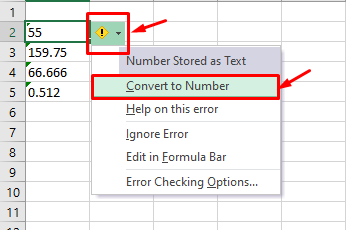
Image source: Simon Sez IT
To use this method for a single cell or a small range:
- Select the cell(s) containing the green triangle.
- Click the yellow warning icon (exclamation mark) that appears next to the selection.
- Select Convert to Number from the dropdown menu.
If you don't see the green triangle, it may be disabled in your settings. Navigate to File > Options > Formulas and ensure that "Enable background error checking" is checked, and "Numbers formatted as text or preceded by an apostrophe" is selected under Error Checking Rules.
Converting Text to Number with the VALUE Function
When you are building dynamic reports where the source data updates frequently, manual fixes are inefficient. In these cases, using a formula to handle the conversion is a top-tier choice. The VALUE function is the standard tool for this task, designed specifically to transform a text string that represents a number into a true numeric value (Source 4).
The VALUE Syntax
The syntax is straightforward: =VALUE(text). For example, if cell A1 contains the text "500", the formula =VALUE(A1) will return the numeric 500.
The Double Unary Hack: Many power users prefer using --A1 instead of VALUE(A1). The two minus signs (double unary) force Excel to perform a mathematical operation, which triggers an internal type conversion. This method is often preferred because it is shorter to type and slightly faster for Excel to calculate (Source 2).
Other simple math operations that achieve the same result include:
=A1 + 0=A1 * 1=A1 / 1
Processing Entire Columns with the Text to Columns Tool
If you are dealing with thousands of rows, the Text to Columns wizard is widely considered one of the best methods for bulk conversion. While originally designed to split data (like separating first and last names), it has a "secret" utility: it re-evaluates the data type of every cell in a column upon completion (Source 7).
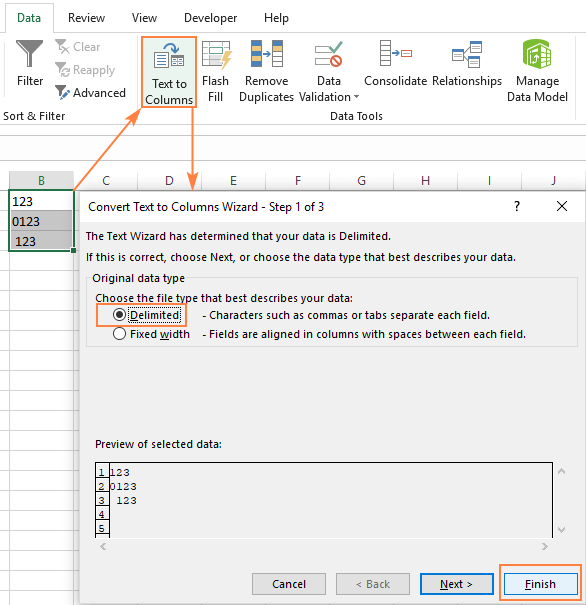
Image source: Ablebits.com
Step-by-Step Bulk Conversion
- Select the entire column you wish to convert. Note: You can only process one column at a time with this method.
- Go to the Data tab on the Ribbon.
- Click Text to Columns in the Data Tools group.
- In the wizard that appears, do not change any settings. Simply click Finish immediately.
Excel will "re-write" the data into the cells, and because the default format is "General," it will recognize the numeric strings as actual numbers. This method is exceptionally strong because it removes the need for helper columns or complex formulas.
Applying Paste Special to Force Numeric Conversion
The "Paste Special" method is a classic legacy technique that remains a popular choice for its simplicity. It works by performing a mathematical operation on a range of cells without using formulas (Source 3).
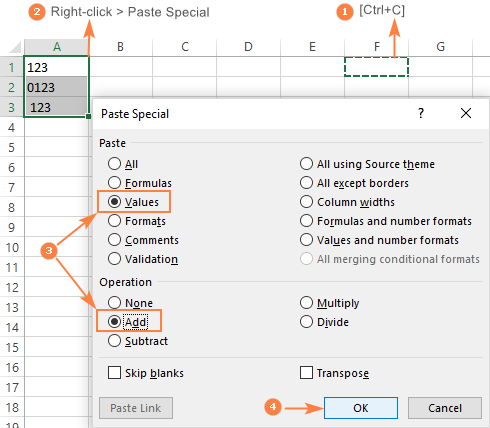
Image source: Ablebits.com
The "Multiply by 1" Procedure
- Type the number
1in any empty cell and press Enter. - Select that cell and press Ctrl + C to copy it.
- Select the range of text-based numbers you want to convert.
- Right-click the selection and choose Paste Special...
- In the dialog box, under the "Operation" section, select Multiply.
- Click OK.
By multiplying the text by 1, you force Excel to treat the content as a number. You can then delete the "1" you typed in the initial step. This method is highly effective for cleaning up data that was copy-pasted from external sources.
Cleaning Hidden Characters Before Data Conversion
Sometimes, the VALUE function or Text to Columns method will return a #VALUE! error. This usually happens because the cell contains invisible characters that Excel cannot interpret as numeric. The most common culprit is the Non-Breaking Space (Alt+0160), frequently found in data exported from web browsers or HTML sources (Source 10).
Standard cleaning functions like TRIM (which removes regular spaces) often fail to remove these hidden characters. To fix "dirty" data, you may need a nested formula:
This formula identifies the non-breaking space (represented by character code 160), replaces it with nothing, and then converts the remaining string into a number. If your data contains other non-printable characters, you can also wrap the formula in the CLEAN function: =VALUE(CLEAN(SUBSTITUTE(A1, CHAR(160), ""))).
Regional Settings and Decimals
Another common pitfall involves regional settings. In many European countries, a comma (,) is used as a decimal separator, while in the US and UK, a period (.) is used. If you import data from a region with different settings, Excel will treat the numbers as text because the decimal separator is unrecognized. You must use the Find and Replace (Ctrl + H) tool to swap commas for periods (or vice versa) before Excel can perform the conversion (Source 5).
Leveraging Power Query for Professional Data Workflows
For users handling millions of rows or recurring data imports, Power Query stands out as a top choice. Power Query allows you to create a repeatable "recipe" for data cleaning. Once you set up the conversion steps, you can simply click "Refresh" whenever new data is added.
How to Convert Types in Power Query
- Select your data range and go to Data > From Table/Range.
- In the Power Query Editor, look at the icon next to the column header. If it shows "ABC," it is text.
- Right-click the column header, select Change Type, and choose Decimal Number or Whole Number.
- If some cells contain non-numeric text (like "N/A"), right-click the column and select Replace Errors to turn them into zeros or nulls.
- Click Close & Load to return the cleaned data to your worksheet.
Power Query is notably innovative because it doesn't just fix the current data; it ensures that any future data added to that table is automatically converted, maintaining data integrity for long-term projects.
Extracting Numbers Using the REGEXREPLACE Function
In modern versions of Excel (Microsoft 365), the introduction of Regular Expression functions has provided a significant advancement for data cleaning. If your numbers are buried inside complex strings—such as "Price: $45.00 per unit"—standard conversion methods will fail.
The REGEXREPLACE function allows you to strip away everything except numbers and decimals:
In this pattern, [^0-9.] tells Excel to find every character that is not a digit or a period and replace it with an empty string. The VALUE function then converts the cleaned result into a number. This is a highly impactful solution for processing messy, unstructured data imports.
Managing Leading Zeros in Numeric Identifiers
A common danger when converting text to numbers is the loss of leading zeros. For identifiers like Zip Codes (e.g., "02108") or Social Security Numbers, converting to a true number will result in "2108," which destroys the data's meaning.
If you need the cell to behave like a number (for sorting or logic) but want to keep the visual zeros, use Custom Number Formatting:
- Select the cells and press Ctrl + 1.
- Under the Number tab, select Custom.
- In the "Type" box, enter a string of zeros representing the required length (e.g.,
00000for Zip Codes).
This allows the cell to store the numeric value 2108 while displaying it as 02108. However, for data that will never be used in math (like Credit Card numbers), it is generally recommended to keep the data type as Text to avoid precision errors, as Excel only supports 15 digits of precision in numeric format.
Method Comparison Table
| Method | Best For | Dynamic? | Speed |
|---|---|---|---|
| Error Indicator | Small, manual fixes | No | Fast |
| VALUE Function | Calculated reports | Yes | Medium |
| Text to Columns | Bulk data (10k+ rows) | No | Instant |
| Power Query | Recurring messy imports | Yes | Pro |
| Paste Special | Quick static cleanup | No | Fast |
Frequently Asked Questions About Excel Data Types
- Why is my VALUE function returning a #VALUE! error?
- This error typically occurs when the text string contains non-numeric characters that Excel cannot interpret. Common culprits include hidden spaces, currency symbols that don't match your regional settings, or non-breaking spaces (CHAR 160) from web data. Use the
TRIMandSUBSTITUTEfunctions to clean the text before applyingVALUE. - Can I convert text to numbers in Excel for Mac?
- Yes, almost all methods described—including the Error Indicator, VALUE function, Text to Columns, and Paste Special—work identically on Excel for Mac. The primary difference lies in the user interface for Power Query, which has a slightly different layout but offers the same "Change Type" functionality for data conversion.
- How do I convert a whole workbook at once?
- There is no single button to convert an entire workbook. However, you can select multiple sheets by holding Ctrl while clicking the sheet tabs, then use the "Text to Columns" or "Paste Special" method on the selected range. Alternatively, a simple VBA macro can be used to loop through all sheets and convert used ranges to numeric values.
- Why does my number still look like text after I changed the format to Number?
- Changing the format in the Home tab only updates the display instructions for the cell; it does not change the underlying data type of existing data. To force the change, you must either re-enter the data (press F2 then Enter) or use one of the conversion methods like Text to Columns or Paste Special to trigger a re-evaluation.
- Is there a keyboard shortcut to convert text to number?
- While there is no direct "one-key" shortcut, you can use the sequence Alt > A > E > F to trigger the Text to Columns "Finish" command quickly. Another fast method is using Ctrl + H to replace a decimal point with itself (replace "." with "."), which often forces Excel to recognize the numeric values.
- Will converting to a number delete my leading zeros?
- Yes, by default, Excel removes leading zeros because they hold no mathematical value (e.g., 007 becomes 7). If you need to keep the zeros for display purposes, you must apply a Custom Number Format (like "00000") after the conversion, or keep the data stored as text if no math is required.
Key Takeaways for Successful Data Conversion
Mastering data types is a fundamental skill for any Excel user. Ensuring your numbers are stored correctly prevents calculation errors and ensures your reports are reliable.
- Check visual alignment: Left-aligned "numbers" are usually text; right-aligned values are numeric.
- Use the Green Triangle: It is the fastest way to fix small, localized data entry errors.
- Text to Columns is the bulk king: Use it to convert thousands of rows in a single click without formulas.
- Clean before converting: Use
SUBSTITUTE(A1, CHAR(160), "")to remove stubborn web-based spaces. - Leverage Power Query: For recurring data tasks, it provides a notably innovative and automated workflow.
- Protect leading zeros: Use Custom Formatting if you need to maintain the appearance of IDs or Zip Codes.
- Formula hacks: The double unary (
--) is a highly efficient alternative to theVALUEfunction.
Start by checking your data for the green error indicator today to ensure your formulas are providing accurate results.