How to Connect Gmail Google Drive and Slack for a Seamless Team Workflow
To connect Gmail, Google Drive, and Slack, start by installing the native Google Drive app from the Slack Marketplace and the Slack for Gmail add-on from the Google Workspace Marketplace. These native tools allow you to share files, adjust permissions, and forward emails directly into Slack channels. For advanced workflows—such as automatically saving a Gmail attachment to Drive and posting a notification in Slack—you will need a third-party automation tool like Zapier to bridge all three applications. Basic native setup typically takes less than 6 minutes.
Modern teams lose countless hours to the "context switching tax." You receive a client brief in Gmail, download the attachment, upload it to a specific folder in Google Drive, and then open Slack to notify your team that the file is ready for review. This fragmented process not only kills productivity but also creates data silos where critical context is lost between applications.
Creating a "Single Source of Truth" where communication and files live together is the ultimate goal of workspace integration. By connecting Gmail, Google Drive, and Slack, you can transform your communication hub into an automated command center. This guide covers everything from setting up the basic native applications to building advanced multi-step automations, and even solves notoriously frustrating technical roadblocks like the Zapier "Hydrate" bug.
Image source: Martin
Why Should You Integrate Your Google Workspace with Slack?
Treating your email, cloud storage, and team chat as isolated islands forces your team to do manual data entry just to keep everyone informed. Integrating Google Workspace directly into Slack provides several immediate, measurable benefits to team productivity.
Centralized Communication and Reduced Email Clutter
One of the primary reasons to integrate Gmail with Slack is to eliminate the dreaded "Reply-All" email chain. When an important email arrives from a client or vendor, forwarding it directly into a dedicated Slack channel allows your team to discuss the contents in a threaded conversation. According to Slack's Google Workspace documentation, this keeps the internal deliberation private and organized, ensuring that when you finally reply to the client via email, your team is completely aligned.
Enhanced Searchability Across Platforms
A little-known but highly powerful feature of the Google Drive integration is how it interacts with Slack's search engine. When you share a Google Doc, Sheet, Slide, or even a PDF into a Slack channel, Slack doesn't just index the title of the file. It actually indexes the text content inside the shared Google Drive files. If you remember a specific phrase from a contract but can't remember what the file was named, searching that phrase in Slack will surface the Google Drive file, provided it was shared in a channel you have access to.
Real-Time Collaboration Without Tab Switching
The native integrations allow you to take action on Google Workspace items without ever leaving the Slack interface. If someone leaves a comment on a Google Doc you own, you receive a Slack notification. You can reply to that comment directly from the Slack message thread, and your reply will instantly appear in the Google Doc. Similarly, you can respond to Google Calendar invites and even join Google Meet calls directly from Slack reminders.
How to Set Up the Native Google Drive Integration for Slack
The native Google Drive app for Slack is built and maintained by Google. It is the foundational step for bringing your cloud storage into your chat environment. Setting it up requires a few specific steps to ensure permissions are handled correctly across your organization.
Step-by-Step Installation Process
To begin, you must install the app at the workspace level. Navigate to the Slack Marketplace and search for "Google Drive." Click the "Add to Slack" button. If you are not a workspace admin, you may need to click "Request to Install" and wait for your IT department to approve the application.
Once the app is installed at the workspace level, the integration is not fully complete. Because Google Drive relies on individual user permissions, every team member must authenticate their own Google account. Slack will prompt users to connect their accounts the first time they try to share a Drive link, or they can manually connect by navigating to the "Apps" section in the Slack sidebar, clicking on Google Drive, and following the authentication prompts.
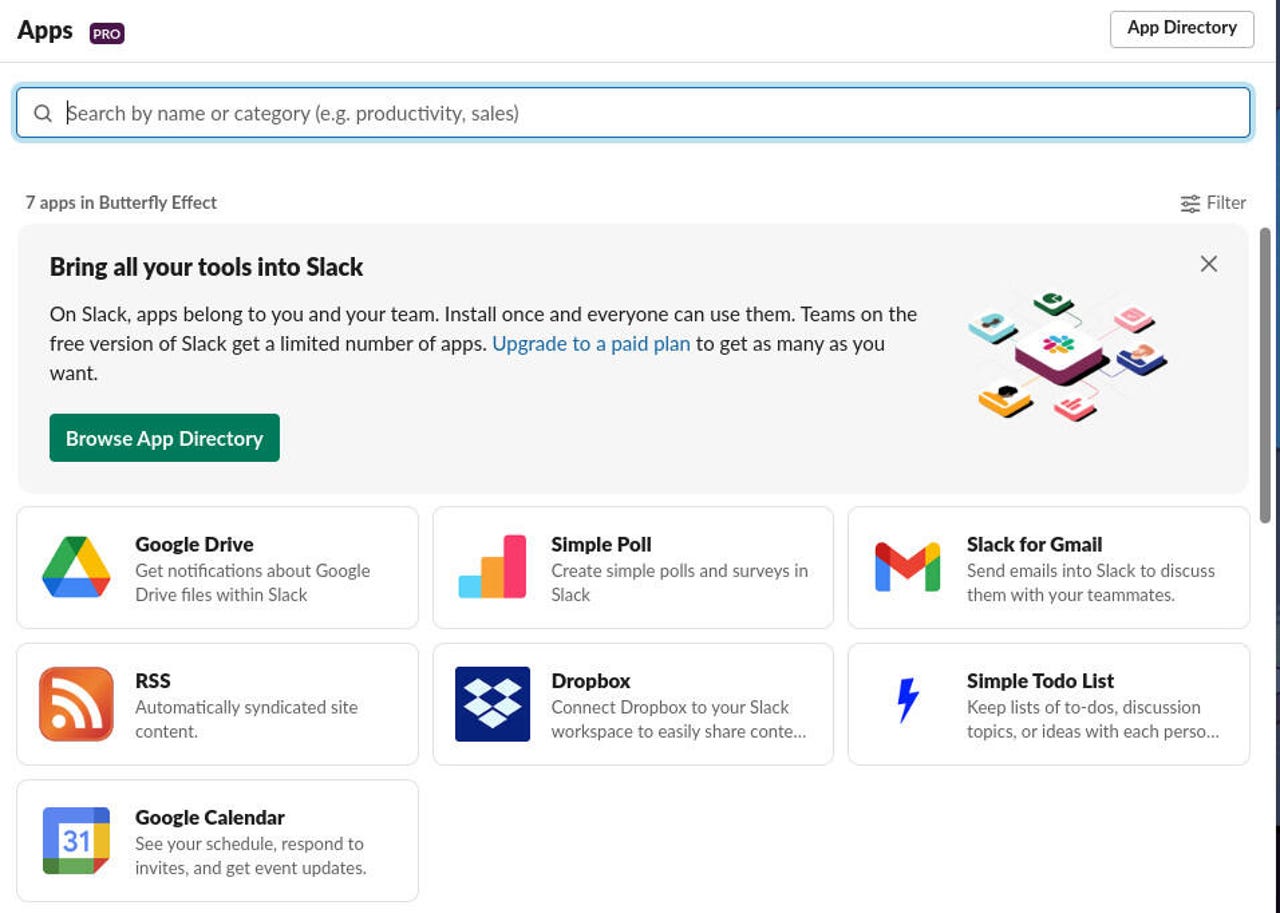
Image source: ZDNET
Managing File Permissions Directly from Slack
One of the most common friction points in team collaboration is sharing a link only to realize half the team doesn't have access to view it. The Slack integration solves this elegantly. When you paste a Google Drive link into a channel, the Slack bot automatically cross-references the channel members with the file's access control list.
If it detects that people in the channel cannot view the file, Slack will immediately generate a private pop-up prompt. This prompt allows you to adjust the access level (View, Comment, or Edit) for the file right there in the chat, without needing to open Google Drive and navigate to the share settings.
Using the Slash Command for Quick Access
Once authenticated, you can use the /google-drive slash command in any channel or direct message. Typing this command brings up a menu that allows you to create new Docs, Sheets, or Slides instantly. You can also use /google-drive search [keyword] to quickly locate a file and drop it into the conversation.
How to Use the Slack for Gmail Add-on to Forward Emails
While the Google Drive app lives inside Slack, the Gmail integration lives inside your inbox. The "Slack for Gmail" add-on is a lightweight tool that bridges the gap between external email communication and internal Slack discussions.
Installing and Configuring the Add-on
Unlike the Drive app, you install this tool from the Google Workspace Marketplace. Open Gmail, click the "+" icon on the right-hand sidebar to "Get Add-ons," and search for "Slack for Gmail." Once installed, a small Slack icon will appear in your Gmail sidebar.
Forwarding Emails with Context and Attachments
When you open an email in Gmail and click the Slack add-on icon, a side panel opens. Here, you can select the specific Slack workspace, choose a channel or a direct message, and add a custom message to provide context. Crucially, you can choose whether or not to include the email's attachments in the forward.
How to Create a Three-Way Unified Workflow Between All Three Apps
The native apps provided by Google and Slack are excellent for one-to-one interactions (Gmail to Slack, or Drive to Slack). However, they have a major limitation: they do not talk to each other. Gmail cannot tell Google Drive to save a file and then instruct Slack to post a message about it.
To achieve a true "Three-Way Unified Workflow," you must use a multi-step automation platform like Zapier or Make. According to Zapier's integration data, connecting these tools allows you to build complex logic chains that handle repetitive administrative tasks automatically.
Building the Multi-Step Automation
Here is how you structure a three-way automation to handle incoming client assets:
The Trigger: Gmail Label
Set the automation trigger to watch for a "New Labeled Email" in Gmail. Create a specific label in your inbox, such as "Client Assets." Whenever an email arrives with an attachment that you need to process, you simply apply this label to trigger the workflow.
Action 1: Upload to Google Drive
Set the first action step to "Upload File" in Google Drive. Configure the step to take the attachment from the triggering email and save it into a specific, pre-determined Google Drive folder (e.g., "Incoming Client Briefs"). You can even configure the automation to rename the file dynamically based on the sender's name or the date.
Action 2: Notify the Team in Slack
Set the final action step to "Send Channel Message" in Slack. Format the message to include the subject line of the original email, a brief summary, and the newly generated Google Drive link from Action 1. Now, your team is instantly notified in the #projects channel that a new asset has been saved and is ready for review.
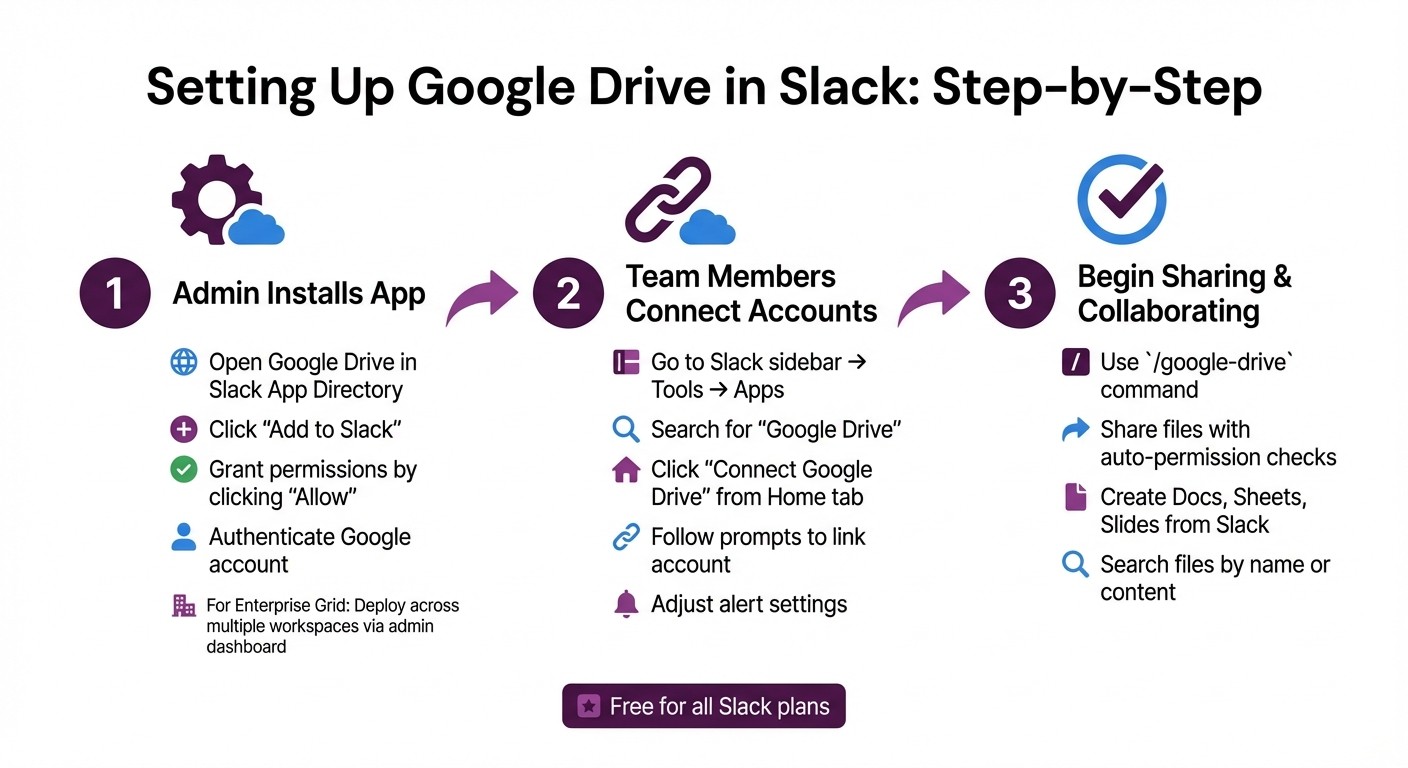
Image source: Question Base
Native Slack Apps vs. Zapier Automation — Which Should You Choose?
Deciding between the native integrations and a third-party automation tool depends entirely on your team's workflow complexity and budget. The native apps are sufficient for 80% of standard office communication, but high-volume operational teams often require the customization that Zapier provides.
| Feature / Criteria | Native Slack Apps (Google/Slack) | Third-Party Automation (Zapier/Make) |
|---|---|---|
| Cost | Free (included with your workspace subscriptions). | Paid (multi-step Zaps require a premium subscription). |
| Complexity | Low. Setup takes minutes with standard OAuth logins. | Moderate to High. Requires mapping data fields and testing logic. |
| App Connectivity | Limited to 1-to-1 connections (e.g., Drive to Slack). | Unlimited. Can connect 3+ apps in a single chain. |
| Custom Logic | None. You get the features Google and Slack predefined. | High. Use filters, conditional paths, and text formatting. |
| Best Use Case | Manual sharing, replying to comments, basic notifications. | Automating repetitive file transfers, standardizing naming conventions. |
How to Fix Common Technical Issues and the Hydrate Bug
When you move beyond native apps and start building automated workflows, you will inevitably encounter technical roadblocks. The most notorious of these is the "Hydrate" bug, which frequently plagues users trying to automate file transfers between Slack and Google Drive.
Solving the "Hydrate" Text Error
If you have ever set up a Zapier automation to take a file uploaded in Slack and save it to Google Drive, you may have checked your Drive folder only to find a text document containing a string like hydrate|||... instead of your actual file. According to Zapier community troubleshooting experts, this happens because the file in Slack is private, and the automation tool cannot access the actual file payload—it only receives a pointer (the hydrate string).
To fix this, you cannot simply pass the file object directly to Google Drive. You must implement a technical workaround using a Formatter step:
- Enable Public Sharing: In your automation, add a step to "Create a Public Link" for the Slack file. This generates a temporary URL.
- Extract the Secret: Use a Text Formatter step to extract the
pub_secretfrom the data payload provided by Slack. - Construct the Download URL: Manually construct a new URL in your automation tool using this format:
private_download_url?pub_secret=[insert extracted secret here]. - Upload to Drive: Pass this newly constructed, authenticated URL into the Google Drive "Upload File" step. Drive will now be able to fetch the actual file payload instead of the hydrate text string.
The "Missing Interface" Workaround
A common complaint found in Google Support forums is that the Slack Google Drive app lacks a traditional file explorer interface. Users expect to click the app and browse their folder tree, but the app functions primarily as a bot.
To work around this "missing interface," you should rely on the "Recent Files" shortcut. When you click the "+" icon next to the Slack message input box and select Google Drive, it will immediately display your most recently modified files. For anything older, bypass the interface entirely and use the /google-drive search [filename] command to force the bot to fetch the file for you.
Is the Slack and Google Drive Integration Secure?
When connecting enterprise cloud storage to a chat application, security and data privacy are paramount. Many users hesitate to install these integrations due to misunderstandings about how data is shared between the platforms.
Data Retention and Storage Facts
It is critical to understand that Slack does not store your Google Drive files. When you share a Drive link in Slack, the file remains securely hosted in Google's cloud infrastructure. Slack merely displays a rich preview (a thumbnail and snippet of text) generated via the API. If a user's Slack account is deleted, Slack's policy dictates that data is removed from production systems within 24 hours, and from backups within 14 days, ensuring no lingering access to your Drive previews.
Admin Best Practices and Compliance
For IT administrators managing large teams, relying on individual users to authenticate their accounts can lead to inconsistent security postures. The best practice is to use "Domain-wide authentication." This allows Workspace admins to grant the Slack app access across the entire organization, ensuring that permission policies are applied uniformly.
Regarding compliance, while both Google Workspace and Slack offer HIPAA-compliant environments, it is important to note that Slack does not provide a Business Associate Agreement (BAA) for third-party integrations. Organizations handling Protected Health Information (PHI) must validate their own compliance workflows before enabling automated data transfers between the platforms.
Power User Tips for Google Workspace in Slack
Once you have the basics configured, you can leverage several advanced features to make the integration work harder for you.
Automatic Status Sync via Google Calendar
The Google Calendar app for Slack is a must-have companion to the Drive and Gmail integrations. Once installed, you can configure it to automatically update your Slack status. When a meeting begins on your Google Calendar, your Slack status instantly changes to "In a meeting" with a calendar emoji, and your notifications can be automatically paused. This prevents colleagues from interrupting you during important calls.
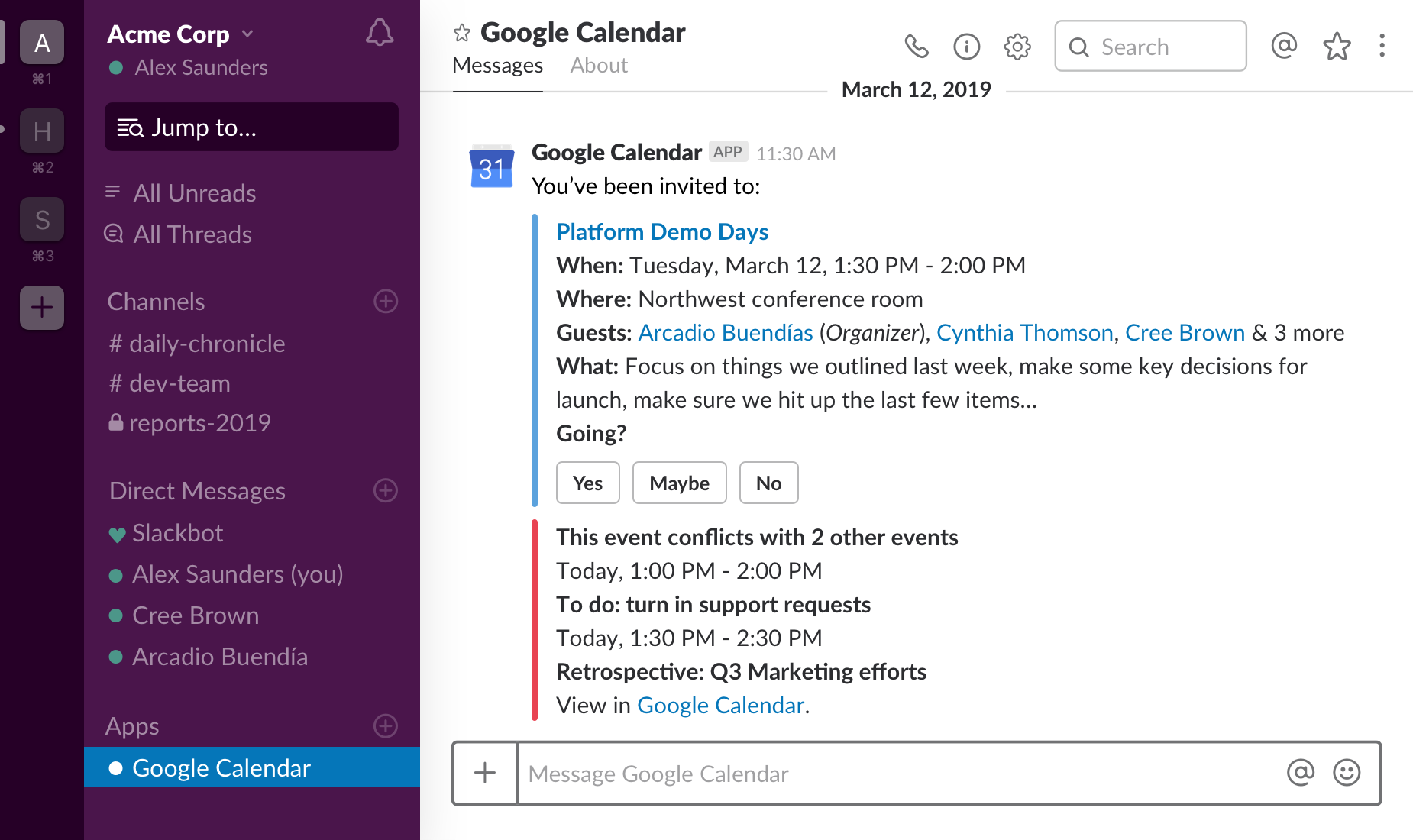
Image source: Slack
Two-Way Visibility in Google Drive
Integration visibility isn't just limited to Slack. If you are working inside a Google Doc and want to know where it has been distributed, you can check the "Activity" tab (the small 'i' icon in the upper right corner of Google Drive). Because of the integration, Google Drive will actually log when the document was shared in Slack and specify exactly which channel it was posted in, giving document owners complete visibility over their file's distribution.
Frequently Asked Questions
Final Thoughts
Integrating Gmail, Google Drive, and Slack transforms your workspace from a collection of isolated tools into a unified, automated communication hub. By bridging these platforms, you eliminate data silos and drastically reduce the time spent switching contexts.
- Install native apps for quick, one-to-one interactions like adjusting file permissions and forwarding emails.
- Use third-party automation like Zapier to build complex, three-way workflows that handle repetitive administrative tasks.
- Fix the hydrate bug in automated file transfers by using a Formatter step to extract the pub_secret and generate a public download URL.
- Rely on search commands like
/google-drive searchto bypass the lack of a traditional folder interface in Slack. - Implement domain-wide authentication if you are an IT admin to ensure consistent security and permission management across your organization.
- Sync your calendar to automatically update your Slack status, protecting your focus time during meetings.