
How to Build a Better Travel Itinerary Using This Free Excel Template
A highly effective travel itinerary template in Excel moves beyond a simple daily schedule. By utilizing a multi-tab structure, travelers can integrate automated budget tracking, one-click Google Maps navigation, and group cost-splitting formulas into a single, offline-accessible file.
- Core Features: Daily blocking, logistics tracking, and automated budgeting.
- Mobile Strategy: Export to PDF for offline, zoomable access on smartphones.
- Expert Tip: Maintain a $100/day food buffer to absorb unexpected travel costs.
Planning a complex trip requires more than just booking flights and hoping for a smooth experience. As itineraries grow to include multiple cities, varying transportation methods, and group dynamics, standard travel apps often fall short due to rigid structures and cloud-dependency. This is where a properly formatted travel itinerary template in Excel becomes a highly valuable asset.
This guide explores how to transform a basic spreadsheet into an automated travel command center. By implementing expert methodologies, custom formulas, and a specific mobile-export strategy, you can build a robust planning system that keeps your trip organized, on budget, and accessible even without an internet connection.
Download Your Master Travel Itinerary Template for Excel
A functional travel planner spreadsheet requires a structured layout that separates high-level overviews from granular details. The provided master template is designed to address the primary transactional needs of trip planning by dividing the workload across specialized tabs.
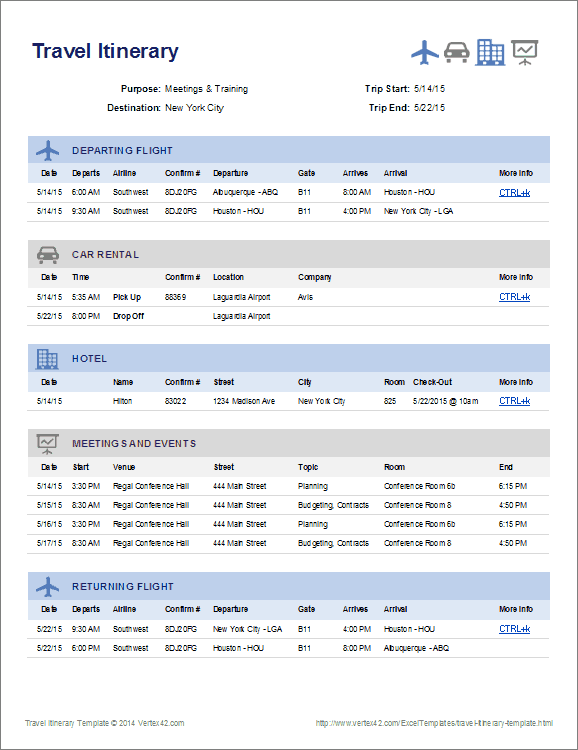
Image source: Vertex42
When you open the master file, you will find a system categorized into four main operational areas:
- The Daily Schedule: Columns dedicated to Date, Time-block, Activity, and Location. This is the core of the itinerary where the actual flow of the trip is visualized.
- Logistics Tracking: A centralized repository for flight numbers, confirmation codes, hotel addresses, and check-in/out times. Keeping this separate from the daily schedule prevents visual clutter.
- Budgeting & Expenses: A financial dashboard that tracks estimated costs against actual spending, categorized by lodging, food, transport, and activities.
- Packing Lists: Categorized checklists (Clothing, Electronics, Toiletries, Documents) to ensure nothing is forgotten during the packing phase.
According to organizational experts at All About Planners, a truly comprehensive "Master" system can include up to 16 specific spreadsheets, incorporating comparison sheets for car rentals and travel insurance. While 16 tabs may be excessive for a weekend getaway, having the framework available allows you to scale the template based on the complexity of your journey.
Why Use Excel Instead of a Travel App?
With numerous automated travel apps available, such as TripIt or Wanderlog, opting for a manual spreadsheet might seem counterintuitive. However, a significant segment of frequent travelers actively prefers the "Anti-Cloud" approach provided by local spreadsheet software.
Discussions within the Rick Steves Travel Forum highlight a primary reason for this preference: data privacy. Travel itineraries contain highly sensitive information, including passport numbers, home addresses, dates of absence from home, and booking confirmation codes. Privacy-conscious travelers are often uncomfortable uploading this aggregated data to third-party cloud databases.
Beyond privacy, Excel offers a level of flexibility that rigid apps cannot match. If you are traveling with a group and need to calculate complex cost-splitting scenarios, or if you want to track expenses in multiple currencies simultaneously, Excel allows you to write custom formulas to handle the exact math required. Apps typically force you into their predefined data structures, whereas a spreadsheet adapts to your specific planning logic.
How to Organize Your Trip Using the 9-Year Rule
One of the most common mistakes in trip planning is attempting to schedule every minute of the day from the outset. This leads to "planning fatigue" and creates a brittle itinerary that shatters when a single train is delayed.
Expert travelers, such as those at That Travel Itch, advocate for a methodology that starts broad and narrows down only when necessary. This approach ensures that the structure remains flexible.
- The Rough Structure (Morning/Afternoon/Evening): Begin by dividing each day into three broad blocks. Assign one major anchor activity to each block (e.g., Morning: Louvre Museum; Afternoon: Explore Montmartre; Evening: Dinner near Eiffel Tower).
- Logistical Anchoring: Insert the non-negotiable hard times. This includes flight departures, train connections, and timed-entry tickets. These serve as the pillars around which the rest of the day flexes.
- The Minute-by-Minute Fill: Only add specific transit times and walking durations once the broad blocks and hard anchors are set. Leave at least 30 minutes of buffer time between major location changes.
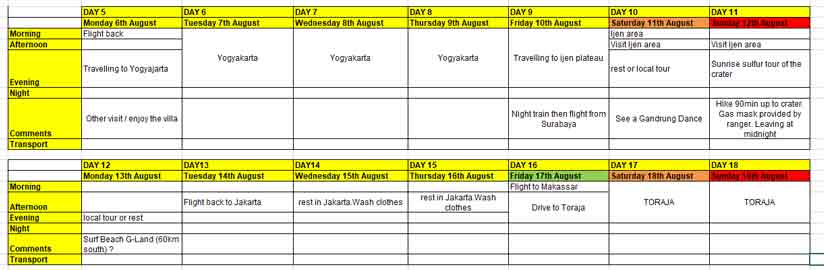
Image source: That travel itch
The most effective itineraries provide the entire trip in one single-page snapshot. Keeping the core schedule visible on one screen prevents "tab-fatigue" and allows travelers to instantly grasp the flow of their journey without clicking through endless menus.
This "Snapshot Philosophy," frequently cited by travel finance experts like Johnny Africa, emphasizes that while you may have 10 tabs for research and budgeting, the actual execution of the trip should be readable at a single glance.
Advanced Features to Automate Your Trip Planning
A basic table is helpful, but the true power of an Excel travel itinerary lies in automation. By integrating specific formulas, you can turn static text into an interactive dashboard.
How to Add One-Click Google Maps Links to Your Spreadsheet
Typing an address into a cell is standard practice, but it requires you to copy and paste that address into a mapping app while standing on a busy street corner. A more efficient method is to create a column for direct Google Maps URLs, which triggers navigation immediately when clicked.
To automate this, you can use Excel's HYPERLINK function combined with a base Google Maps search URL. If cell C2 contains the name of a restaurant or an address, you can generate a clickable map link in cell D2 using this formula:
=HYPERLINK("https://www.google.com/maps/search/?api=1&query="&SUBSTITUTE(C2," ","+"), "Open Map")This formula takes the text in C2, replaces the spaces with plus signs (which is how URLs format spaces), and appends it to the Google Maps search API. When you tap "Open Map," your device will immediately launch the Maps application with the destination pre-loaded.
Using Formulas to Split Costs for Group Travel
Group travel frequently introduces financial friction when one person pays for the Airbnb, another pays for the rental car, and a third covers dinner. Instead of relying on external apps like Splitwise, you can build a "Who Owes Whom" tab directly into your Excel workbook.
To set this up, create a table with columns for Expense Item, Total Cost, Paid By, and columns for each traveler (e.g., Alice's Share, Bob's Share).
If an Airbnb costs $600 (in cell B2) and is split equally among three people, the formula for each person's share column is simply =B2/3. To calculate the final settlement, you use a SUMIF formula at the bottom of the sheet to total how much each person paid overall, compared to how much their specific shares add up to.
=SUMIF(C2:C20, "Alice", B2:B20) - SUM(D2:D20)If the result is positive, the group owes Alice money. If negative, Alice owes the group. This keeps all financial data transparent and contained within the master itinerary file.
How to Make Your Excel Itinerary Work Perfectly on Your Phone
A common criticism of using spreadsheets for travel is that they are notoriously difficult to navigate on small smartphone screens. Scrolling horizontally across 15 columns while trying to find a confirmation number is a frustrating experience. To solve this, experts utilize a "Mobile-First" export strategy.
The PDF Pivot for Offline Access
According to Gather and Go Travel, the most reliable way to use an Excel itinerary on a phone is to stop using Excel on the phone entirely. Instead, you perform the "PDF Pivot."
Excel is excellent for designing the trip, but a PDF reader is superior for executing the trip. A PDF locks the formatting in place, ensures the document is easily zoomable, and guarantees offline access without requiring the Excel app to load.
- Format for Print: In Excel, highlight your core daily schedule. Go to Page Layout > Print Area > Set Print Area.
- Scale to Fit: In the Page Setup menu, select Fit to 1 page wide. Leave the height blank so it can scroll vertically as long as needed.
- Export: Save the file as a PDF document.
- Store Locally: Send the PDF to your phone and open it in a native reading app like Apple Books or Google Play Books. These apps store the file locally, ensuring you can access your itinerary even when deep in a subway station with no cellular service.
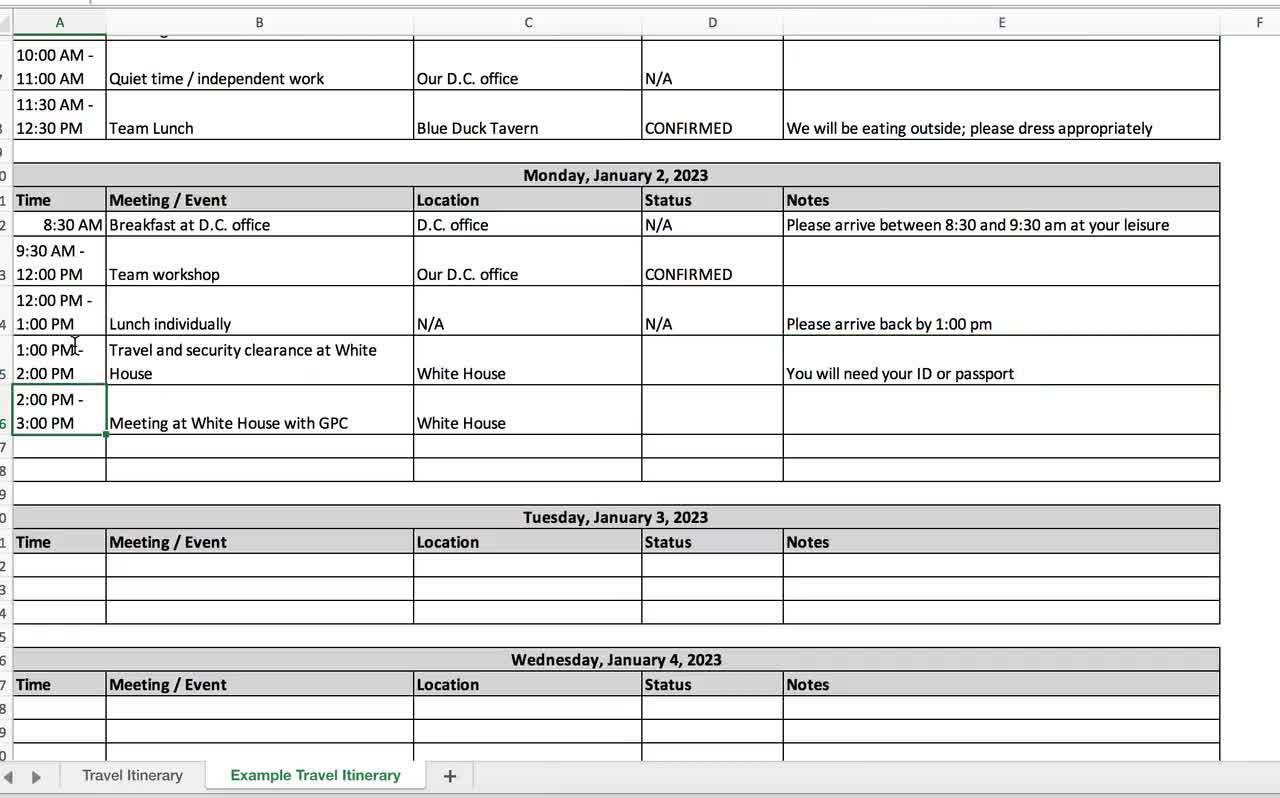
Image source: Etsy
For those looking to add a professional visual touch to their exported documents, custom header images can be inserted at the top of the spreadsheet. A recommended dimension for a clean, edge-to-edge header image in Excel is 2000x458px.
Specialized Tabs for High-Level Trip Organization
Beyond the daily schedule, community forums reveal several niche planning tabs that frequent travelers use to mitigate risk and improve the quality of their trips.
Tracking Cancellation Policies to Protect Your Budget
When booking hotels and rental cars months in advance, travelers often choose "free cancellation" rates to maintain flexibility. However, keeping track of exactly when those free cancellation windows close can be difficult.
Create a dedicated "Bookings" tab and utilize Excel's Conditional Formatting to color-code your reservations. Set a rule that highlights a row in Green if the cancellation is free, and Red if the booking is non-refundable. Add a column specifically for "Cancellation Deadline Date." This visual system instantly shows you which reservations are locked in and which can still be adjusted if your plans change.
Balancing Your Activities to Avoid Burnout
It is easy to accidentally schedule four museums in two days, leading to severe cultural burnout. To prevent this, implement a "Variety Check" column in your daily schedule. Tag each activity with a category: Culture, Nature, Relaxation, Food, or Transit.
You can then create a simple summary table using the COUNTIF function to tally how many activities of each type you have planned. If you see 12 "Culture" tags and only 1 "Relaxation" tag, the spreadsheet is mathematically warning you that the trip may be too exhausting, prompting you to adjust the balance.
Planning Your Outfits to Prevent Overpacking
Overpacking is a universal travel struggle. A dedicated outfit planning tab maps specific clothing items to the activities on your daily schedule. Instead of packing "just in case" items, you pack based on data.
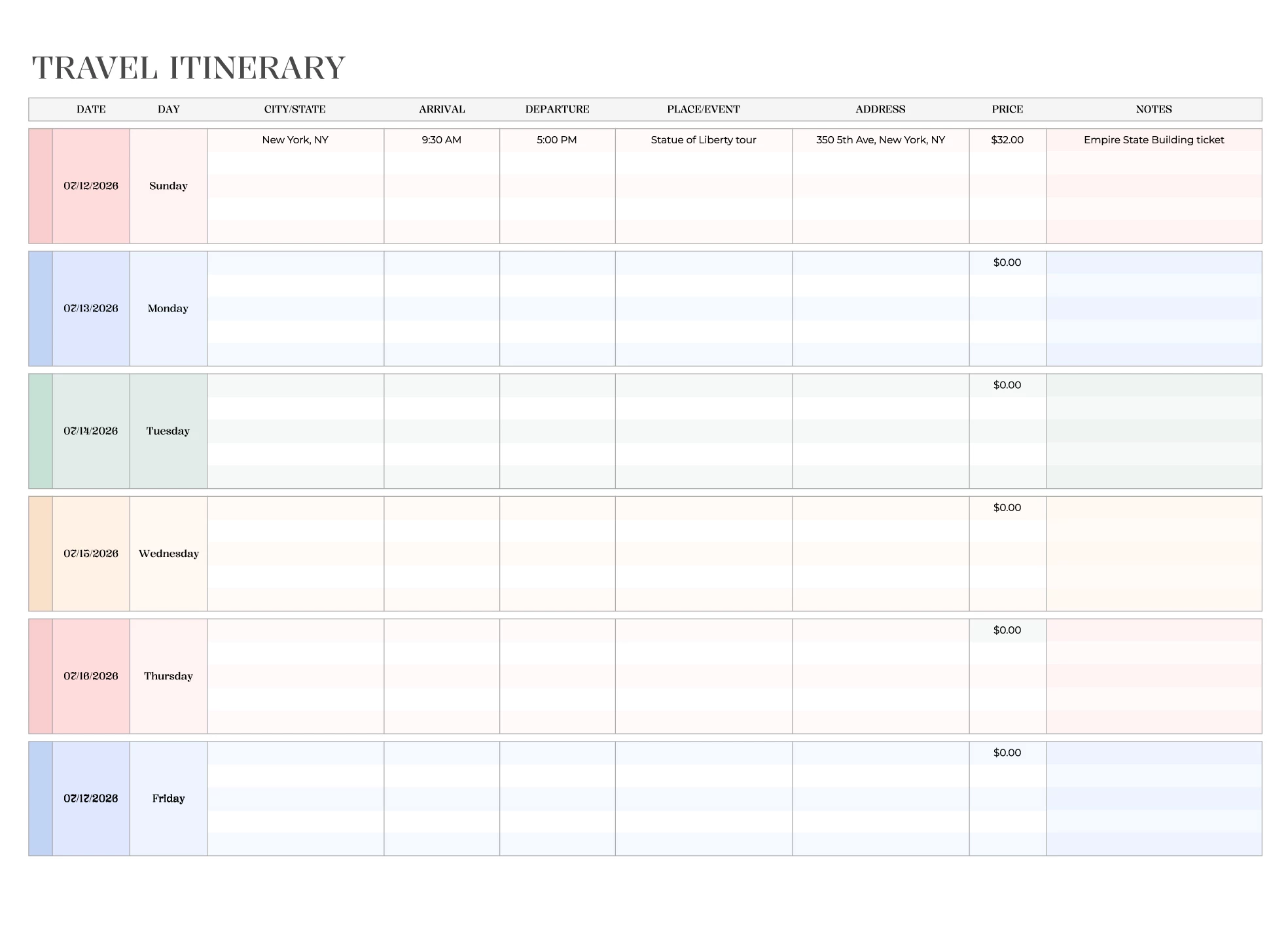
Image source: gdoc.io
According to comprehensive planning guides from Cocotrip, a thorough pre-trip checklist should contain approximately 30 core items. By listing these items in Excel and assigning them to specific days (e.g., "Hiking Boots -> Day 3 Alps Excursion"), you ensure every item in your suitcase has a defined purpose.
How to Set Up a Realistic Travel Budget in Excel
A travel budget spreadsheet is only useful if it accounts for the unpredictable nature of travel. Flight prices and hotel rates are generally fixed once booked, but daily expenses fluctuate wildly.
Financial planners recommend using the "Buffer Strategy." In this approach, the food and dining category acts as your financial shock absorber. A common baseline for mid-range travel budgeting is approximately $100 per day, per person for food. If a train ticket ends up costing more than expected, you absorb that cost by adjusting the food budget downward for the next few days (e.g., opting for street food instead of a sit-down restaurant).
Your Excel budget tab should feature an "Estimated vs. Actual" comparison table:
| Expense Category | Estimated Cost | Actual Cost | Variance (Over/Under) |
|---|---|---|---|
| Flights / Transit | $850.00 | $850.00 | $0.00 |
| Lodging (7 Nights) | $1,050.00 | $1,100.00 | -$50.00 |
| Food ($100/day buffer) | $700.00 | $620.00 | +$80.00 |
| Activities / Tours | $300.00 | $300.00 | $0.00 |
By using a simple subtraction formula in the Variance column (=Estimated - Actual), you can see exactly where your budget stands at any point during the trip.
Excel vs. Google Sheets for Travel Planning
While often used interchangeably, Microsoft Excel and Google Sheets serve different primary functions when it comes to travel planning. Choosing the right platform depends entirely on the nature of your trip and your specific priorities.
| Feature | Microsoft Excel | Google Sheets |
|---|---|---|
| Data Privacy | High. Files can be stored locally on your hard drive, keeping sensitive passport and booking data off cloud servers. | Moderate. Data is inherently stored in the cloud and tied to your Google account. |
| Group Collaboration | Limited. Requires Office 365 for live co-authoring, which can be clunky for users without Microsoft accounts. | Excellent. Multiple users can edit the itinerary simultaneously in real-time from any browser. |
| Offline Access | Native. The desktop application works flawlessly without an internet connection. | Requires setup. You must manually enable "Available Offline" settings in the browser beforehand. |
| Formula Complexity | Highly robust, capable of handling massive datasets and complex cross-sheet financial referencing. | Sufficient for most travel needs, though it may lag with highly complex, multi-tab workbooks. |
If you are planning a solo trip or a family vacation where one person is the designated "travel agent," Excel is widely considered a top choice due to its privacy and offline reliability. Conversely, if you are planning a bachelor party or a group trip where six people need to input their own flight arrival times simultaneously, Google Sheets offers a highly competitive advantage for real-time collaboration.
Frequently Asked Questions
Does Excel have a built-in travel itinerary template?
Yes, Microsoft Excel includes several pre-installed travel templates accessible via the "File > New" menu. However, these built-in options are typically very basic, offering simple daily schedules without advanced features like automated budget tracking, cost-splitting formulas, or specialized packing lists. For complex trips, downloading a dedicated, multi-tab master template is highly recommended.
How do I print my Excel itinerary so it fits on one page?
To prevent your itinerary from printing across multiple disjointed pages, navigate to the "Page Layout" tab in Excel. Click on "Print Area" to select exactly which cells you want to print. Then, open the "Page Setup" dialog box and select the "Fit to 1 page wide by [blank] tall" option. This forces all columns onto a single page width while allowing the rows to extend naturally onto subsequent pages if necessary.
Can I use AI to help fill out my Excel template?
Yes, AI tools like ChatGPT or Claude can significantly speed up the initial planning phase. You can prompt an AI with a request like, "Create a 5-day Tokyo itinerary formatted as a table with columns for Time, Activity, and Location." Once the AI generates the table, you can copy and paste the data directly into your Excel spreadsheet to serve as a foundational draft that you can refine.
What are the recommended dimensions for a custom header in my template?
If you want to add a professional, aesthetic banner image to the top of your Excel itinerary, formatting experts suggest using image dimensions of 2000x458 pixels. This wide, panoramic ratio ensures the image spans the top of the spreadsheet cleanly without pushing the vital scheduling data too far down the screen.
How do I track multiple currencies in one spreadsheet?
To manage multiple currencies, designate a specific cell at the top of your budget tab for the "Current Exchange Rate" (e.g., Cell B2 = 1.08 for EUR to USD). Enter all your estimated costs in the local foreign currency. Then, create a "Converted Cost" column that multiplies the local cost by your fixed exchange rate cell using an absolute reference (e.g., =C5*$B$2). This allows you to update the entire budget instantly by changing just one number if the exchange rate fluctuates.
Final Thoughts
A well-structured Excel travel itinerary transforms chaotic trip planning into a streamlined, manageable process. By moving beyond simple lists and utilizing the software's organizational and mathematical capabilities, you create a reliable system that protects your budget and your time.
- Start Broad: Use the 9-Year Rule to block out your days by Morning, Afternoon, and Evening before adding minute-by-minute details.
- Automate Navigation: Use the
HYPERLINKformula to embed direct Google Maps URLs for instant, one-click directions. - Color-Code Deadlines: Visually highlight free-cancellation deadlines in green and non-refundable bookings in red to protect your finances.
- Export for Mobile: Execute the "PDF Pivot" by saving your final schedule as a PDF and storing it in a mobile reading app for guaranteed offline access.
- Build a Buffer: Maintain a baseline food budget of $100/day to act as a financial shock absorber for unexpected travel costs.
