
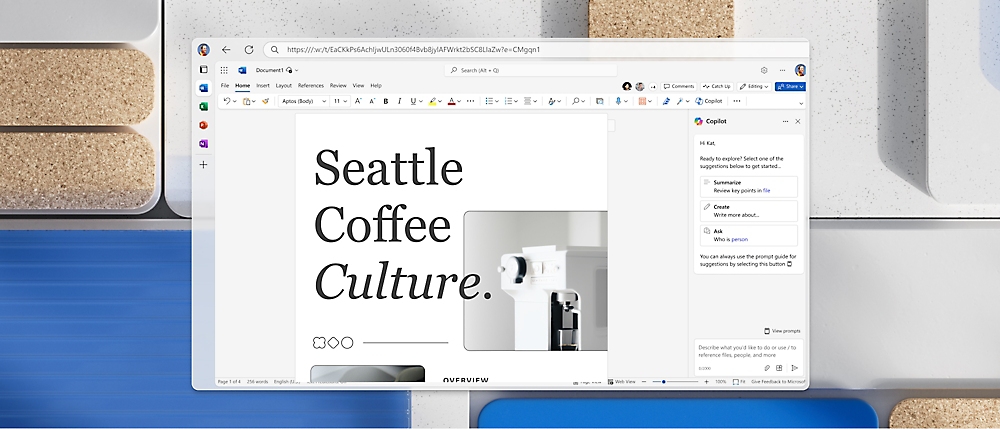
You can access a fully functional version of Microsoft Word for free by visiting word.cloud.microsoft. This web-based application allows you to create, edit, and share documents directly in your browser without paying for a subscription. All you need is a free Microsoft account (Outlook, Hotmail, or Live).
For decades, Microsoft Word was primarily known as a "pay-to-play" software suite. However, the landscape of digital productivity has shifted significantly. Today, Microsoft offers a robust, cloud-based version of its flagship word processor that ranks among the top free tools for writers and students alike. This version, known as Word for the Web, is accessible to anyone with a stable internet connection and a Microsoft account.
To get started, navigate to the official Microsoft 365 free online portal. Once you sign in, you are presented with a dashboard that mirrors the desktop experience. You can start from a blank document or choose from a variety of professionally designed templates, including resumes, cover letters, and APA-style research papers. Because the application runs in your browser, there is no need to download or install large software packages, making it an excellent choice for users with limited disk space or those using shared computers.
While the service is free, there are a few technical prerequisites to ensure a smooth experience. First, you must have a Microsoft account. If you do not have one, you can create it in minutes using any existing email address. Second, Word for the Web relies on OneDrive for storage. Every document you create is automatically saved to your cloud storage, which typically includes 5GB of free space for new users. This integration ensures that your work is backed up in real-time, protecting you against data loss from browser crashes or power outages.
Browser compatibility is also a factor. While Word Online works on most modern browsers, it performs most reliably on Microsoft Edge, Google Chrome, and Safari. Users on older versions of Internet Explorer may encounter significant performance issues or layout discrepancies. According to Microsoft Support, keeping your browser updated is the most effective way to ensure all web-based features function correctly.
Choosing between the free web version and the paid desktop application depends largely on your specific workflow. The web version is widely regarded as a top-tier option for basic writing, collaborative drafting, and simple formatting. However, it is not a 1:1 replacement for the desktop suite included with a Microsoft 365 subscription or a standalone purchase.
| Feature | Word for the Web (Free) | Word Desktop (Paid) |
|---|---|---|
| Real-time Collaboration | Yes (Excellent) | Yes |
| Offline Access | No | Yes |
| Macros & VBA | No | Yes |
| Mail Merge | No | Yes |
| Advanced Citations | Basic | Full Support |
| Cloud Storage | 5GB (Free) | 1TB (Subscription) |
For power users, the "Hard No" list of missing features in the web version is a critical consideration. If your work involves complex automation, you will find that Macros (VBA) do not run in the browser. This is a security measure designed to prevent malicious code from executing within the browser sandbox. Similarly, Mail Merge—a staple for administrative professionals who need to generate hundreds of personalized letters—is currently unavailable in the web interface.
Layout controls also differ. While you can apply basic styles and themes online, advanced WordArt, specific page borders, and custom watermarks are often restricted. Furthermore, the web version lacks the deep citation management tools required for complex academic dissertations. If you are a legal professional or a high-level academic, the desktop version stands out as a more capable tool for managing large, cross-referenced documents.
The mobile experience for Microsoft Word has seen significant advancements in recent years. Available on both the Google Play Store and Apple App Store, the mobile app is designed for productivity on the go. It is particularly useful for reviewing documents during a commute or making last-minute edits before a presentation.
To run the Word app effectively on Android, your device must have at least 1GB of RAM. Devices with less memory may experience frequent crashes or may be unable to install the app entirely. On iOS, the app is highly optimized, but iPad users often face a specific hurdle: the "Redirection Conflict." When attempting to use the web version in Safari, the iPad may forcefully redirect the user to the App Store or the installed app. To bypass this, users must long-press the refresh button and select "Request Desktop Website," though the app generally offers a smoother touch interface.
One of the mobile app's most notable strengths is its ability to convert PDF files into editable Word documents. This feature is remarkably effective for capturing text from scanned documents or digital flyers. By opening a PDF within the Word app, the software uses cloud-based optical character recognition (OCR) to reconstruct the text and layout. While not always perfect for complex tables, it is a significant step forward for mobile document management.
Expert users often employ hidden commands to speed up their workflow, particularly when designing templates or testing page layouts. These "Easter eggs" have been part of Word's DNA for decades and remain functional in modern versions.
If you need to see how a specific font or margin setting looks without typing out paragraphs of text, you can use the =Rand() command. By typing =Rand(5,3) and pressing Enter, Word will instantly generate five paragraphs of text, each containing three sentences. For those who prefer the classic look of Latin placeholder text, the command =Lorem(5,3) performs the same function using "Lorem Ipsum" text. This technique is a top choice for designers who need to visualize document density quickly.
Many professionals now use a "Hybrid Workflow" to maximize efficiency. They begin a document in Word for the Web to take advantage of real-time collaboration with colleagues. Once the content is finalized, they use the "Open in Desktop App" button located in the top ribbon. This transitions the document to the full desktop version, where they can apply advanced formatting, run macros, or perform a final Mail Merge. This approach combines the accessibility of the cloud with the power of local processing.
Even the most established software can encounter issues. Community experts, such as the long-time contributor known as "Charles," have identified several recurring glitches that official documentation often overlooks. Addressing these can save hours of frustration.
A common complaint among users is the appearance of a mysterious "Green Bar" that covers portions of the document text. Research suggests this is rarely a bug within Word itself. Instead, it is frequently caused by third-party grammar add-ons like ProWritingAid or Grammarly. Even when these tools are toggled "off," their background processes can interfere with Word's rendering engine. The most effective fix is to fully disable the add-in via File > Options > Add-ins and restart the application.
Some users report an issue where opening a single file causes 5 to 10 "Ghost Instances" of the same document to open simultaneously. This typically occurs when the temporary owner file (a hidden file starting with ~$) becomes corrupted or stuck in a sync loop with OneDrive or Dropbox. To resolve this, close Word entirely, navigate to the folder containing your document, and delete any hidden files that begin with the tilde and dollar sign symbols.
Mac users, particularly those on version 16.8 or later, often struggle with section breaks that refuse to be deleted. These breaks can disrupt page numbering, switching between Roman and Arabic numerals unexpectedly. The solution lies in revealing the Hidden Formatting Marks. By clicking the ¶ symbol in the Home tab, you can see exactly where the section break sits. Place your cursor immediately before the break and press Fn + Delete (or Shift + Right Arrow then Delete) to remove it.
Microsoft Copilot is the latest significant advancement in the Word ecosystem. This AI assistant can draft entire documents based on a prompt, summarize long reports, and even rewrite existing text to change the tone from professional to casual. However, access to Copilot requires a specific Microsoft 365 subscription and is not included in the basic free web version.
A frequent issue reported in the Microsoft Community Hub is the "Subscription Sync" error. Users with valid paid plans sometimes receive an "Oops, something happened" message when trying to use Copilot. This is often due to a mismatch between the account signed into the Windows OS and the account signed into the Office app. Ensuring both accounts match and clicking "Update License" in the Account settings usually resolves the conflict.
Word's longevity is attributed to its "piece table" data structure, which allowed for fast cut-and-paste operations and unlimited undos long before these were standard features. Influenced by the pioneering work at Xerox PARC, Word has evolved from a simple text editor into a comprehensive document lifecycle management tool.
Whether you are a casual writer or a power user, Microsoft Word offers a path to productivity that fits your needs. Here are the key takeaways to remember:
=Rand() are highly effective for testing document layouts instantly.To begin your next project, simply sign in at the official Microsoft Word portal and choose the version that aligns with your technical requirements.
Yes, you can use Microsoft Word for free on any laptop by accessing the web version through a browser at microsoft.com/word. While the desktop application requires a purchase or subscription, the web-based version provides all the essential tools for writing and formatting documents at no cost.
Absolutely. You have two main options: use the free Word for the Web version with a standard Microsoft account, or purchase the "Standalone" version of Word (such as Word 2024) for a one-time fee. The standalone version does not include the 1TB of cloud storage or ongoing AI updates found in the subscription model.
This is a common behavior in iOS where Safari attempts to provide a "better" experience by launching the native app. To stay in the browser, you can long-press the "Refresh" icon in the Safari address bar and select "Request Desktop Website." This will usually force the browser to load the full web interface instead of triggering the app.
If a file becomes corrupted, first try the "Open and Repair" feature within the desktop app. If that fails, and the file was stored on OneDrive, you can use the "Version History" feature to restore a previous, uncorrupted version. Community experts also suggest sharing a link to the file via Dropbox or OneDrive, as the web-based previewers can sometimes bypass local corruption to display the text.
Microsoft rebranded Office 365 to Microsoft 365 in recent years to reflect a broader suite of services. While the core apps like Word, Excel, and PowerPoint remain the same, Microsoft 365 includes additional security features, cloud storage benefits, and integrated AI tools like Copilot that were not part of the original Office branding.
